Tag Archives: Lightroom

My Revised Workflow

My approach to processing images after a shoot is something that constantly evolves.  I have written about how I do this in the past but a few things have changed since I wrote that so I thought I would write up the latest approach in case it is of any use/interest to any other shooters out there.  I should say at the start that my workflow is based around the use of Lightroom.  If you don’t use Lightroom, this might not be of any use to you although I imagine that a similar process could be achieved with other software.

One thing to highlight at the start is that, when shooting aviation (and that is the majority of my photography), I aim to slightly overexpose my shots.  I have found that going a slight bit over and then bringing the exposure back down in post-production gives a better balance of exposure across the shots and also makes for more pleasing sky colors.  This is something I do when shooting RAW.  If you shoot in JPEG, this might still work but your latitude for adjustment afterwards is a bit reduced so you might not get the same effect.  I don’t shoot in JPEG so I can’t state what happens.

All the shots are imported in to Lightroom and I will form a Collection Set for the shoot.  I don’t have specific folders for shoots, nor do I have a renaming convention.  I keyword all shoots and this is how I manage files and find things later.  Keywording is a story for another day.  Within the Collection Set, I shall create a series of Smart Collections.  They vary depending on what I have shot.  There will always be Not Rejects, Rejects and Picks.  Then, depending on what else there is, there might be Videos, Time Lapse, Blend Stack, Pano Originals, Pano Edits, HDR Originals and HDR Edits.  I keyword any of these types of shot with that term so the smart collections will pick them up.  The Smart Collections may be looking for a date range or shoot specific keywords depending on what I have been shooting.

The aim for all of this is that I get a Smart Collection which is unrejected shots which doesn’t include and shots from HDRs, panos, time lapses or blend stacks.  I don’t want to get rid of those shots by mistake and I want to be able to edit those shots at a convenient time.  Then the Not Rejects folder becomes my focus.  I am aiming to get all of them roughly corrected for exposure so I can make decisions about which shots to keep.  I will be looking for sharpness/focus issues and exposure variation can really mess with how you perceive sharpness.  I will open a shot up in the Develop module and I will have the Grid view on the second monitor.  I can now select shots with the same exposure and choose Auto Sync.  Then a change to one shot will be reflected in all of them.

It used to be that I would select the shots by eye.  Then it occurred to me that the Metadata filter is powerful here.  I select the filter of shutter speed and then I can select each shutter speed in turn.  Now it is easy to select the similar shots and edit together.  This really speeds up the quick edit process.  I know tweak whatever needs tweaking and get everything basically okay.  I won’t bother with detailed editing unless a shot is going to be used for something further.  Now I select all files and, in the Library module, select Render 1-1 Views.  Then I head off to do something else for a while.

When the rendering is done (I don’t try and do anything else while it is underway because, while you can do other Lightroom tasks, everything gets pretty sluggish.  It is easier to wait.  I may even shut Lightroom down and restart it after the rendering is done because it seems to like the chance to clean itself up.  Then I go to the first of the Not Rejects shots.  I have it full screen on the main screen and then zoom to 100% on the second screen.  The Smart Collection is set up to show any file that is not marked as a reject (or all of the other stuff I mentioned earlier) so now I can click through the shots.  If a shot is good, I Right Arrow to the next one.  If it is bad, hit X and it disappears.  Now I can run through the whole shoot and quickly get rid of all shots that are not good, be they unsharp, chopping off a bit of something or just clearly useless.

When this first pass is done, I am now left with a bunch of shots, many of which are very similar.  Since I know they all are basically acceptable, I can now select all the ones that I won’t have a need for and hit X.  Very quickly I am down to a far more manageable number of shots.  Then I can pick which ones I want to do something with.  Hit P for those and they will automatically appear in the Picks Smart Collection and I can come back to them at any time.  If I have shots that will be used for a specific piece, I may create a Collection specifically for that publication and just drag the shots in so I can deal with them at any time.

That pretty much sums up how I handle a shoot.  Some will have pano shots, some will have HDR, occasionally there will be time lapses and often videos.  Sadly, the integration of video between Lightroom and Photoshop is non-existent so I have yet to have a good process for video editing.  Maybe one day Adobe will fix that.  They tempted us by having video in Lightroom but they never took it any further despite the fact that the opening in layers option for stills would be ideal for video editing.  One day…
Enfuse for HDR

I am a little late to discovering the Enfuse plugin for working with HDR images.  I started out many years ago using Photomatix.  At the time, it was the go to software for creating HDR images.  Then Adobe got a lot better with their HDR software within Photoshop and I started to use that.  Even more recently, Adobe built HDR processing in to Lightroom and I didn’t need to go to Photoshop at all.  The HDR software worked reasonably well so I stuck with it.  I sometimes felt that it didn’t do as good a job of using the full range of the exposures but it was okay.

I wasn’t entirely satisfied though so have kept an eye on other options.  Someone mentioned Enfuse to me so I decided to give it a go.  It is a plugin for Lightroom and, in the free download, you can try it out but with a limitation on the output image size of 500 pixels.  Obviously this isn’t useful for anything other than testing but that is the point.

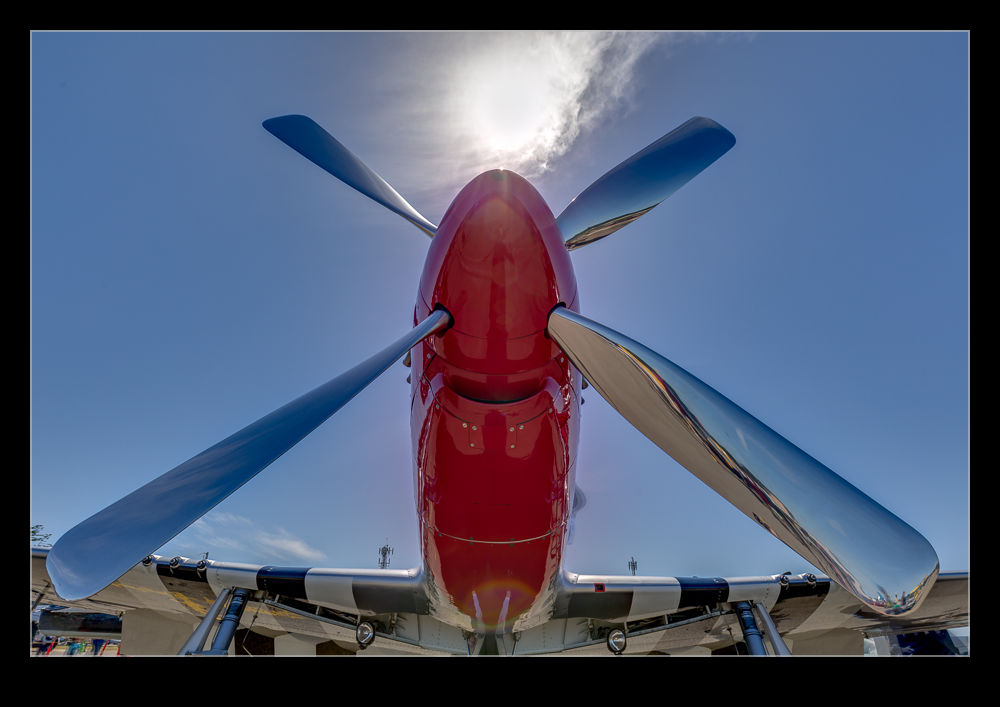
The first thing I tried it on was a shot I made at Half Moon Bay looking up at a P-51 Mustang prop and directly into the sun.  This is certainly as much of a range of exposures as you are likely to get.  The perfect thing for an HDR trial.  The results in the small scale file seemed pretty impressive so I decided to buy the package.  There is no fixed price.  You make a donation via PayPal and get a registration code.  I am impressed by the quality of some of the work people put out so I am happy to donate for what they do.  With the software activated, I reran the P-51 shots.  Below is the version I got from Lightroom’s own HDR and following it the version from Enfuse.

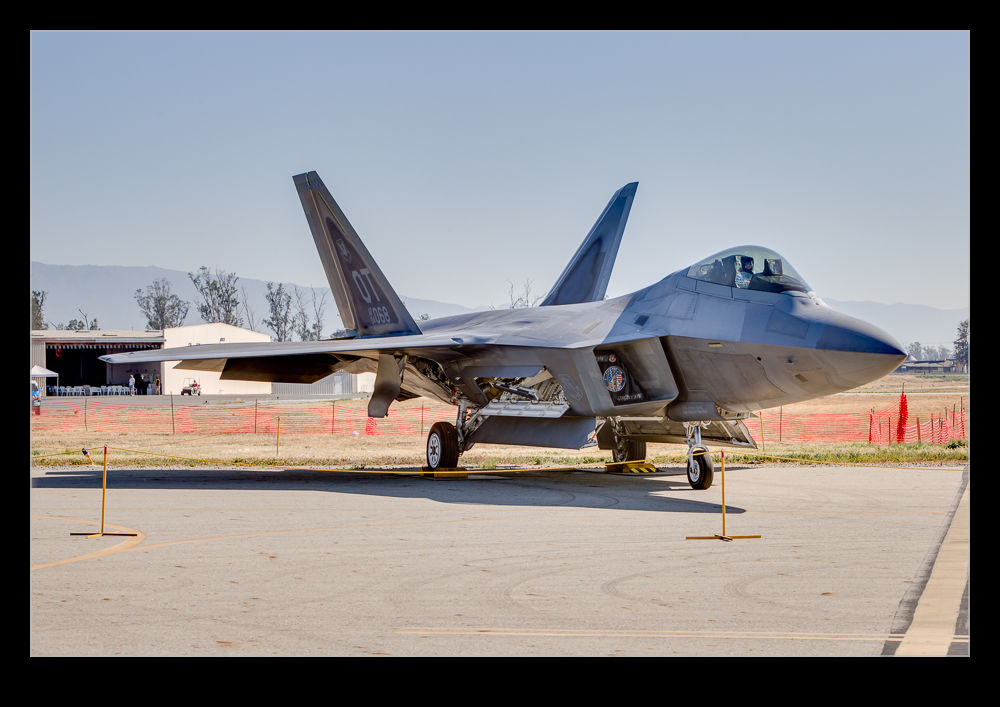
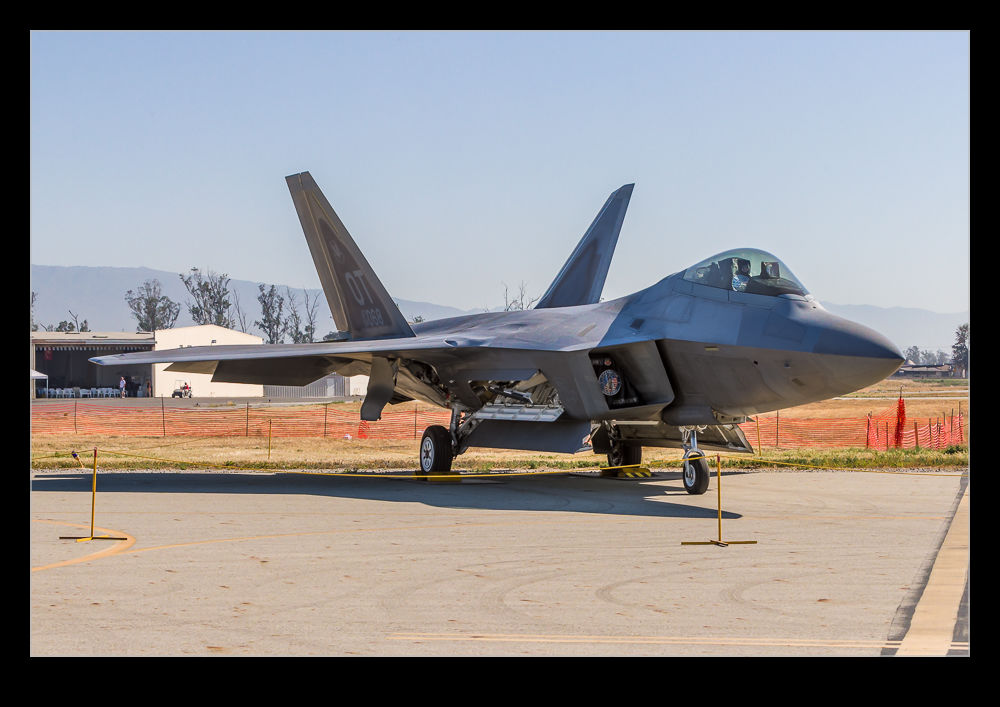
C59F8003enfuseHDR.jpg C59F8003-HDR.jpgI did have some issues initially.  Lightroom was not reimporting the image after it was created.  This turned out to be an issue with the way I named the file in the dialog and a tweak to that seemed to fix things.  Strangely, it had been fine on the trial so I have no idea why it became an issue but it is done.  I also played with a slightly less extreme case with an F-22 and, as above, the Lightroom version is first and the Enfuse version is second.  I was really pleased with the result on this one with a very natural look to things.  So far, I see Enfuse being a useful tool for my HDR going forward.

AU0E0447enfuseHDR.jpg AU0E0447-HDR.jpg

How Low Can You Go?

The high ISO capabilities of modern cameras are a constant source of discussion whenever a new camera comes out.  It was quite funny to see everyone get so excited about the multi-million ISO range on the Nikon D5 when it was announced, only to see that the high ranges were nothing more than moose with a bit of an image overlaid on them.  Not a big surprise but still funny to see how much everyone was going nuts about it before the reality set in.

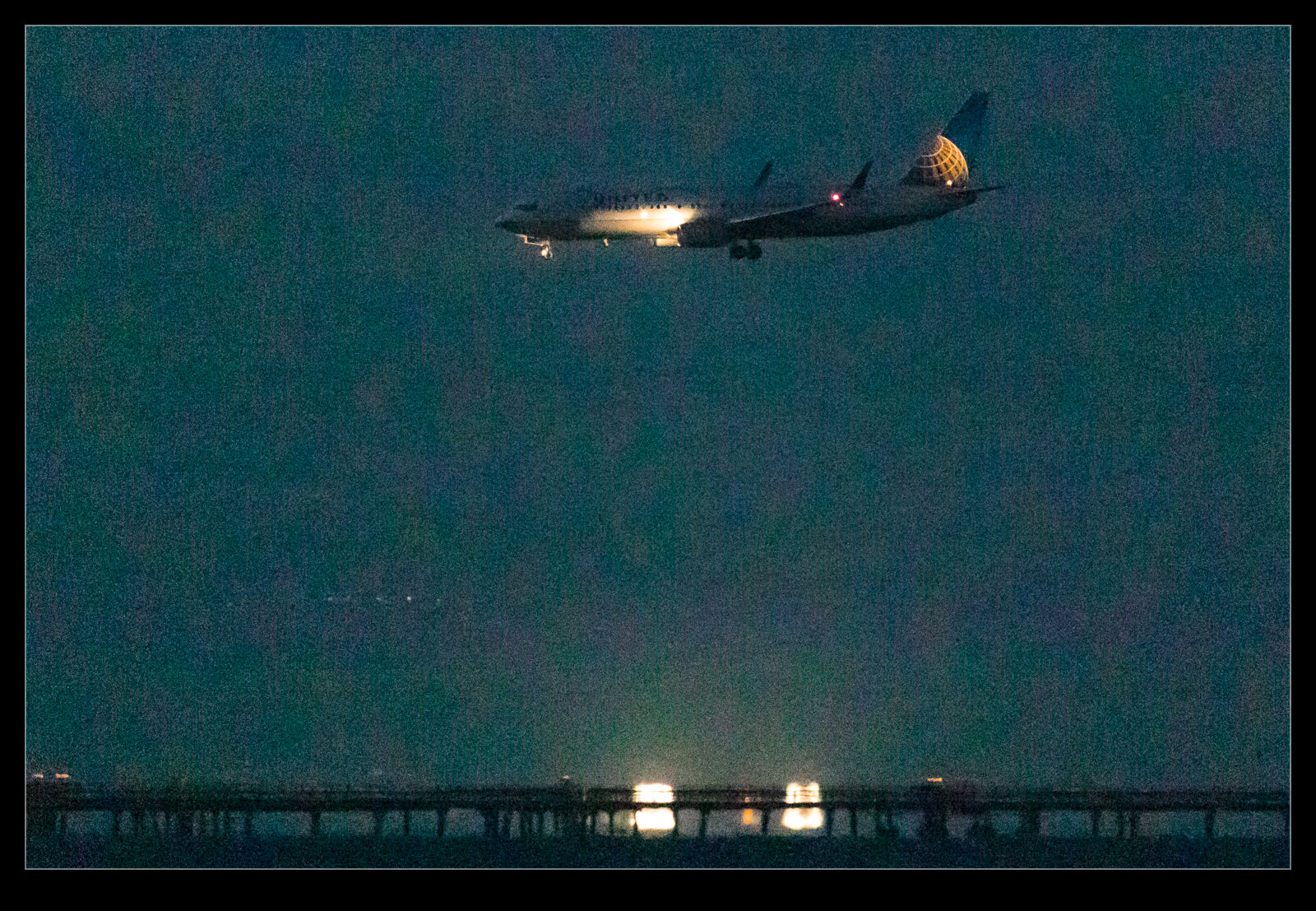
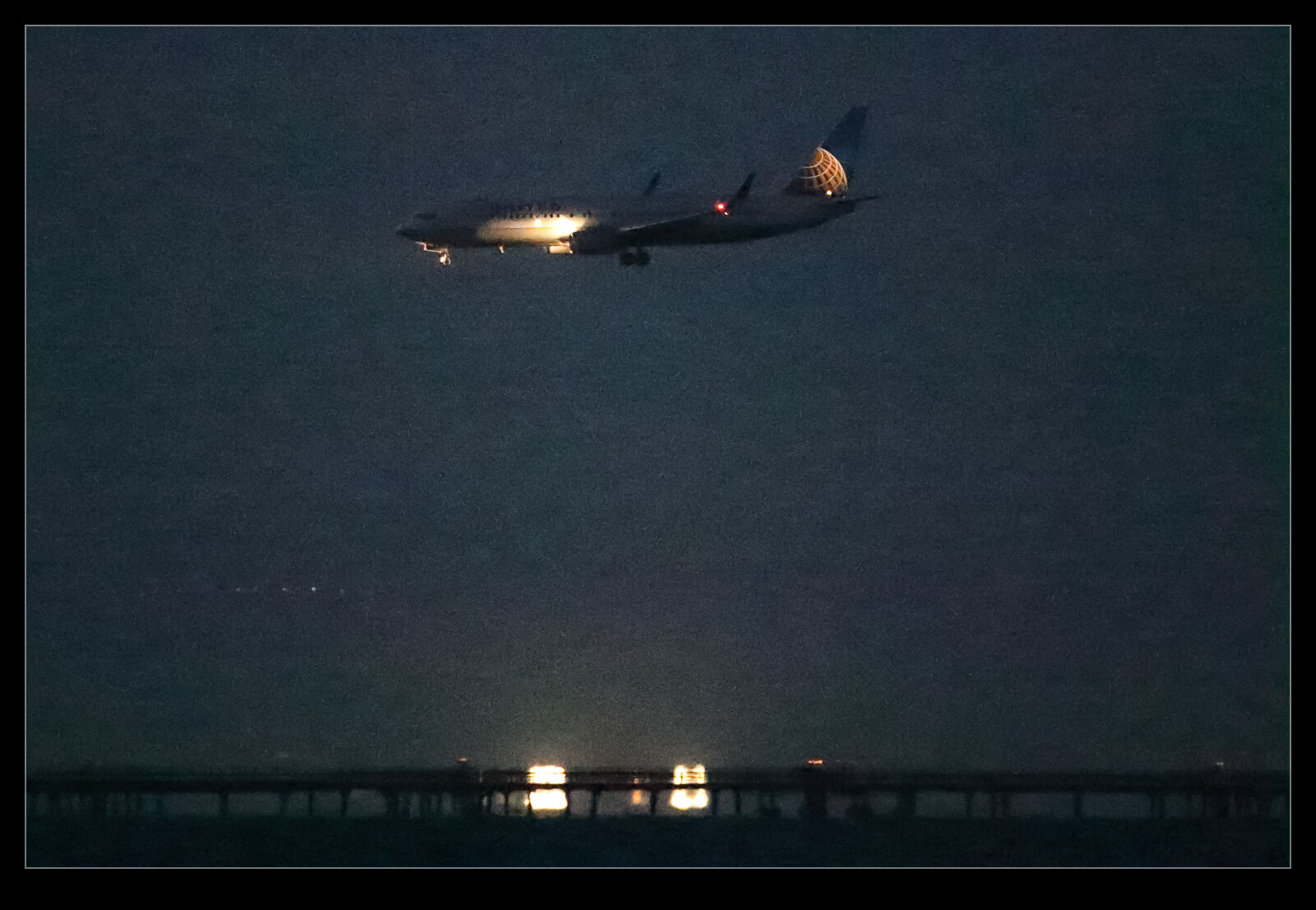
Consequently, I was interested to see what the new bodies I bought were really capable of.  I have already posted a little about some of the shots I took as the light faded at SFO.  I was shooting with a tripod and a gimbal mount to make things easier but I was also working within the ISO range of the camera.  I went with auto ISO and exposure compensation while shooting in aperture priory and wide open to get what I could.  However, I really wanted to see what was possible so I changed to manual mode, exposure compensation and auto ISO to see what could be done.  Auto ISO is not going to use the extended ranges of ISO.

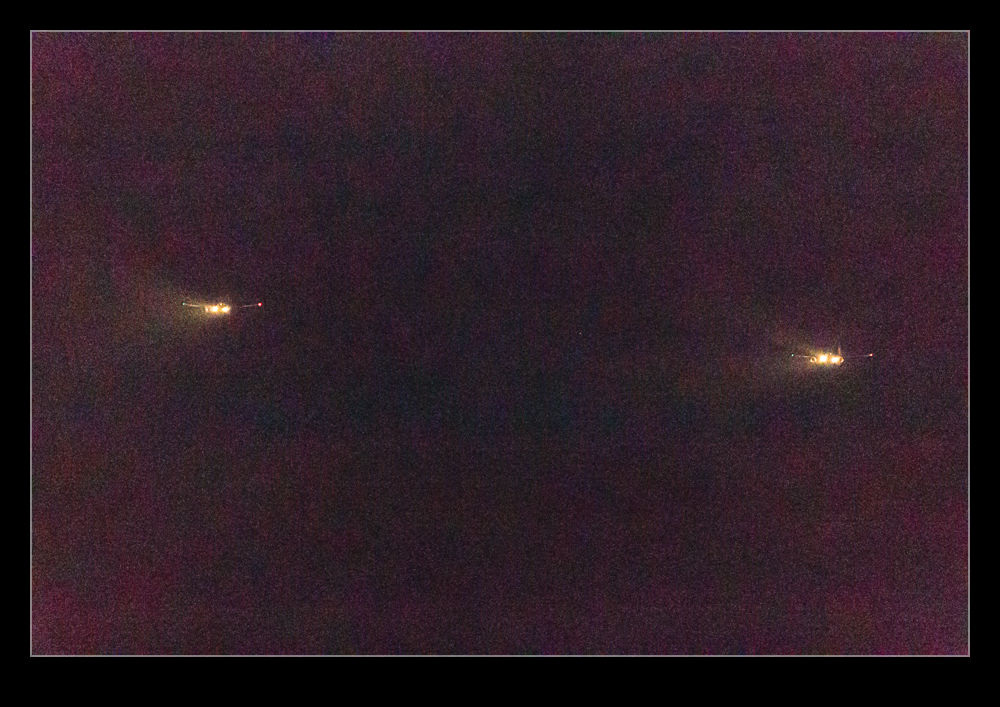
AE7I2701.jpgAE7I2701jpeg.jpgI don’t know about the Nikon cameras but the Canon cameras tend to have three extended range ISO settings at the high end.  There is the highest ISO setting that it recognizes and then there are H1, H2 and H3.  They don’t name them with the actual ISO settings but you know what they are based on what you see on the camera.  The manufacturer does not label them as normal ISO settings because they do not stand behind them as a capability.  There is a good reason for that.  They are just like the highest Nikon settings.  Useful if you have no option but not very good otherwise.

The same was true with my older bodies.  They had a very high ISO range that was not great but it would do in a pinch.  At the Albuquerque Balloon Fiesta I shot an Aero Commander in the pitch black that flew over and I saw stuff in the shot I couldn’t see with the naked eye.  This is with a camera that is ancient by modern standards.  I expected a bit more with the latest generation.  Certainly, there is more to be achieved with what we have now. However, post processing becomes a part of the story.

My first experience with these shots was in Lightroom.  The shots did not look good at all.  However, there was a clue in all of this.  The first view in Lightroom is based on the JPEG that is baked into the raw file.  It looked okay until it was rendering by Adobe at which point it looked a lot worse.  This piqued my interest.  Sure enough, at the extended ISO ranges, the shots looked pretty awful.  Lots of purple backgrounds.  These were not going to be any good.  However, the initial preview had looked good., is this a case of Lightroom not being able to render the shots well?  I figured I should try going to the source.

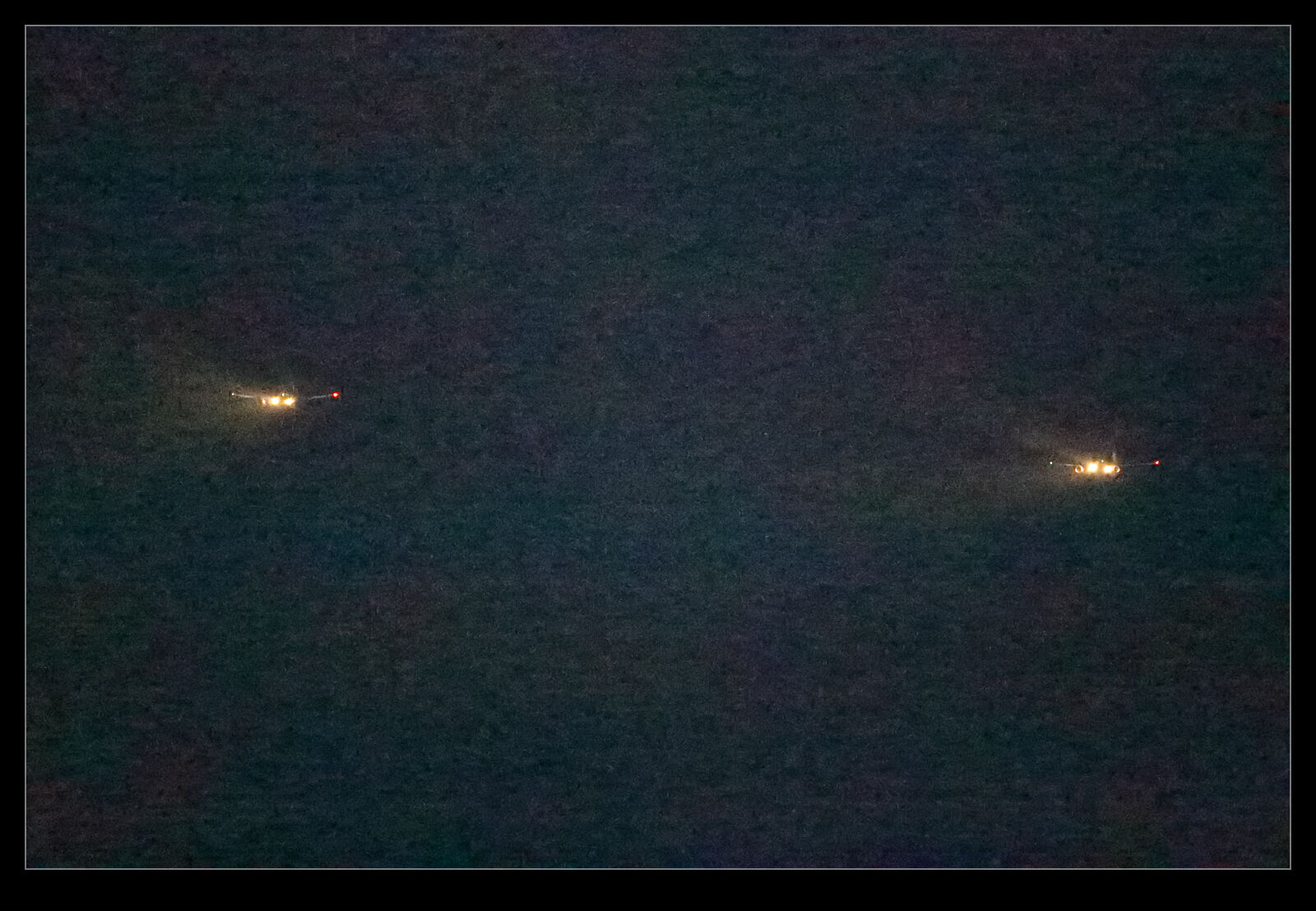
AE7I2747.jpgAE7I2747jpeg.jpgAt various ISAP symposiums, the Canon guys have talked about how their software is the one that you should use since only Canon know how to decode their shots properly.  They have the recipe for the secret sauce.  Since Digital Photo Professional (DPP), Canon’s own software for decoding raw files, is so terrible to use, I never bother with it.  The raw processing in Lightroom (and ACR since they are the same) is so much easier to use normally and works really well. DPP is just awful in comparison.  However, we are now dealing with the extremes of capabilities of the camera.  The embedded previews seemed better so maybe it is possible that DPP will be able to do a better job.

You can now be the judge.  Here are some pairs of shots.  They are the same shot in each case.  The first is processed in Adobe Lightroom and the second is processed in DPP.  I think it is clear that DPP is better able to work with the raw files when it comes to extreme ISO settings.  The shots certainly have a more normal look to them.  The Lightroom shots look really messed up by comparison.  It doesn’t mean I will be using the extended ISO ranges on a regular basis.  Jumping to DPP for processing is not helpful on a regular basis.  However, if the need arises, I know that I can push the camera a lot further and use DPP to get something that is okay if not great.  This could be handy at some point.

Update on the Negative Scanning

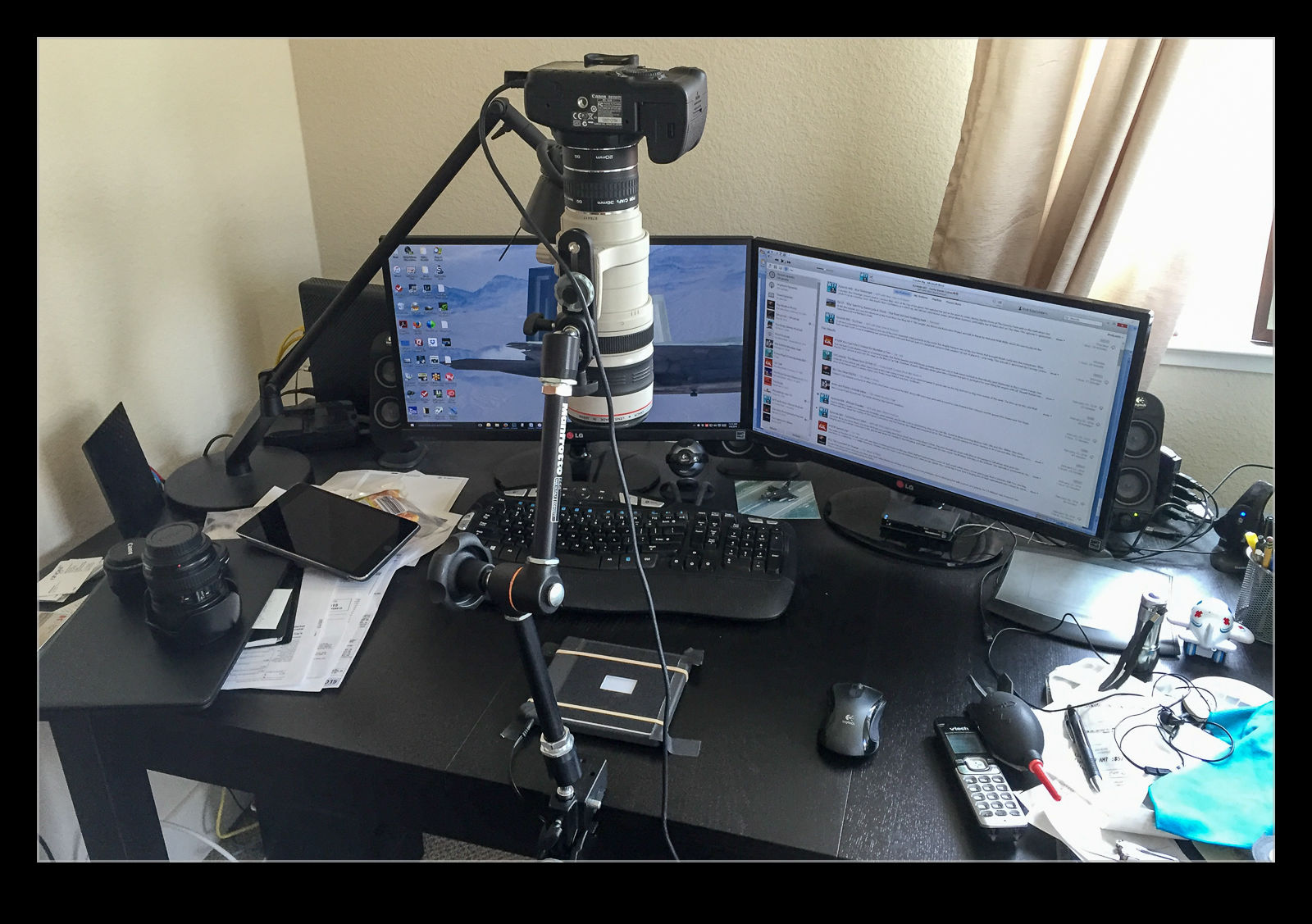
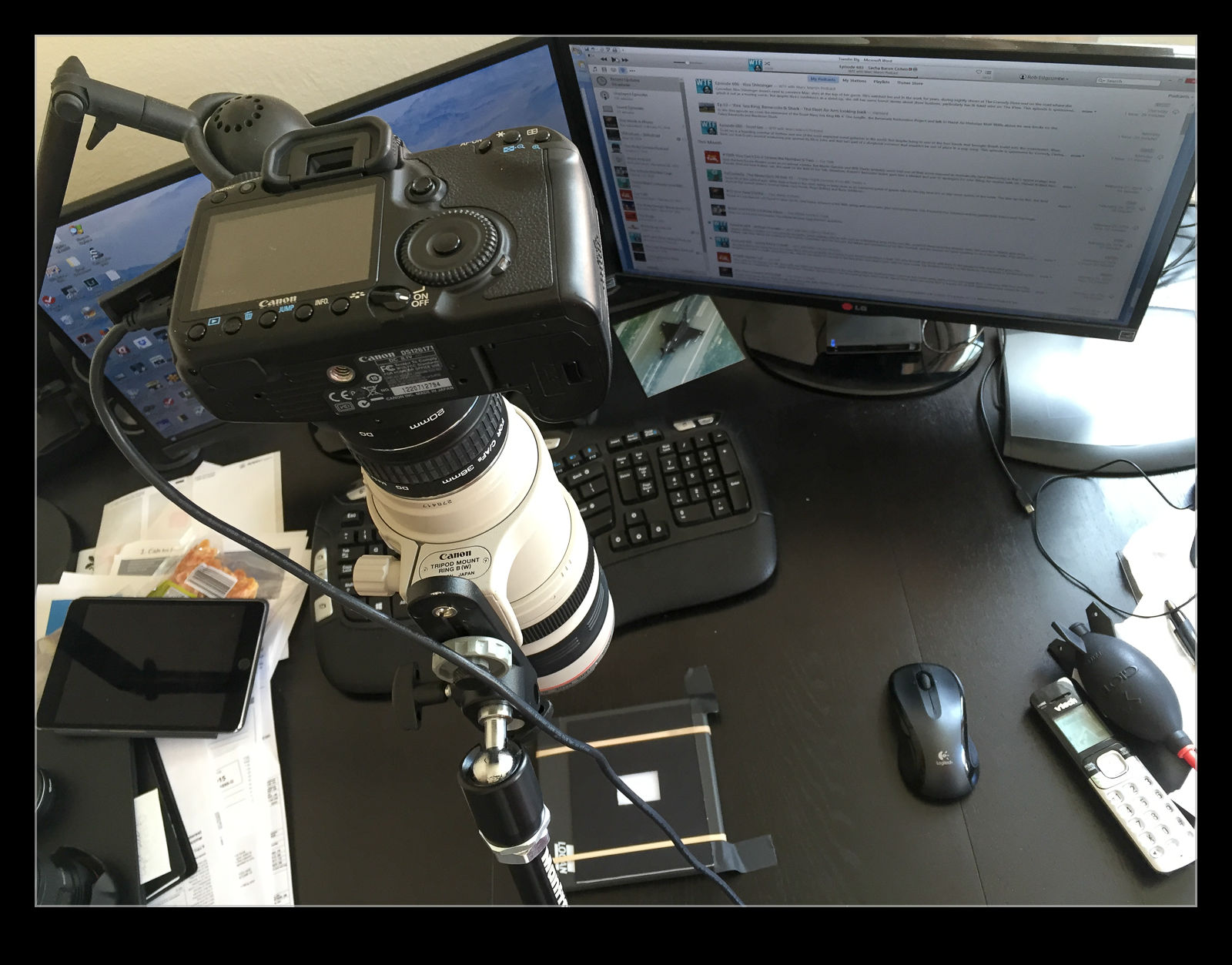
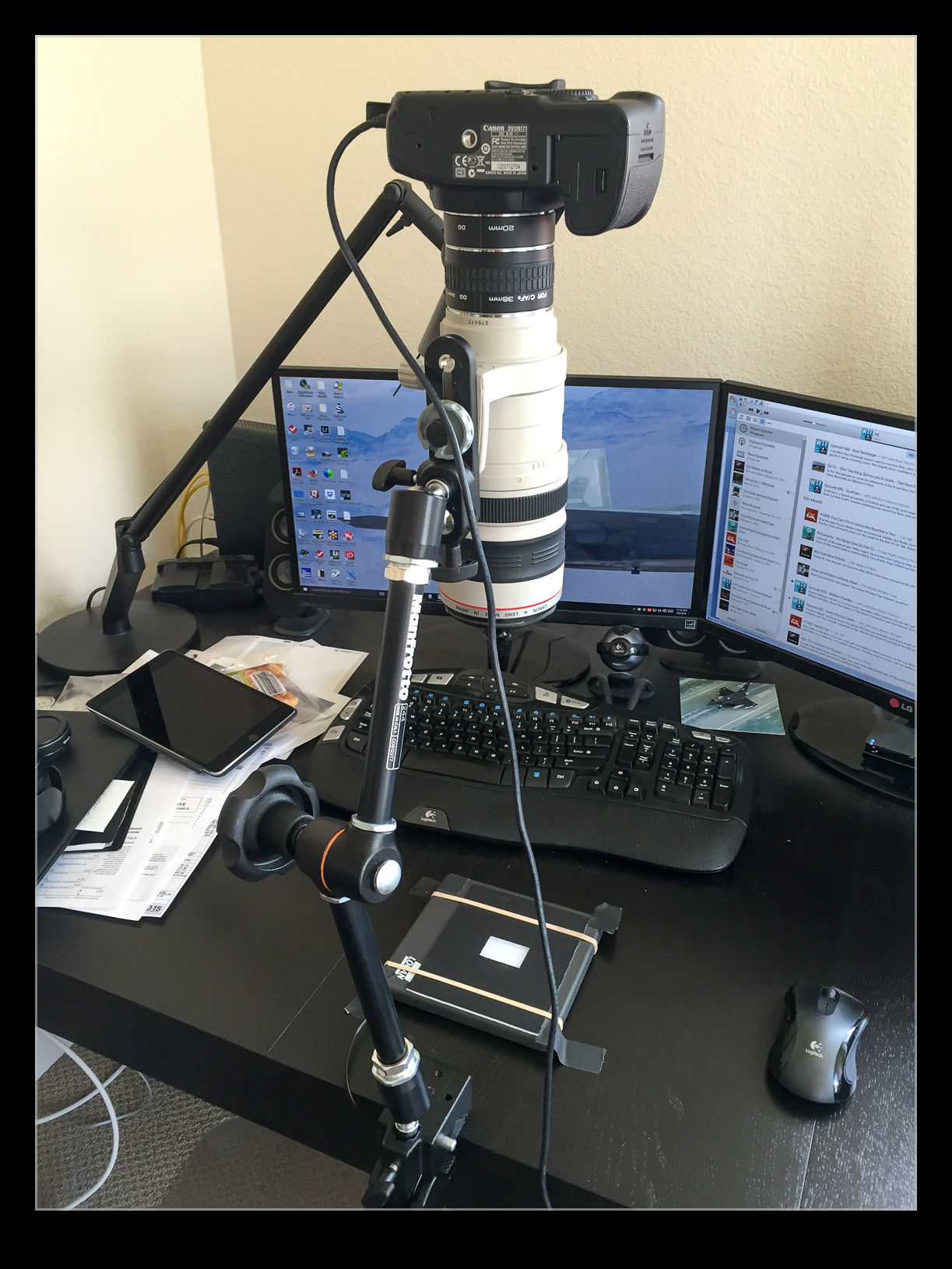
IMG_3820.jpgI wrote about the set up I had created for scanning negatives using a digital camera a while back.  Since writing that, I have been working on a lot more scans and have gained some additional experience.  This has resulted in a few changes to the configuration so I thought I would share those too.  Overall I am very happy with the results I am getting as a result of the updates.  Things could be better but that would involve considerably more expense and the need just isn’t there.

The first change I made was to use a different lens.  I had been using the 24-105.  It was pretty close to the film plane and was sensitive to getting the alignment spot on.  I had a few times when focus was not consistent across the shot.  I thought it might be better to try a longer lens further away and this proved to be a big help.  I have my old 100-400 still so I hooked that up.  It makes for a slightly higher position but I can use the zoom quite well although it needs more of the extension tubes to focus properly.  It does result in good focus although I tend to focus manually as the autofocus does not seem happy in this setup.

IMG_3822.jpgI was using Liveview quite a bit and I discovered that the old batteries I have were not lasting long at all.  Rather than buy new batteries, I went to Amazon and picked up an AC adaptor that replaces the battery for about $15.  Now I can scan as long as I like without having to have batteries charging in the background.

I also have modified slightly the light pad.  I found I was moving it around a lot more than I realized as I moved the negatives and swapped strips.  A little gaffer tape now holds it pretty much in place.  This means I can have the lens zoomed more closely to the full frame of the film which allows for a higher resolution scan.

With everything tethered in to Lightroom, the import process is pretty smooth.  The preset I use is okay but I am regularly tweaking for the white balance and exposure.  This is not too big of a deal.  I find I can get better detail out of the shots than was possible with the scanner and using the raw convertor gives me plenty to work with.  They are still limited by the quality of the original shots of course!

Overall I am very pleased.  I can scan a lot of stuff very quickly compared to the old way and now I am happy to scan a whole shoot without worrying about whether any of them could be ignored.  It is quicker to scan them and then discard them afterwards.  I am scanning stuff that I have been thinking about for a long time and rescanning shots that had been done before but really were not great.  Of course, now I have even more stuff to do in whatever spare time there is so maybe this wasn’t such a good idea after all!

IMG_3821.jpg

Fisheye Correction in Lightroom

I have a pretty well defined routine for importing and processing my images in Adobe Lightroom. I have presets for importing images that put them in the right folders, apply copyright information and apply development presets. I can then edit from there as I go. One of the settings I have set as a default is the application of the lens correction settings. This setting deals with any natural vignette in the lens as well as some distortion. Occasionally this can be tricky if you have something close to the edge of a wide lens and it gets slightly chopped by the correction.

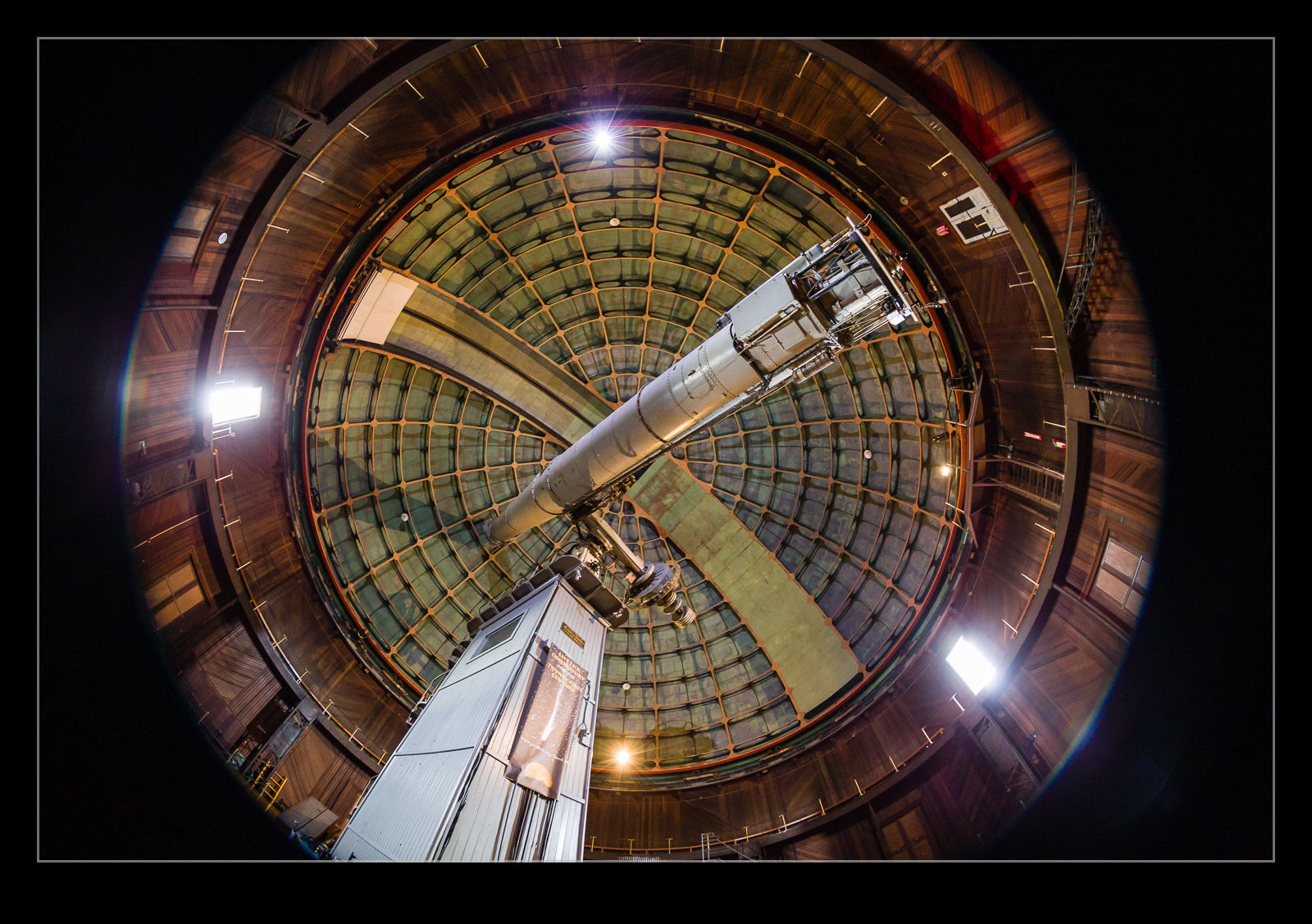
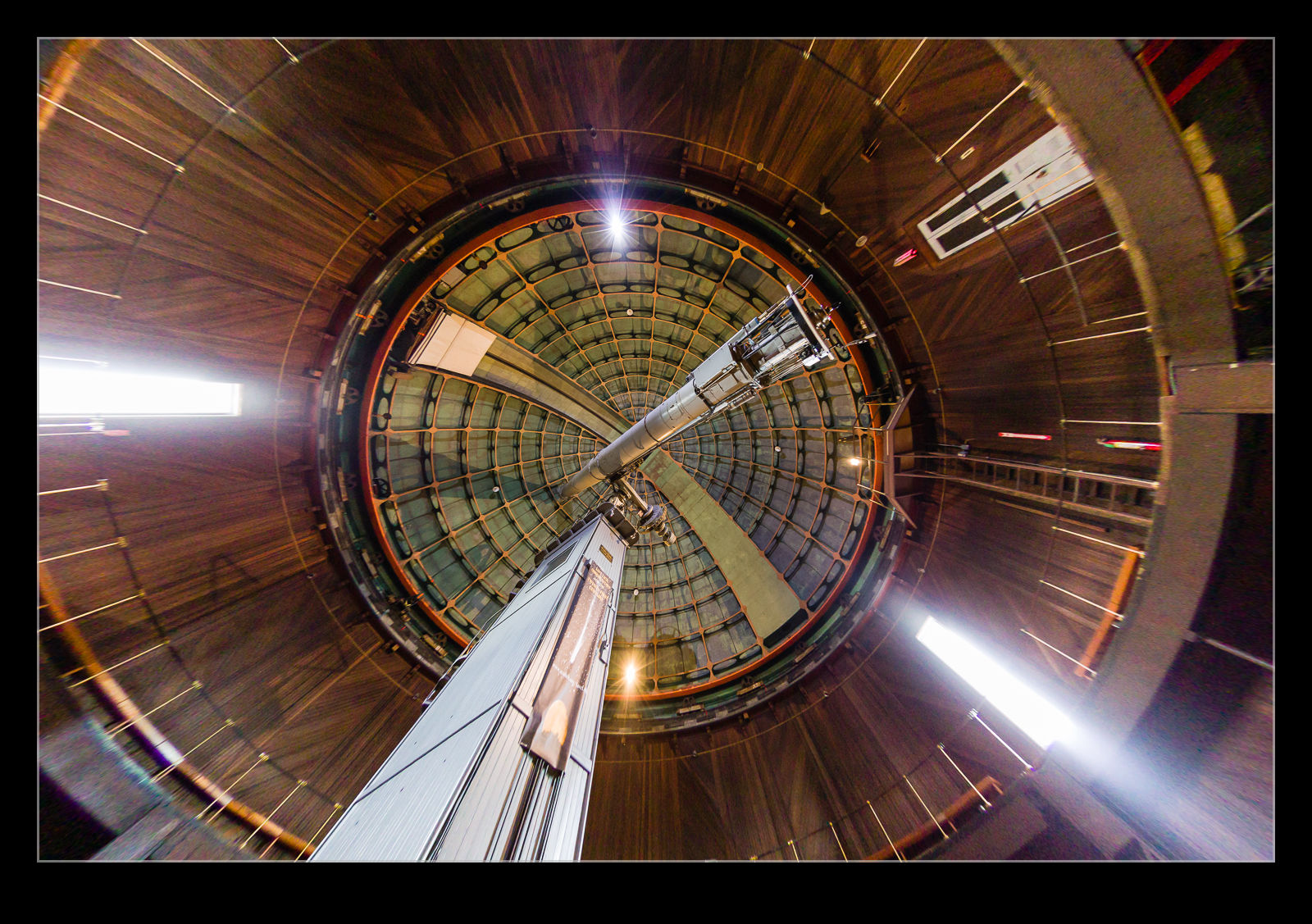
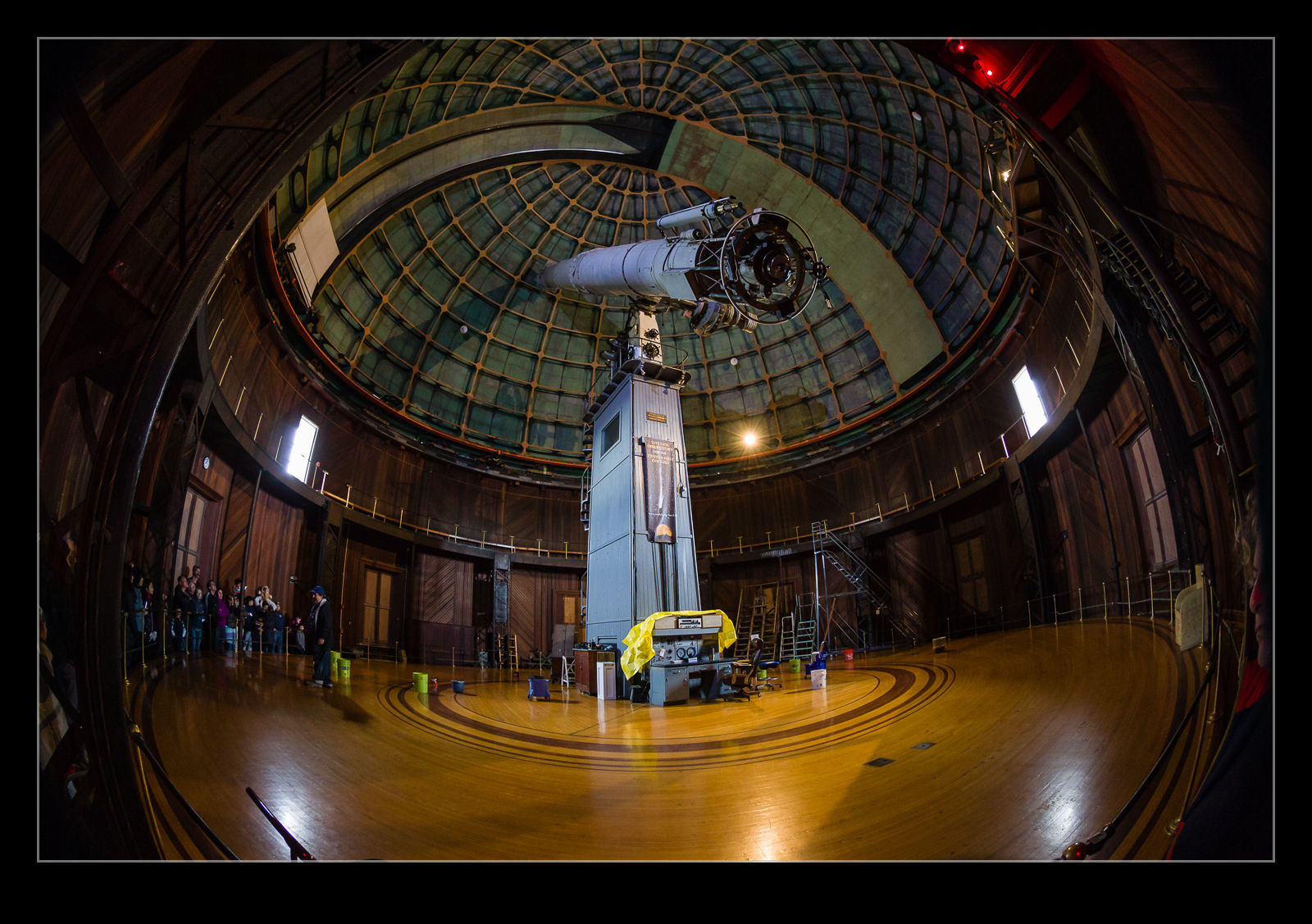
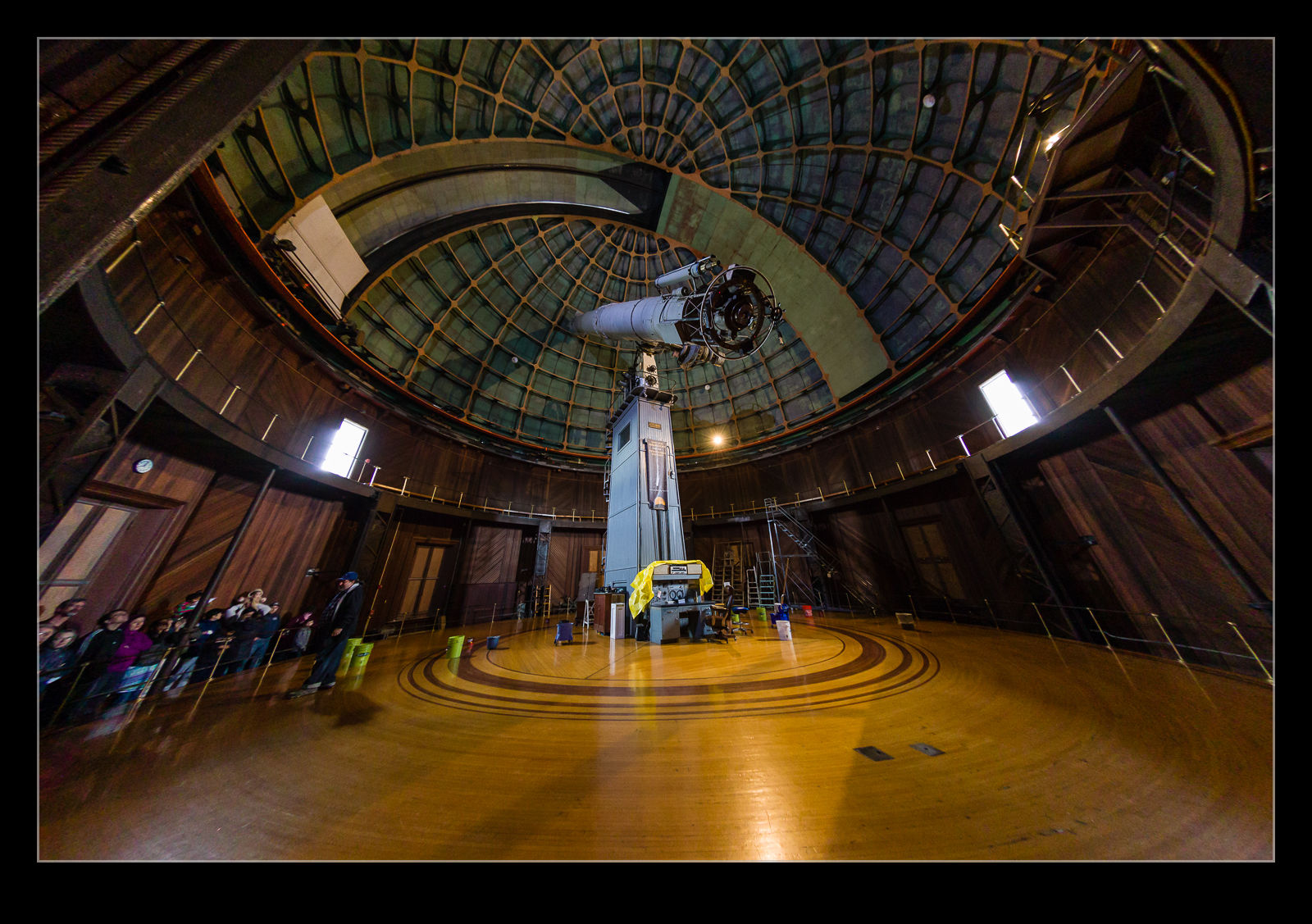
AU0E3419-2.jpg AU0E3419.jpgI discovered a more extreme version of this while processing some shots from the Lick Observatory. I had taken my 8-15mm fisheye zoom with me as I thought there might be some use for it in the telescope buildings. It turned out to be a good thing to have. When I first had the lens, Adobe had not created a profile for the lens so the shots came in uncorrected with the fisheye look I expected. More recently, Adobe have created a profile for this lens. It was added in one of the updates and, since I don’t use the lens all of the time, I hadn’t noticed.

AU0E3382-2.jpg AU0E3382.jpgWhen I was going through the shots, I noticed the wide shots had some strange distortion at the edges. I was perplexed by this and also wondered where the circular fisheye shots were because I was sure I had taken some. Only then did I realize that these were those shots and the corrections were being applied. Here are some examples of the before and after with the correction to give you a idea of what the transformation is. A pretty dramatic change. I might make use of this sometimes but I shall also have to remember switching this off when shots with this lens are involved.

Lightroom Furor Missing the Point?

Adobe recently updated Lightroom and introduced a new version of the import dialog. This move caused consternation in the online photo world and they are currently planning to revert back to the previous version. So much of the focus was on lost functionality in the new version. I have struggled to see how bad the losses were. Everything I needed before was in the revised dialog and from what I can see, the bits that went away were not exactly game changers. Of course, different people have different uses so it might matter to them.

What I am surprised about is that far less attention is being given to the fact the new release is horribly buggy. The new import dialog is a prime example. You have the import presets as before but if you change to a new preset, the location that is shown for where the files will be copied is the previous one. If you click to change it, you see that the correct folder for the new preset has been selected. It actually sends them where it is supposed to but it shows a different location. This is annoying but not impossible. The import dialog presets have been buggy for as long as I can recall with certain elements impossible to get rid of once selected.

Overall, the program is a lot less reliable. I have had develop screens lock up when it gets tired with a blue block replacing the image in question. If I leave it open long enough, it locks up completely. Sometimes, when I go to the Open Recent tab, the arrow appears but no recent catalogs are on display.

So, while everyone has been getting really messaged up about the import dialog, I am not that bothered. I think they should have been focusing on how Adobe released an update to Lightroom that seems to have a ton of problems with doing the basic stuff it is supposed to do. That seems far more worrying to me.

Blog Image Upload Using WP/LR Sync

Providing a review on something you haven’t had a lot of use of doesn’t seem like a good plan. This is something I have been using for a while and, now I have had a bit of time with it, I thought I would share what it is like. Uploading images to the blog is obviously a big part of the preparation of posts since, at the end of the day, this is primarily a photographic blog. When I first started out, I would create the images I wanted and then upload them manually. That was time consuming but was soon superseded by an alternative.

I started using the LR/Blog plugin to Lightroom. This would create a version of the file including any formatting, borders and conversion to the right color space and would then upload it to the blog. This worked okay for a long time but it had one significant limitation. If I tried to upload too many shots at once, it would fail and then lock me out of the blog for a while. I started searching for an alternative when my efforts to solve this problem went nowhere fast.

If you Google this topic, almost everything brings you to LR/Blog. However, recently I came across WP/LR Sync. It is a Lightroom plug in that makes use of the Publish services in Lightroom. Rather than uploading the images one time, you add the files to a collection that is then published to your blog. If you change the image, you can have the online version amended in sync with the original. If you go to http://apps.meow.fr/wplr-sync/ you can read more about it.

I decided to give this a go. However, in the guidance, Jordy provides a piece of information for people like me who have problems uploading lots of images. Apparently, my hosting service treats too many upload attempts in a short time as an attack and you get locked out. This was what was happening before. WP/LR Sync has a field that allows a small time delay between images which, if set just long enough, will prevent you getting treated as an attack. Something like this would also cure my LR/Blog issues I guess but that ship has sailed.

I am very happy with the new plug in. It works well and allows the same edits of the image before uploading as before. A benefit is that, if you drag images to the sync collection and they were already in there, you don’t end up with duplication on the blog. The one you previously uploaded is there. You just might have to scroll down a bit to try and find it. If you want to have a go with this add on to Lightroom, visit http://apps.meow.fr/wplr-sync/ and check it out.

Haze Filter

The Creative Cloud version of Lightroom drops new features in to the software when the updates are installed. This is a nice thing to have happen but, unless you are paying attention, you might not be aware of some of the new features. It took me a while after the last update to learn that a new filter had been added that was designed to take haze out of images. This is a great idea. I have experimented with trying to remove the effect of haze in shots before but, because the effect varies by distance, it can be quite tricky to get something that doesn’t look totally wrong.

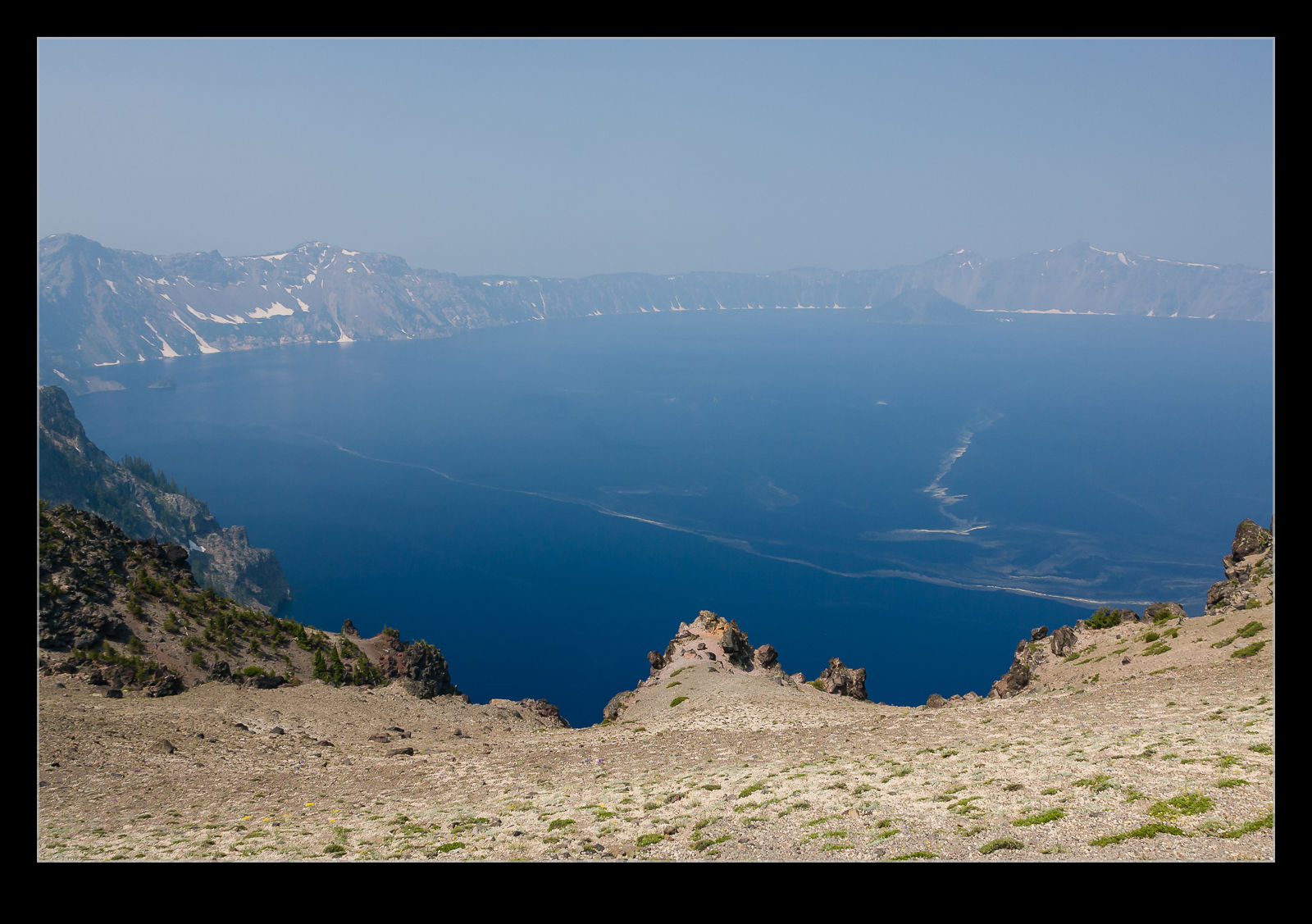
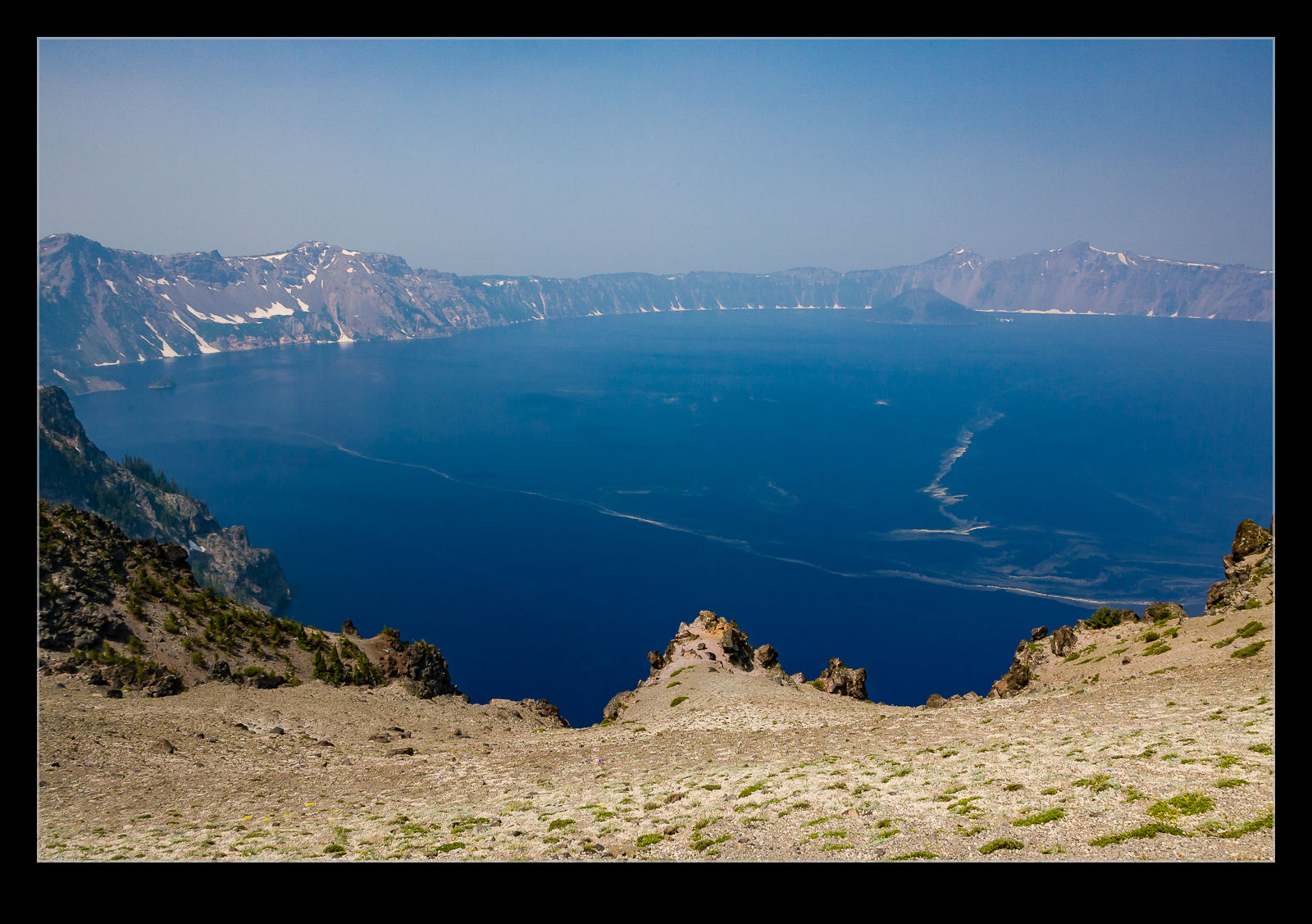
QB5Y5727.jpg QB5Y5727-2.jpgI have not played with the filter a lot but I did decide to try it out on a shot I took at Crater Lake a few years back. Wildfires had resulted in smoke in the air which meant the usual clear view across the lake was obscured. I thought I would see how the filter worked out. Above are the before and after shots. It is an improvement but obviously isn’t going to rescue a totally messed up shot. I did try a more aggressive setting but that looked wrong itself so this was the one I went with. We shall see if this has other uses for me over time.

Clever Feature of Lightroom CC

This one is something that I can attribute to the Kelby media juggernaut. I did not discover this myself but, if you are a user of Lightroom CC and use either the HDR or the panorama functions, this could be of interest. One of my issues with them was that they took a while to bring up a preview. Once you had got this, the processing would work in the background.

It turns out, if you don’t need to tweak the settings and are happy with what you used previously, you can hold Shift and Ctrl and press either M for panorama or H for HDR and it will launch right into processing the whole thing in the background. You can set multiple versions off if you wish and they will all get to work out of sight while you do something else. While my feelings on the outcome of the processing are not universally great and I covered this in some previous posts, it does a reasonable job most of the time and this is an even better feature that is well concealed!