Tag Archives: technique

Changing My Approach to Panoramas

Ever since Adobe got their act together with the Photomerge function in Photoshop, it has been my default for creating panoramas.  Previous versions were a little unreliable but they cracked it a few versions back and I have not changed my approach since.  However, a recent bit of YouTube exploring has changed that again.  Russell Brown had a series of videos on making panoramas from aerial shots and, while I was watching them because they were aerials, the stuff he came up with on stitching panos was actually more useful to me.

Instead of using Photomerge, he uses the same functionality of Photoshop but in individual steps.  The technique involves opening all of the shots as layers in a single file (something you can do straight from Lightroom which maintains the re-import linkage that I like about Photomerge).  Then you select all layers and use Edit>Auto Align Layers.  This gives you the same options as Photomerge.  Apparently, according to Russell, if you have a series of shots where you have rotated position but are looking horizontally, Spherical works best.  If you are looking up or down, use Circular.

The result can be quite distorted if you use Circular but it will all get better soon.  If you aren’t happy, you can undo the step which is a lot easier than starting from scratch which is what you would have to do in Photomerge.  Once the alignment is done, Edit>Auto Blend Layers while take care of the rest of the stitching and blend everything together nicely.  It defaults to a Panorama blending option.

With the blend done, flatten the layers and open Filters>Adaptive Wide Angle.  This will default to a panorama setting and, if you have the distorted output from the Circular settings, now you will suddenly see everything come back to what it should be.  You can tweak this filter to get verticals and horizontals aligned as you wish and then you end up with a good pano output.  Some cropping and filling of blank areas with Content-Aware fill and the job is done.  I shall be taking this approach for all my panos from now on.  If you don’t use this approach already, you might want to give it a try.

Also, you can go to the original source on this and check out Russell’s videos on YouTube.

RescuePro Deluxe

Today we have something of a product review combined with a workflow experiment.  None of this was something that I wanted to do but circumstances dictated it was time.  I had been out for the day shooting some wildlife including some sea otters – that will show up in a future post – and, one returning home and downloading my images, a few of the shots showed up strangely with no preview in Lightroom when I started to import them and were apparently corrupted on the card.  Not sure what the cause of this was.  The body had just come back from an annual service at Canon and the card was a new one.  However, they both worked fine for the majority of the day with just some minor problems with a couple of dozen shots.  I shall try and sort that out later.

So, to the problem at hand.  I use Sandisk Extreme cards and have had virtually no problems to date.  Therefore, I was in new territory.  One thing that I do have as a result of using these cards is a bunch of coupons for RescuePro Deluxe.  This is software for retrieving lost files from cards.  I had used it once many years ago when recovering some shots that had been deleted on the card but not formatted and it had worked well.  That was my issue then.  Now I needed it due to a problem I hadn’t created.

My first minor problem was that the software defaults to recovering the images to a folder on the C: drive.  Since my desktop has an SSD running the OS and everything else on other drives, it isn’t overloaded with space so dumping 32Gb of images on to it caused a minor hiccup.  A kicked out of the program, restarted it and found how to change the output directory and then we were off and running.  However, now I came across my next issue.  It found all of the files on the card, not just the ones that were lost.  This is where the brain had a small “doh” moment.  I figured if I opened up the card in Explorer and deleted the good shots, it would mean the search would be a lot quicker.  Of course, if you are using software designed to find files that have been deleted, it still finds them all.  Why didn’t I think of that at the time?  Oh well, no big deal since this was all running in the background.

The result of the scan is that all files on the card are now stored in a folder.  Unfortunately, they are named sequentially File001, File002 etc.  This makes working out which are the missing files a bit more tricky.  So, two things were needed for the next step.  First, find out the filename for the first file on the card.  Then import all of the files into Lightroom by adding them where they are rather than copying them to a new location.  With them in Lightroom, it is a simple task to rename them all to their original names using the rename function and making sure you start with the filename of the first file that we found a moment ago.  Now all the files have the right name and are still in the recovery folder.

The next step might seem counterintuitive.  I delete them all from Lightroom.  I don’t delete the master files; just remove them from the catalog.  Next – trust me, I haven’t gone mad – I them re-import them all.  At this point, Lightroom sees the files with the right names and details and so automatically recognizes which ones are already in the catalog.  It then will pick out the ones which were the original missing files and you can import them properly to wherever you want them.  Now the recovery folder can be deleted (subject to your normal backup protocols).  It sounds a bit complex but, if you work through the process, the longest part of it is the scan of the card for the files in the first place.  After that, it all happens pretty quickly.

While RescuePro Deluxe is not the most user friendly piece of software, it did do what was required and I got it free with the cards I have.  You don’t own the software.  You get a one year subscription with the coupon.  Hopefully I won’t need it again this year but it is there if required.  I have a bunch of these coupons from various card purchases so I imagine I will be in good shape as long as required.  If you have gone through something similar and have a better way of dealing with it, please do let me know.  It is always good to learn from the experiences of others.

Blur That Prop!

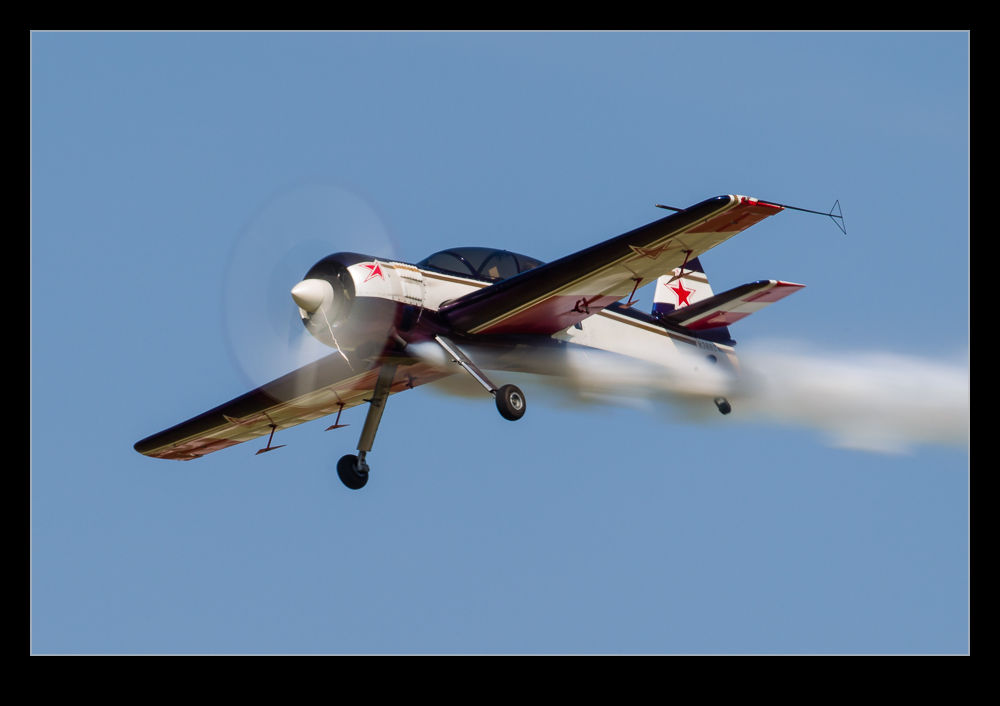
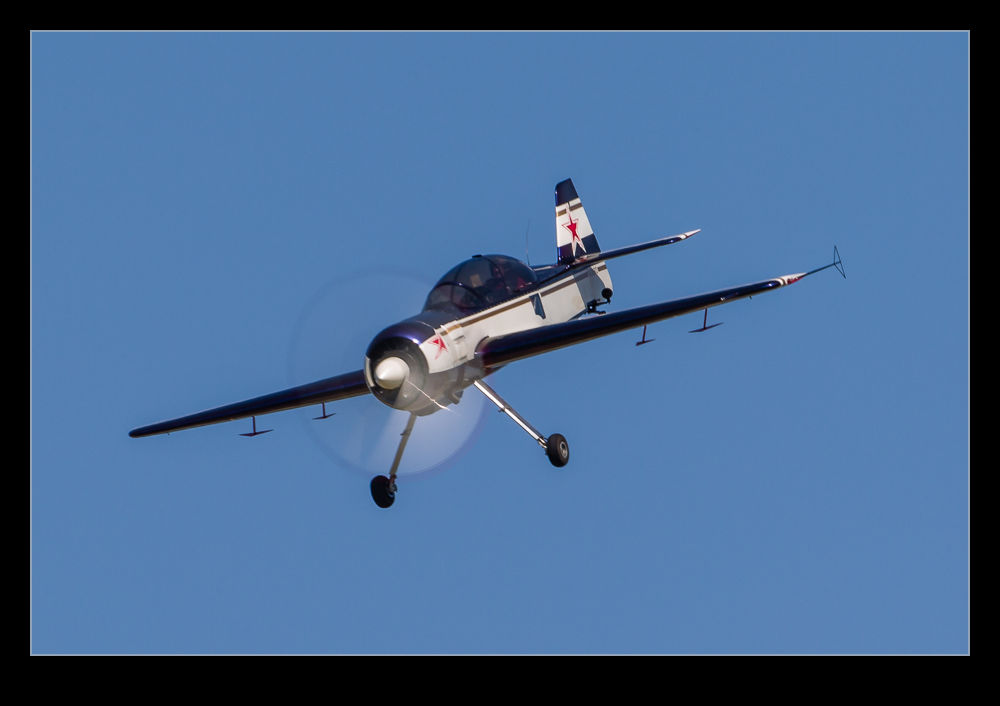
wpid7596-C59F7698.jpgAsk any aviation photographer about camera settings and they will quickly turn to shutter speed for prop aircraft.  The goal is a nicely blurred prop and no frozen blades.  This requires a slow shutter speed and this can have downsides.  If you are using a long lens, getting a sharp shot of a moving target with a low shutter speed can be tricky.  A bit of spray and pray with the shutter button can be required.  Interestingly, if you are closer to the aircraft and using a shorter focal length, things are not necessarily better.  When you are close in, the different parts of the airframe are actually moving at different speeds and angular rates to you so one part might be sharp when another isn’t.  Sometimes this looks okay but often it just looks crap.

I have become less focused on gaining the great blur for ground shots.  Air to air it is something a lot more worthwhile since the other plane is not moving relative to you – well, hopefully not that much.  Therefore, you can experiment going slower with hopefully some good results.  Similarly, when I am shooting helicopters close in and hovering, I will give it a go too.

wpid7594-C59F7690.jpgRecently, I was at the Waukegan show and I decided that, since what I was shooting was not something that I had to get (either I would have other chances or I wasn’t so bothered anyway), I would play with some really low speeds.  I ended up shooting at 1/80th of a second which, on a 500mm lens is a stretch.  Needless to say, you are not going to see the failures.  When I have played like this before, I have had times when not one of the shots was of any use.  However, this time I did get a few lucky results – yes, they were luck.  You can have great panning technique (which is not always true for me) but the math is not in your favor when doing this.  Therefore, I shall be happy with the results this time around.  I won’t be doing this all of the time but playing around is an important thing to do when you have the chance.  Just don’t do it when you really want to have a shot you can keep.

Updates to the Workflow

A while back I wrote a piece about how I manage my workflow when bringing in new pictures from a shoot.  If you are so inclined, you can read the original post here.  I thought it might be appropriate to bring the topic up to date since I have tweaked the workflow a bit since then.  As I mentioned before, this is not all original thinking from me.  I have picked up suggestions from a number of places and then adapted them to my own needs.  If they are useful to you, that is great.  All of this is based on using Lightroom as an image management tool.

The basic process involves creating a series of Smart Collections for a given shoot.  I have adapted these collections a little and have a basic set, not all of which are required for every shoot.  However, what I have done is exported these collections to a folder on my computer so I can re-import them for each shoot and tweak them rather than start from scratch each time.  For example, they all have the keywords section blank so that I can paste in the required keywords for the shoot easily.

I will initially create a Collection Set for the topic and, if this is an event that occurs more than once, a Collection Set within that for the specific date.  Then, within that, I shall import the Smart Collections from my templates.  In the first instance, these will have lots of files in them since the criteria have not been narrowed down but I shall then edit each one to have the appropriate keywords and, if required, the specific dates.  Date Taken is the criterion I will use then, either with a specific date or a range.   Of course, this does require me to have put the appropriate keywords on all of the images first including whether they are HDR, panorama or time lapse images.

The following are the smart collections and a description of what they contain.  To avoid repetition, it can be assumed that they will all fit the keyword and date range criteria.

  • Not Rejects – All images that have not been rejected, are not marked as HDR or panoramas and are not video clips
  • Picks – All images that have been marked as a Pick and are not video clips
  • HDR Originals – All marked as HDR that are RAW files
  • HDR Edits – All marked as HDR that are not RAW files
  • Pano Originals – All marked as panoramas that are RAW files
  • Pano Edits – All marked as panoramas that are not RAW files
  • Time lapse – All marked as Time Lapse (Duh!)
  • Not Geotagged – All files that do not have GPS coordinates associated with them
  • Videos – All video files not marked as rejects
  • Rejects – All files marked as rejects (again, duh!)

The reasons for some of these are obvious but others are less so.  The not rejects file specifically excludes any shots I have marked as HDR or panorama since, when running through the edits, it is easy to see a shot that makes up one of those processes and think it is boring and delete it.  Keeping them separate from the start is important.  I keep the originals and the edits apart since, when I come back to them later, it is a lot simpler to look through the finished versions without having to find them amongst the originals.  Previously, they ended up in the same smart collection and, after getting bored trying to find the finished one, it occurred to me that they could be kept apart easily.

I now try to geotag all of my images.  Having the folder that shows that they haven’t been done reminds me to do this if I have not done it straightaway.  I have found that Lightroom has a bug (I have found more than one!) that, when you have imported a bunch of stuff, if you go to the map page, it gets a little lost and keeps the map view looking like the grid view.  You can get back out without any problem but have to restart to get back to map view.  If you go to map view before doing all of the importing, it seems fine then.  However, this folder makes sure I don’t forget to do it at some point.

With all of this set up, it is then easy enough to get into the process I have outlined before.  I go to the Not Rejects folder and render 1:1 previews of all of the files.  This can take a while so I will often start it off and then go and do something else for a while.  I can then come back and run through the images.  I will have a full screen version on one screen and the zoomed 1:1 image on the other.  This allows me to easily see which shots are not sharp or have an obvious flaw like a pole through the foreground or someone’s head in the way.  A quick “X” and that shot disappears from the smart collection and I am on to the next.  If it is okay, right arrow and I am moving on.  This kills a lot of shots quite quickly.

Then it is a simple case of looking at the shots in Grid view, usually quite large, to see the ones that are duplicate or just plain crap.  I can select which to get rid of and “X” again has them consigned to the trash.  Once all of this is done, I will run a BluRay backup of all of the shots including the XMP files after which I shall delete all rejects.  Hopefully that leaves me with a lot less shots to play with.  I can then pick the ones I think are the best and mark them as Picks.  It then leaves me with a smaller smart collection which I can go in and pay some attention to making more detailed edits.

This process continues to evolve.  Maybe I shall write another update in a couple of years.  In the meantime, I hope it might be helpful to someone for me to have shared it.  Happy shooting!
Skies With Menace

This time of year can get a bit stormy.  We had some interesting skies rolling across the city with cloud layers heading in different directions at different heights.  I thought a time lapse might be good for this so had a go at a couple.  The sky didn’t turn into anything too dramatic in the end but it is still fun to watch the way the levels were moving.  Here is a clip of what there was.

Cheap Macro

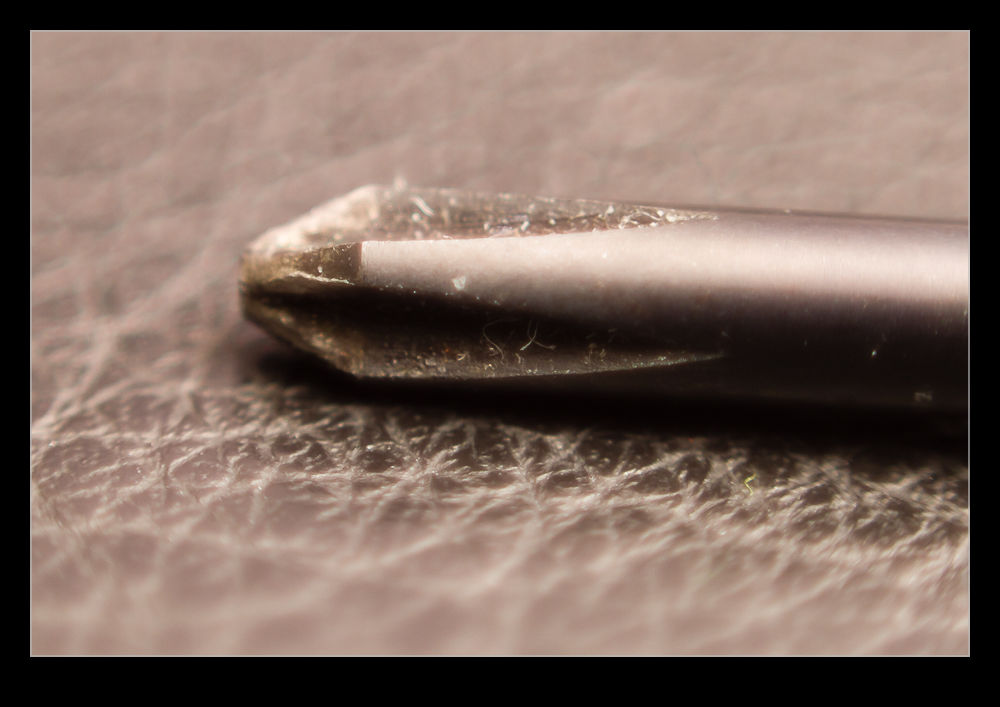
wpid5358-AU0E4107.jpgWhile the idea of trying macro photography has always been of interest to me, I have never got around to actually doing it aside from an old lens I had in my pre-autofocus days that had a macro setting.  The idea of renting a macro lens had occurred to me but the reason to do it hadn’t come up and I didn’t feel like renting the lens without having something to use it on.

wpid5360-AU0E4111.jpgThen I remembered reading about reversing a lens to use it for macro.  I have a 50mm that I I hand held in reverse to see how well the macro effect would work.  It seemed pretty good so I decided to get a mounting ring to reverse the lens on the camera.  Amazon came up with a bunch of options and the one I got set me back the enormous total of $8!

wpid5362-AU0E4114.jpgThe simple answer is that it works.  It is a little inflexible to use compared to something designed for the task but it does work.  The depth of field is extremely shallow and you get some odd distortion across the edges of the image.  Obviously there is no focus or exposure control.  I just set the camera to aperture priority mode and dial in the normal f/1.8 of the lens and the exposure seems to work out pretty well.  Then it is a case of moving the camera around to get focus.  Not something I am going to do a lot but, for $8, I don’t have to worry about getting a lot of use out of it!

32 Bit HDR

wpid5294-C59F0909-Edit.jpgWhile HDR might be a topic that causes all sorts of heartache for some people (they either love it or loathe it), I find it to be a really useful tool in some situations.  I have played around with some really over the top processing in the past just for the fun of it but my main interest has been in getting an image that can cope with the wide range of lighting that sometimes shows up in images.  While I have experimented with some of the third party HDR packages, I have ultimately ended up using the HDR Pro functionality of Photoshop.

This has been working okay for me but I was always a little less than satisfied with the results.  I have understood that the HDR merging process is only the first part of the technique and then the Develop settings in Lightroom (or ACR) are required to make the whole thing work a lot more effectively.  However, the slightly flatter look along with a level of desaturation that it was hard to bring back meant I was almost there but not quite.

wpid5292-C59F0909-Edit-2.jpgA recent change that has been introduced and which it took me a while to get around to playing with was the 32 bit HDR approach.  In this, the original files are merged to create a 32 bit TIF file.  Getting to this from Lightroom required me to tweak my settings slightly. I always had the file edit settings laid out to make a PSD file.  I had to tweak them to make TIF the preferred file.  I have to remember this so that I don’t always have TIF output instead of PSD which seems to have a smaller file size.

Once you get into HDR Pro, the choice in the tab at the top covers whether you want 8 biit, 16 bit or 32 bit output.  I had previously been using 16 bit.  This includes a lot of sliders that give you options as to what you want the output to look like.  If you change to 32 bit, there is a single slider. It shows you an effect of changing the white point but I don’t think it actually changes the output file.  You decide whether any ghost removal is required as with the 16 bit file and then click to get it on its way.  Once the final file is created, I just save it and go back to Lightroom.

wpid5290-C59F0911.jpgHere, the Develop module is changed in its functionality.  You can make some pretty aggressive changes with the sliders compared to a normal RAW file.  You can work with the exposure, the shadows and highlights and the contract as well as using the Clarity and Vibrance to punch up the image.  The nice thing is that the results are a lot more natural looking.  You don’t have the really crazy styles and you don’t have the flat look that sometimes is the result with the traditional approach.

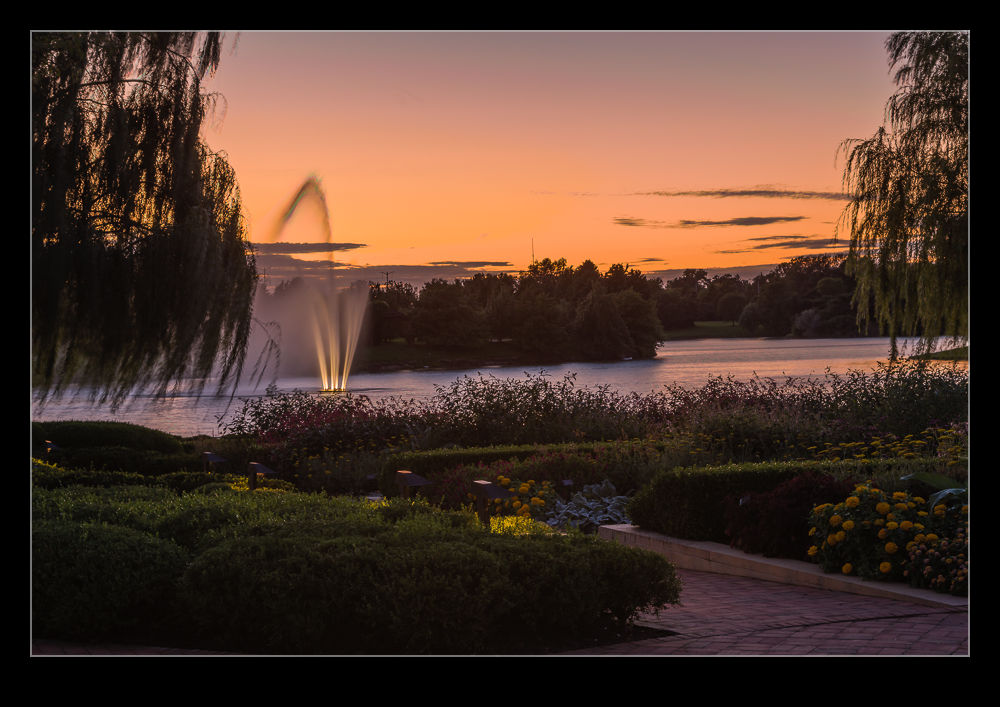
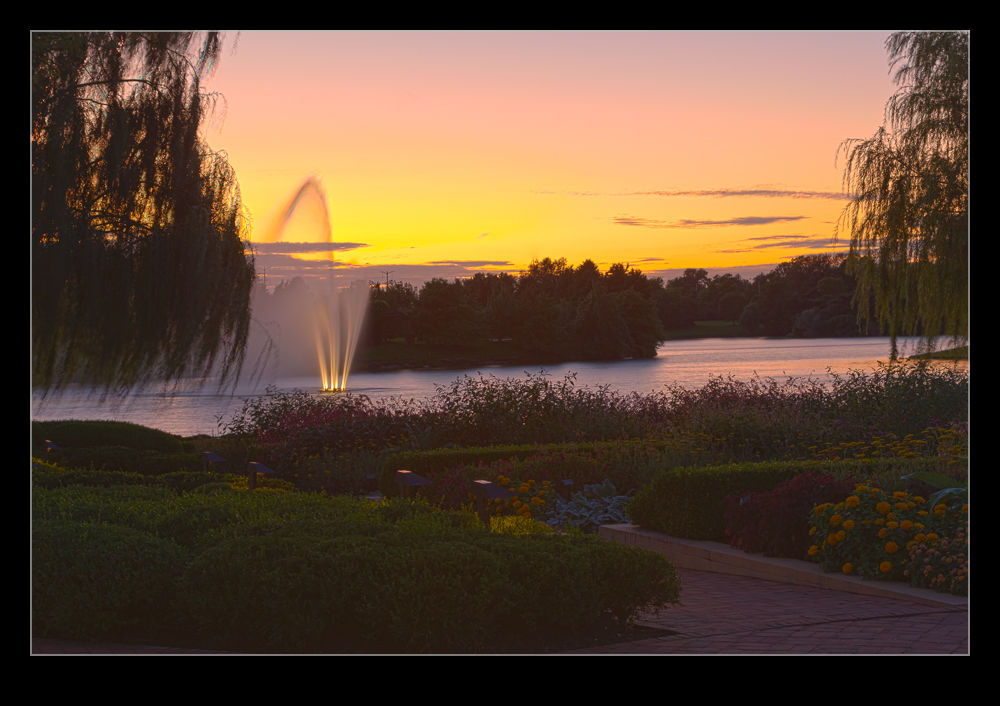
HDR is not a huge part of what I do but I am interested in having a better result.  I am not interested in investing in new software to achieve this when it is an infrequent issue for me and not usually something that a client cares about.  However, the fact I can now do a better job with the software I already have is a great step forward.  As for these three examples, the top is the new process, the middle is the old way and the bottom is using Lightroom to try and get detail from a single RAW file.

SF City Hall

wpid5226-IMG_0942.jpgA meeting in the heart of San Francisco meant a bunch of our team were meeting downtown.  A few of us got there a little head of the meeting and, with a couple of minutes available, I wanted to check out the City Hall building since it was only a couple of blocks away.  As an old City, San Francisco has some classic architecture and this is no exception.  For some reason, despite the numerous times I have been to the city, I have never been to City Hall before.

wpid5228-IMG_0938.jpgA group of school kids were playing some orchestral music in the main hall and plenty of family members were there.  I wandered around taking a look.  Since I didn’t have my normal cameras, the phone had to serve duty.  Fortunately, that also allowed me to try another one of the 360 panoramas.  I suspect I shall be carrying another camera with me when I am next in the area.

Office Picture

wpid5220-AU0E0982.jpgI have been working in an office in Sacramento on a project for a while.  With the end of the year coming up, an office calendar is being put together.  The majority of the pictures in the calendar are from the team members and their activities throughout the year.  However, there was also a need for a group photo.  I was asked if I would take the shot.  I was happy to do it but I also am a little less happy taking pictures of people than I am when it comes to inanimate objects!

I took a couple of flashes along with me and a remote trigger.  However, I was not willing to find out whether the whole thing would work only when everyone was there.  Therefore, a little early setup was in order.  I had a couple of volunteers to help by standing in various places to see how the light was working out.  Initially it was not good with the spread of light not avoiding some harsh shadows.  A bit of tweaking improved things a bit.  When everyone arrived for the shot, the result was a little different but acceptable.  A few people still managed to get in shadows and the corners did not look as good as I would have liked but the team seemed happy with the result.  I shall have to work out how I would do it differently another time.  Not an area I work in a lot but one I would like to be better at.

Patterns of the fields

One of the things about flying across the country a lot is that you get to see a variety of scenery.  Sometimes there are wide open spaces with not much to see.  Other times there are mountains and valleys.  The unfortunate thing is that it is rather hard to get good photographs.  First there is the limitation of shooting through windows.  I always aim to be on the side of the plane away from the sun –partly out of comfort and partly for photography reasons – but having a window that is not optically perfect and then a piece of protective Perspex inside that means that reflections and distortions are a problem.  Since the windows are not uniform, you can end up with some parts of the image sharp and others not.  The autofocus can also struggle sometimes.

Even after all of that, you still have a problem with exposure.  You are quite a long way away from whatever you are shooting (shooting straight down is impractical given the window angles and how bad the optical properties become if angling across the window) so you have a lot of atmosphere to deal with and haze becomes a problem.  A certain amount of compensation is possible in post processing but it is always annoying that the shot does not look like the image you thought you saw at the time.

However, sometimes you just have to suck it up since you are seeing something that you otherwise would never see.  One thing that struck me on a recent flight was the patterns on the ground.  The fields had been harvested relatively recently and the harvesting had left different fields with different effects making some great patterns on the ground.  You would see these but, since you are moving along at a fair old clip, you had a short while to see what you wanted and make the shot before you had passed the point of the best composition.

If only these would look as good as they did to me when I was there.  Oh well, hopefully you will get some idea of what I was impressed by, even if the shots themselves are not impressive.