Category Archives: technique

Blue Angels at Oceana (And High ISO)

I have only been to the Oceana show once.  I headed down there with my friends Ben and Simon.  We weren’t terribly lucky with the weather.  There was flying during the show but things were overcast and deteriorated as the show went on.  The finale of the show was, naturally for a big Navy base, the Blue Angels.  I was shooting with a 1D Mk IIN in those days and that was a camera that was not happy at high ISO settings.

The problem was, the light was not good and the ISO needed to be cranked up a bit.  Amusingly, if you were shooting today, the ISO levels would not be anything that caused concern.  Current cameras can shoot at ISO levels without any noise levels that would have been unthinkable back then.  However, I did learn something very important with this shoot.  The shot above is one that I got as one of the solo jets got airborne.  I used it as a test for processing.

I processed two versions of the image, one with a lot of noise reduction dialed in and one with everything zeroed out.  I think combined them in one Photoshop image and used a layer mask to show one version in one half of the image and the other for the second half.  When I viewed the final image on the screen, the noise in one half was awfully apparent.  It was a clear problem.  However, I then printed the image.  When I did so, things were very different.  If you looked closely, you could see a little difference.  However, when you looked from normal viewing distances, there was no obvious difference between the two.

My takeaway from this is that viewing images on screens has really affected our approach to images.  We get very fixated on the finest detail while the image as a whole is something we forget.  We print less and less these days and the screen is a harsh tool for viewing.

Puffy Cloud Backdrops

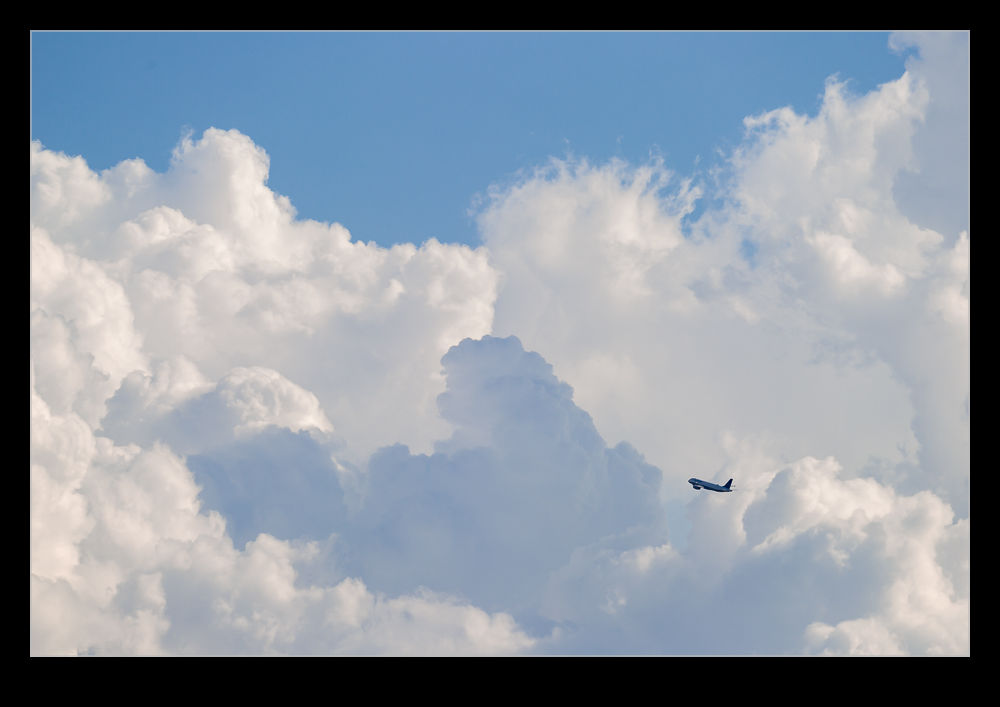
My personal preference is to shoot planes tight.  I like to see the detail up close and usually strive to get that in my shots.  However, sometimes I remember that there is more to it than that and there is something interesting about the context of the shot.  It doesn’t have to be a detailed shot of the plane.  It can be a wider shot when no one is looking at the plane expecting to see the intricacies of its structure.

Having some nice clouds to play with is an important part of the story.  Going wide when the sky is blue is not really going to add any drama.  However, some nice puffy clouds will certainly be appreciated in this situation.  In this case I was with some friends at O’Hare shortly after a storm had passed through.  Things had cleared up nicely but there was still plenty of evidence in the air of what had been dumping water on us a short while before.

I doubt closer shots would have been much use anyway.  With the amount of moisture in the air and the warmth that was quickly coming back now that the sun was out, heat haze would have destroyed an detail with a longer lens.  Going wider was probably the only option.  It was certainly worth it though.  The texture of the clouds after the storm was there to see and to be emphasized in the shots.  The plane provides a focal point to explore the image from but is not too important itself.  You can’t just do this but, from time to time, it is good to fight your normal style.

My Revised Workflow

My approach to processing images after a shoot is something that constantly evolves.  I have written about how I do this in the past but a few things have changed since I wrote that so I thought I would write up the latest approach in case it is of any use/interest to any other shooters out there.  I should say at the start that my workflow is based around the use of Lightroom.  If you don’t use Lightroom, this might not be of any use to you although I imagine that a similar process could be achieved with other software.

One thing to highlight at the start is that, when shooting aviation (and that is the majority of my photography), I aim to slightly overexpose my shots.  I have found that going a slight bit over and then bringing the exposure back down in post-production gives a better balance of exposure across the shots and also makes for more pleasing sky colors.  This is something I do when shooting RAW.  If you shoot in JPEG, this might still work but your latitude for adjustment afterwards is a bit reduced so you might not get the same effect.  I don’t shoot in JPEG so I can’t state what happens.

All the shots are imported in to Lightroom and I will form a Collection Set for the shoot.  I don’t have specific folders for shoots, nor do I have a renaming convention.  I keyword all shoots and this is how I manage files and find things later.  Keywording is a story for another day.  Within the Collection Set, I shall create a series of Smart Collections.  They vary depending on what I have shot.  There will always be Not Rejects, Rejects and Picks.  Then, depending on what else there is, there might be Videos, Time Lapse, Blend Stack, Pano Originals, Pano Edits, HDR Originals and HDR Edits.  I keyword any of these types of shot with that term so the smart collections will pick them up.  The Smart Collections may be looking for a date range or shoot specific keywords depending on what I have been shooting.

The aim for all of this is that I get a Smart Collection which is unrejected shots which doesn’t include and shots from HDRs, panos, time lapses or blend stacks.  I don’t want to get rid of those shots by mistake and I want to be able to edit those shots at a convenient time.  Then the Not Rejects folder becomes my focus.  I am aiming to get all of them roughly corrected for exposure so I can make decisions about which shots to keep.  I will be looking for sharpness/focus issues and exposure variation can really mess with how you perceive sharpness.  I will open a shot up in the Develop module and I will have the Grid view on the second monitor.  I can now select shots with the same exposure and choose Auto Sync.  Then a change to one shot will be reflected in all of them.

It used to be that I would select the shots by eye.  Then it occurred to me that the Metadata filter is powerful here.  I select the filter of shutter speed and then I can select each shutter speed in turn.  Now it is easy to select the similar shots and edit together.  This really speeds up the quick edit process.  I know tweak whatever needs tweaking and get everything basically okay.  I won’t bother with detailed editing unless a shot is going to be used for something further.  Now I select all files and, in the Library module, select Render 1-1 Views.  Then I head off to do something else for a while.

When the rendering is done (I don’t try and do anything else while it is underway because, while you can do other Lightroom tasks, everything gets pretty sluggish.  It is easier to wait.  I may even shut Lightroom down and restart it after the rendering is done because it seems to like the chance to clean itself up.  Then I go to the first of the Not Rejects shots.  I have it full screen on the main screen and then zoom to 100% on the second screen.  The Smart Collection is set up to show any file that is not marked as a reject (or all of the other stuff I mentioned earlier) so now I can click through the shots.  If a shot is good, I Right Arrow to the next one.  If it is bad, hit X and it disappears.  Now I can run through the whole shoot and quickly get rid of all shots that are not good, be they unsharp, chopping off a bit of something or just clearly useless.

When this first pass is done, I am now left with a bunch of shots, many of which are very similar.  Since I know they all are basically acceptable, I can now select all the ones that I won’t have a need for and hit X.  Very quickly I am down to a far more manageable number of shots.  Then I can pick which ones I want to do something with.  Hit P for those and they will automatically appear in the Picks Smart Collection and I can come back to them at any time.  If I have shots that will be used for a specific piece, I may create a Collection specifically for that publication and just drag the shots in so I can deal with them at any time.

That pretty much sums up how I handle a shoot.  Some will have pano shots, some will have HDR, occasionally there will be time lapses and often videos.  Sadly, the integration of video between Lightroom and Photoshop is non-existent so I have yet to have a good process for video editing.  Maybe one day Adobe will fix that.  They tempted us by having video in Lightroom but they never took it any further despite the fact that the opening in layers option for stills would be ideal for video editing.  One day…

Creating Lens Profiles for Adobe Software

UPDATE:  It turns out, the upload process for the profile sends to an address that doesn’t work.  While I try to fix this, if you want the profiles to use, you can download them by clicking here.

Within Adobe processing software, there is lens correction functionality built in to the Lightroom Develop module (or Adobe Camera Raw in Photoshop) that compensates for distortion and vignetting in the lens the image was taken with.  Adobe has created a large number of lens profiles but they never created one for the Canon 500mm in its initial version.  Adobe also has an online tool for sharing profiles but this does not include one for this lens either.  The 600mm had a profile and it was supposedly close so I had been using that for a while.  Recently, though, I was shooting with the 1.4x teleconverter fitted and this introduced some new effects which required some manual tweaking to offset.

I still wasn’t happy with the result so I decided it was time to bite the bullet and create some profiles from scratch.  Adobe has a tool for creating a lens profile.  It involves printing out some grid targets which you then shoot a number of times to cover the whole of the frame.  It then calculates the profile.  I was shooting at both 500mm and 700mm so I needed a few targets.  To make a complete profile it is a good idea to shoot at a variety of focusing distances and with a range of apertures.  The tool comes with many targets.  Some I could print at home but some of the larger ones I got printed at FedEx and mounted on foam core to make them more rigid.  Then it was time to shoot a bunch of very boring shots.

The software is not the most intuitive I have ever worked with but it eventually was clear what I had to do.  (Why do some manual writers seem like they have never used the process they are writing about?)  I found out how to run the analysis for different charts and distances separately and append the data to the profile as I go.  I did need to quit the program periodically because it would run out of memory which seems like an odd bug these days.  After much processing and some dropped frames as a result of poor shooting on my part (even on the tripod I got some blur occasionally with very slow shutter speeds) it got a profile out.  The proof of the pudding is in the eating of course (that is what the actual phrase is for those of you that never get past the pudding part) so I tried the profile out on some recent shots.  It works!  I was rather delighted.  I may shoot a few more samples in good conditions to finish things off but this was a rather happy outcome.  Once I have tweaked the profiles sufficiently, I shall upload them to Adobe and anyone can use them.

The Unusual Oakland Approach

Over the last few years I have flown in and out of Oakland more times than I can recall.  It has been my transit point for the majority of my travels.  A recent return brought me a new experience there though.  The airport is in two halves.  There is a main runway alongside the bay which is used by the airliners and is often the departure runway for the bizjets.  Then there are two further runways that are over near the old airport infrastructure.  These are used by light aircraft and for the arrival of bizjets.  (There is another intersecting runway but that doesn’t factor in this story.)

The normal approach brings you across the shoreline and over the water on the approach.  The other runways are on a different alignment and the approach comes over the local towns. I was looking out of the window and filming a hyperlapse.  I was a bit confused as I was seeing bits of San Leandro that I don’t normally see and we didn’t pass Hayward Airport.  We continued to descend over land and it was pretty clear we were not heading for the normal runway.  Sure enough we touched down on the old part of the airport prior to taxiing back and all the way across through the freight area back to the terminal.  I watched jets depart from the runway we had just landed on as well as from the normal runway so I have no idea what was going on.  I doubt I will experience this again anytime soon.

Time Lapse Up the Old Tower

My trip up the tower at SFO got me thinking about what things I wanted to get done while I was there.  One thing I had in mind was a time lapse.  I was a bit bothered, though, because we would only have about 20 minutes and setting up the camera and getting it going would eat into that time.  Fortunately, Nancy had just given me a new GoPro to replace the one I killed in Hawaii.  This one had a time lapse function built in.  Also, because it is small, it would be easier to get it close against the glass to minimize (but not totally remove) reflections.

When we got up the tower, I went straight to the window, hit the start button and leaned the camera against the glass.  I had no idea whether it was working or not so just left it and hoped.  I then started taking the other shots I was after.  When our time was up, I had to remember to go and get it again.  Only when I got home did I find out that it had taken a steady string of images.  I then processed them using my usual software of LRTimelapse aided by the lens correction in Lightroom for the GoPro.  The result is this video.  It is a little wide angle for some of the distant action and it would have been fun to have a longer time to capture images over but, overall, it worked out quite well.

Updating Your Keywording Standards

I provide a number of images to stock agencies.  They require keywords to tack what is in the images.  This has never been a problem because I have been keywording my images for a long time.  Some people keep their images in folders based on shoots but I have, for a long time, been more bothered about putting keywords in for my shots.  This way I can use Lightroom to find shots of any topic really easily.

However, I have become a lot more diligent about my keywording standards in recent times.  I used to not get too bothered about adding too much detail to my keywords.  Now, when I am looking for something, I search on a keyword but the result doesn’t show up an image that I know I have.  When I look at older shots, the keywords are rather sparse and not as specific as they would be now.

The result is that I am making an effort to improve my old keywords.  This is not a quick task.  I find little fixes I can make for clusters of shots and implement those.  It usually triggers something else I can do.  I don’t try and do everything at once.  I just build a list of little tasks and tackle them one by one.  I am now also more diligent about keywording new shots more aggressively.  Fixing this afterwards is a lot harder so now they all get tagged with everything relevant.  I hope this will eventually pay off for me.

Shooting RAW on the Phone

The update to iOS 10 brought with it the possibility to shoot in RAW on the iPhone.  For some reason Apple didn’t bother to incorporate this feature in the base phone app but they did make it available to other camera app developers.  Camera+ is one that I use a bit so I figured I would start shooting in RAW via that.  Obviously RAW means larger files but, since I download my files to the desktop frequently and tend to clear out the phone, this wasn’t a concern.

First thing I found out was that other apps could see the shots.  I had taken a few shots and wanted to upload to Facebook and it turned out there wasn’t a problem doing so.  However, the main benefit was anticipated to post processing back on the desktop.  With the SLR shots (is there any point to saying DSLR these days?), it is possible to recover a lot from the highlights and shadows.  Would the same be possible with the phone?  Sort of.  You can get a bit more in these areas than would be the case with the JPEG when things are quickly lost.  However, the sensor data is still not anywhere close to being as adaptable as it is for an SLR.  You get more flexibility to pull the sky back but it is still pretty limited.

Is it worth using?  Definitely.  While it might not be the post processing experience you will be used to with SLR files, it is certainly better than the JPEGs provide.  The increase in file size is hardly an issue these days so I will using it from now on.  The camera app doesn’t have the pan and time lapse stuff so easily to hand so the phone’s base app will still get used but, aside from that, it will be my choice.  My main gripe now is that they have a random file naming protocol that is a little difficult to get used to.  Small problems, eh?

Backup Strategy for the Blog Has Changed

Since I first started the blog using WordPress, I have been looking for something sensible for backing up the blog data.  I can use FileZilla to copy off everything on the blog periodically but that is a process that requires me to do something on a regular basis and it isn’t very convenient.  I had set up a plugin that was supposed to back up everything to a Dropbox account but I was never successful in getting too much of it to actually backup properly.  It always seemed to be stalled.  Consequently, I was concerned that I was vulnerable to a data loss.  Given how much effort goes into the backup strategy for my photos and documents, having the blog relatively unprotected didn’t seem to make much sense.

Then I came across an alternative approach.  This uses a plugin called UpdraftPlus.  I read a detailed article online about how to use this plugin to back up to a Google Drive account.  Since I already have one of those that doesn’t currently get used for anything else, I was interested.  The base account I have comes with 15 GB of storage so that seemed like plenty to cover what I needed.  The full article on how to set everything up is at https://premium.wpmudev.org/blog/how-to-backup-your-wordpress-site-to-google-drive/ if you want to check it out.  It is not the simplest process and the interface appears to have been tweaked since it was written but I got to where I needed to be and have everything setup now.  It backs up on a daily basis so I now have a couple of previous backups at any one time should they be needed.  If you are wondering about backup strategies yourself, maybe this will be a useful approach to consider.

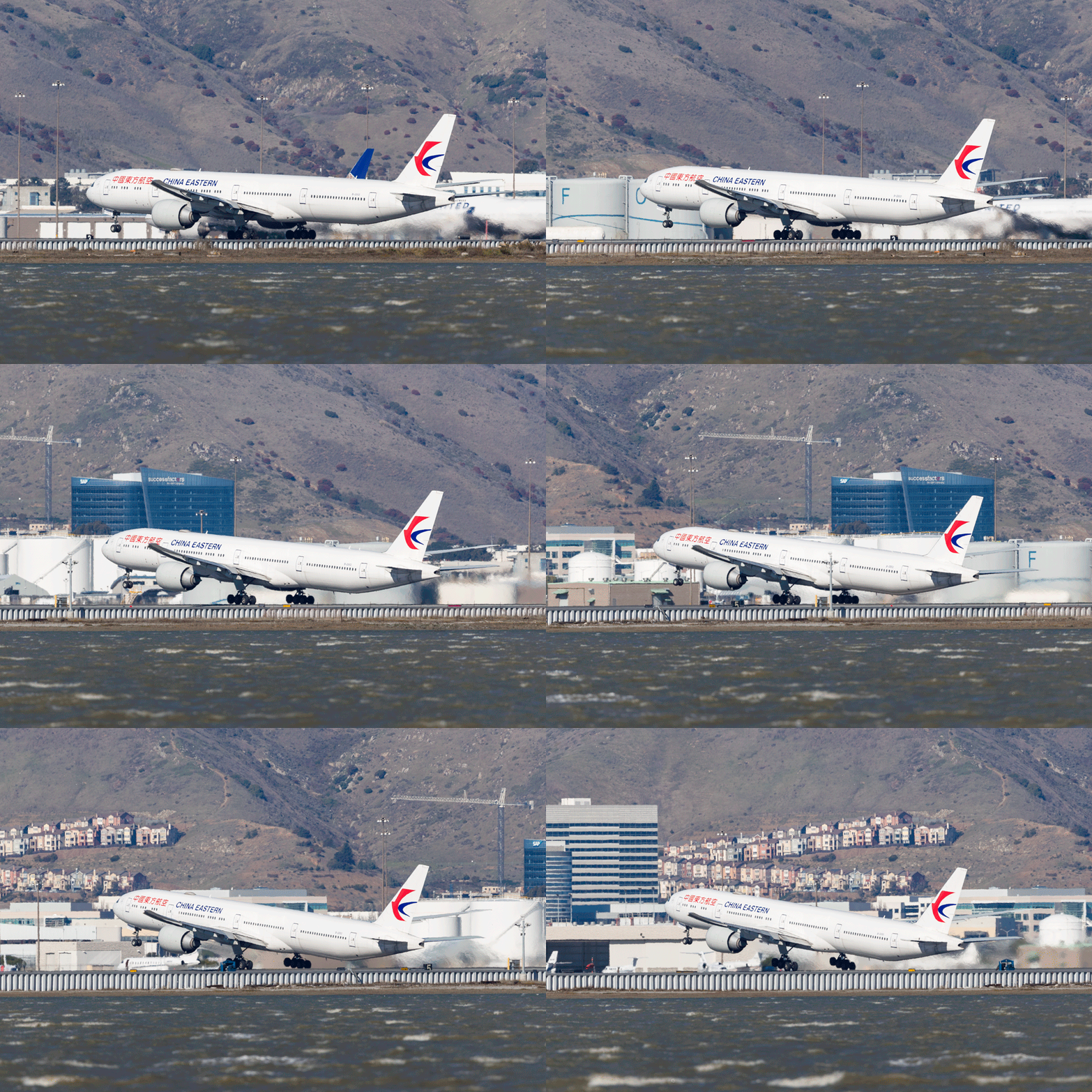
Another Go at 777-300ER Rotations

Getting repetitive here.  My never ending quest to capture and demonstrate the unusual gear articulation of the Boeing 777-300ER gets another outing.  Similar animation of some stills as before.  This time the light was good and the distortion was limited so here we go again.  I won’t bother with the technique aspects this time.  Instead, here is the animation with the rotation about the rear axle pretty easy to see.