Category Archives: technique

HDR Panoramas

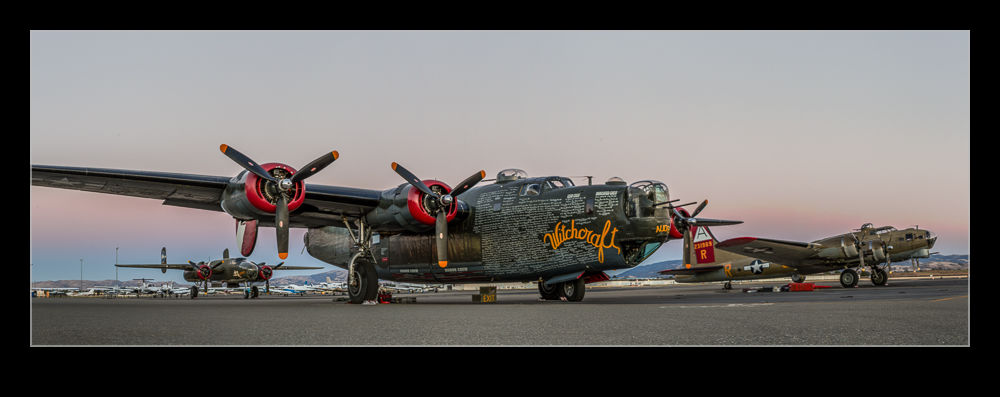
wpid10158-C59F8190-Edit-Edit.jpgAnother one of my processing technique posts today. For those of you interested in pictures of places, today will probably be one you pass on. You have been warned. This is about my first venture into the realm of HDR panoramas. I know at least one of you who knows exactly how to do this sort of thing and does it on a regular basis. You also will probably skip the rest of the post. However, you have some specialized tools for doing the job and I am playing with Lightroom and Photoshop so here is how it goes.

My initial thought having taken the shots was which order to carry out the processing. HDR first or pano first. I concluded that it had to be pano first. All of the pano exposures were consistent and would stitch properly while I wasn’t convinced that each of the pano frames would be consistent if I had done the HDR blending first. However, this left me with a second concern. Would the pano merge produce images that would align for the HDR merge. I use the pano tools built into Photoshop and, while I select the algorithm it uses, I did not have confidence that it would produce an identical alignment for each set of exposures. However, this was the route I tried.

Stitching the panos was straightforward enough. I created each of them from Lightroom and ended up with five panos with differing exposures. At this point I could have taken them directly to HDR Pro within Photoshop but, since I wanted everything to end up in the Lightroom catalog, I decided to save the files and go to HDR Pro from there.

Here I encountered my first hiccup. As expected, the panos produced were not identical. There were very close but not identical. HDR Pro only works on files that are the same dimensions. I imagine some more specialized HDR applications might be able to handle this but I was stuck with Photoshop. Since the panos were thousands of pixels across and only a few pixels different, I opened them back up in Photoshop and changed the canvas size to be identical in each case. HDR Pro is able to manage alignment of slightly misaligned shots anyway so I wanted worried about the positioning. Also, with such small changes in dimensions, I didn’t fear that I would have distortion.

With this change made, Photoshop went to work and created the HDR file. Amazingly, it worked just fine. I didn’t have any problems with the files being distorted relative to each other and it did a great job of blending them. All that was left was to crop everything in to clear up the empty corners from the pano creation (I didn’t get rid of those in the first instance since I was trying to keep the pano files identical in size and alignment) and then a few tweaks back in Lightroom had the job finished. I was pretty pleased with how it worked and, with the experience of this time, should be able to turn them around quite quickly next time.
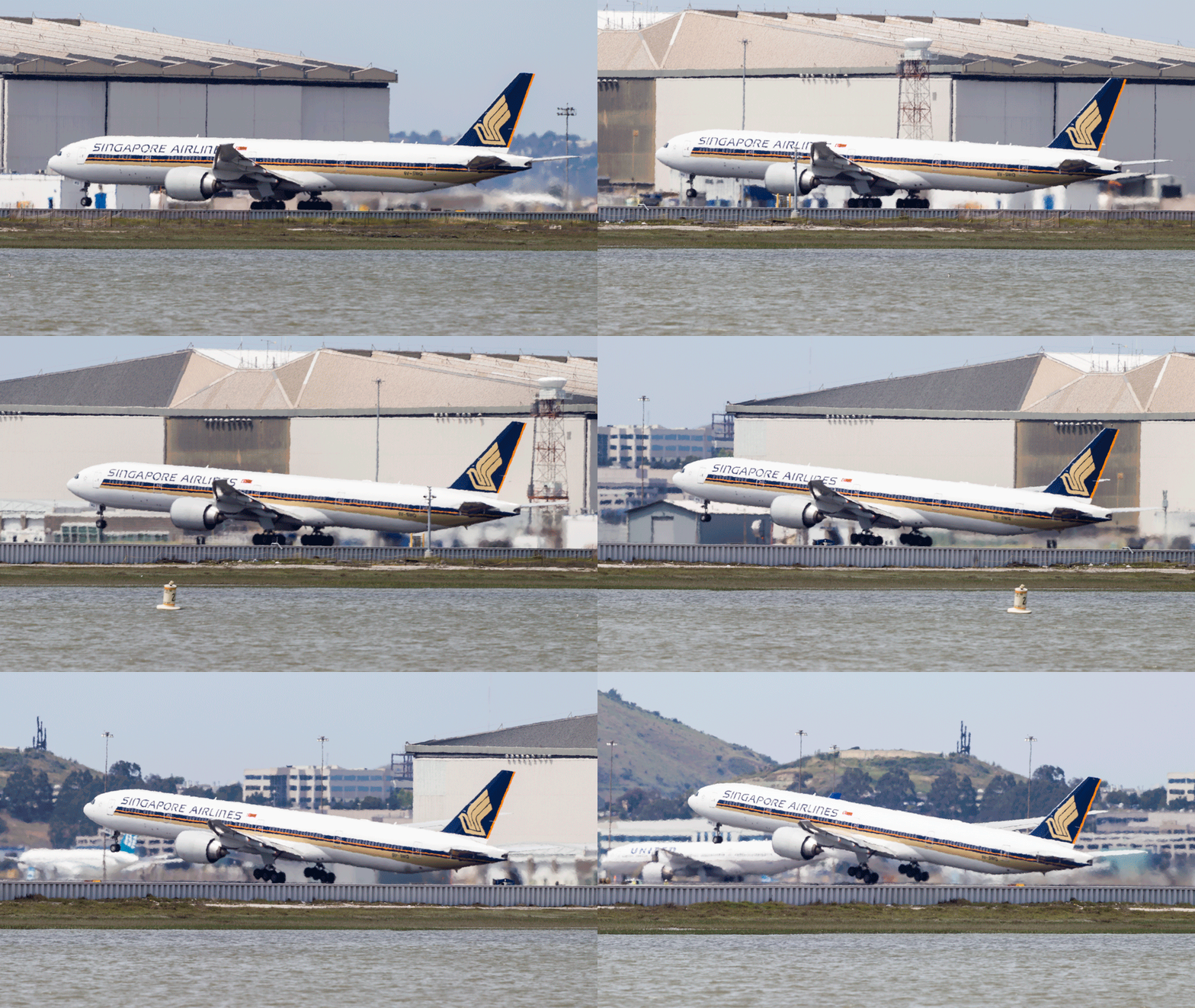
Boeing 777-300ER Main Gear

AU0E5067-EditWhen Boeing launched the 777-300ER, they took the stretched fuselage of the 777-300, a model that didn’t sell particularly well and married it to the updated wing that made use of the fuel capacity of the outboard portion of the wing that had been left when the original concept of a folding wing was contemplated.  The increased the weights of the jet, added far more powerful engines and, with the increased fuel capacity, came up with a winning formula that has done a very effective job of killing off the 747.

One problem that they had to deal with during development was runway length requirements for takeoff.  Even with the bigger engines, the long fuselage limited rotation angles at takeoff and meant a higher takeoff speed was required which meant a longer runway requirement.  Boeing came up with an interesting solution (after dumping some slightly more curious ideas).  The main gear on the 777 has a triple axle bogie.  Previously this had rotated about the pin attaching it to the main gear leg.  Boeing’s solution was to lock the bogie level during takeoff.

The result of this is to have the rotation of the jet at takeoff to take place around the rear wheels of the bogie rather than the gear leg pin.  The slight aft movement of the rotation point allows the aircraft to rotate slightly more nose up and gain a greater angle of attack.  This gives slightly more lift for a given speed.  This means an earlier takeoff and a shorter runway requirement.

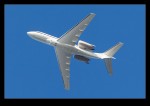
I have tried many times to witness this at work.  First, it happens pretty quickly.  Second, I am often in a poor position to see the rotation point.  Recently I was at SFO to pick up some people.  I was getting a few shots prior to their flight arriving and a Singapore 777-300ER was taking off.  The rotation point is quite far away (although, if you are in the terminal, you might have a good view) and the heat haze is a problem.  However, I decided to get a sequence of shots anyway.  Now, how to use them.

Heat haze is crappy on stills but less of an issue with moving images so I decided to animate the sequence.  I imported all of the shots into Photoshop as layers in a single document via Lightroom.  The hardest part was aligning them.  I started at the bottom layer and then progressively made each layer above visible.  I then changed the latest top layer blend mode to difference.  This makes aligning them a lot easier since everything is black unless it is different.  I was focused on the gear so used that as the reference as the fuselage rotated.  Once each layer was in place, I changed the blend mode back to normal and moved to the next layer up.

Once they were all aligned, I used the animation timeline to make frames from each layer (and reversed the order since every time I do this they seem to be the wrong way around).  Then I could crop in to get the overall view I was after and save the file.  A Save for Web allows the generation of the animated GIF and we are done.  The image at the top is the final result.  It does allow you to see a bit of what is going on if you look closely although it is still a bit hard given the distance, the angle to the ground and the heat haze.  I guess I will have to find a location closer next time.
Updated Approach to Lightroom Catalogs

I have been a user of Lightroom since Adobe release version 1 quite a few years ago.  It has been a very useful tool for me and something that dominates my workflow.  In the early days, there were issues with the number of images that a catalog could have before it started to respond sluggishly.  Consequently, I created a series of different catalogs for different subject areas.  Military aircraft were in one, civil in another, wildlife in a third, sports in a fourth and so on.  This system was fine to use although it had a few minor drawbacks in that some images would be in more the one catalog.  I would import them to one and then export them to the other.  However, as I edited one version, the other one did not always keep up despite saving the sidecar files to disc.

At some point, Adobe updated the functionality of the application and it was no longer so constrained by the number of files in a catalog.  However, I had a series of catalogs that I was familiar with so I didn’t pay much attention to this change.  However, over time, it occurred to me that I was making my life more complex than it needed to be.  I could probably cut down the number of catalogs dramatically and make the workflow a bit simpler.

I decided to have one catalog for all of my aviation related imagery and the other for everything else.  To do so, I created a new catalog for each of these and started importing from the other catalogs.  This was not as smooth a process as you might have imagined.  There were duplicate images as I knew and you could set the system up to make these virtual copies so nothing got lost along the way.  However, sometimes the import did not go well.  They were large catalogs coming into an even larger catalog and this caused some struggles.  I had to delete and start again at some points but ultimately I got it to work.  I did have to recreate some of the collections which did not transfer so easily in some cases but it is now done.

Did it make life easier?  Yes, it did.  Having just two catalogs is now a lot more straightforward.  Do they run just as well?  No.  The aviation catalog does seem to be a bit sluggish sometimes.  Usually it works fine but it is definitely not as responsive as the individual ones were.  I shall see how this develops over time.  A new machine is in the works so whether that will make a difference or not, we shall see.

SFO From the Hill

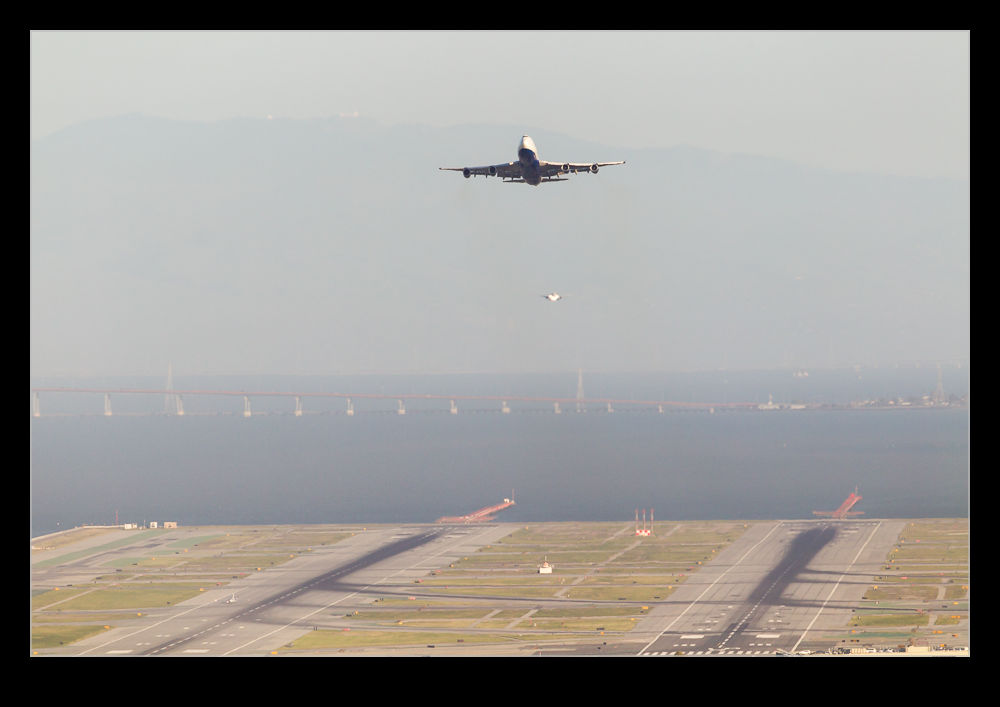
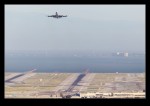
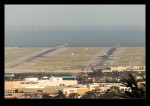
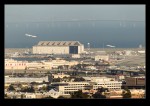
wpid9259-C59F2006.jpgMany of my recent posts have involved aircraft operating from SFO.  One of the restrictions SFO has is that, being bounded by water means there are limited opportunities to vary your shooting angles.  One thing I was ken to try was an overview of the field.  Driving along I-380, you are up on the ridge looking down to the airport and you are almost directly in line with the east/west runways.  I thought that there must be somewhere accessible where you could get a similar view.

wpid9263-C59F2148.jpgI checked with a guy I know who lives locally to see if he had any ideas.  He had already beaten me to it and had shot just what I was thinking about a couple of years before.  He suggested an area that might be suitable so I headed out.  I found a location with just the sort of view I was looking for.  The air was relatively clear so the shots of the field were quite good with one exception.  At this range, the heat haze is really difficult.  You are a long way out and everything between you and the airport is developed and has a lot of warmth rising from it on a nice day.  However, even knowing this, I still thought the difference the shot provided was worth the effort.

wpid9277-C59F2627.jpgI was extra lucky in that I met a bunch of guys working on a car in the driveway of one of the houses on the street I chose.  They were a good bunch and a lot of fun to hang out with so the infrequent nature of departures on that runway was compensated for by having people to pass the time with.  The shots here are a few that I got.  The aircraft continue on a pretty straight departure route so they end up passing almost directly over you.

wpid9279-C59F2674.jpgI would like to try shooting here another time.  Later in the day with softer light and – hopefully – less heat haze would be good.  The location might also be good for the multiple exposure type shooting I have done at Coyote Point.  After dark would also work well to generate some light trails.  Lots to think about for future shoots.

Crummy Skies at SFO

wpid9103-AU0E5331.jpgSometimes you have an idea about something that will work out really well.  Unfortunately, you are not always right in that assumption.  I was up early one weekend morning and was over in San Francisco.  My reason for being there didn’t quite work out – this day is turning out to have a theme – so decided to go down to SFO.  The weather was not great with a lot of cloud about at low levels.  However, I had in mind that it might be cool to try and get shots of the jets coming in with lots of moisture around them in a moody form.

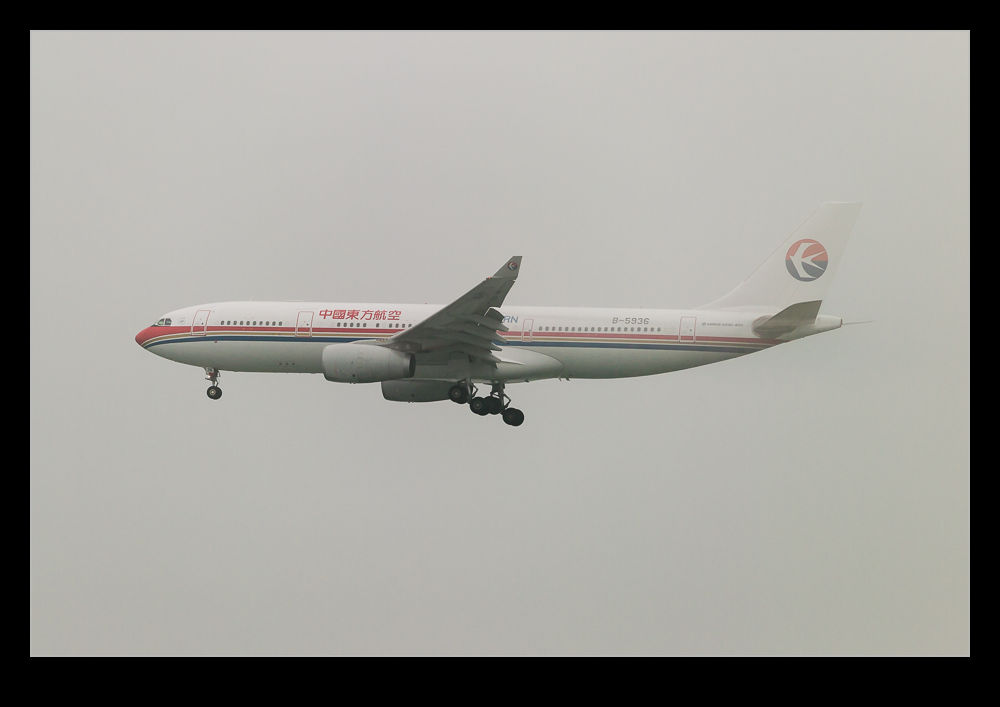
wpid9107-AU0E5495.jpgI got the shore and the planes were easy enough to see as they landed but it was just grey so nothing special or dramatic.  I decided to head a little further along the shore as I have previously seen the jets streaming vortices as they approached which then disappeared as they got closer to touchdown.  I figured that the moisture content of the air must change along the shoreline.  I was certainly right but not in a helpful way.  My next spot gave me a good location to be when the planes were finally about to get visual with the runway.  As they passed me they were still in the bottom of the clouds and only just breaking out.  Consequently, they were heavily obscured and not easy to see let alone photograph.

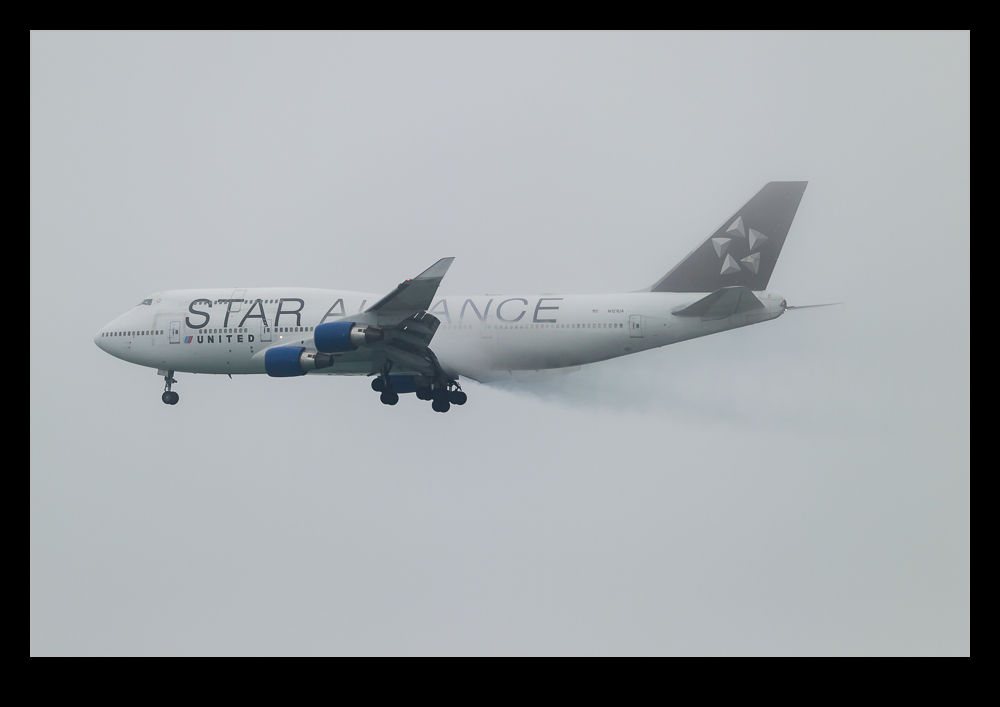
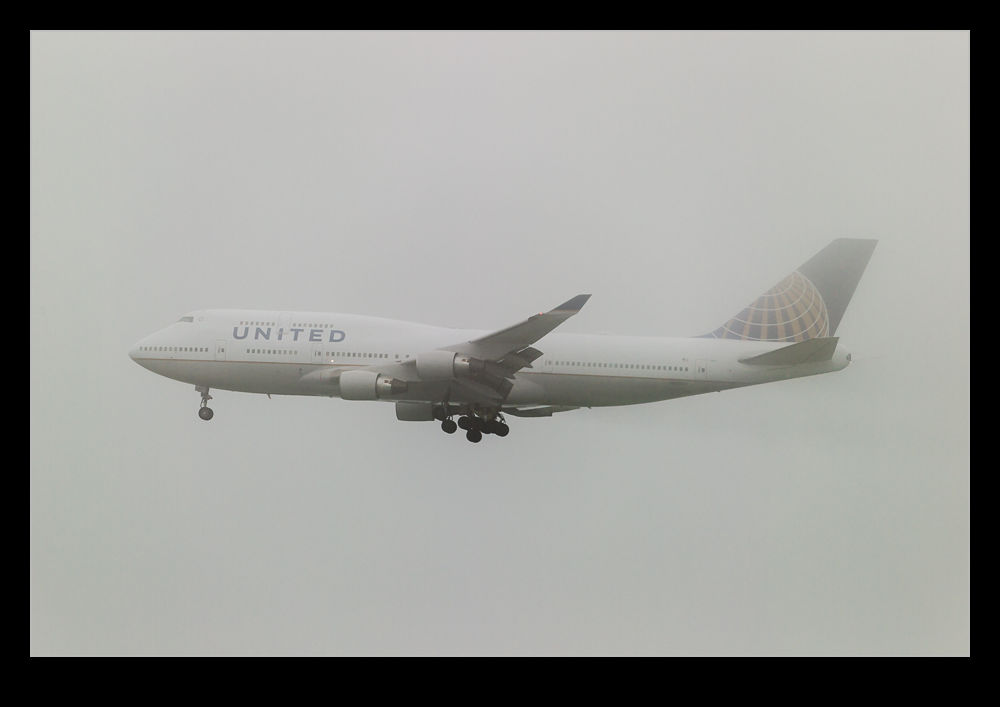
wpid9105-AU0E5398.jpgMy grand idea did not work out well at all.  As they got further away down the approach, they may have been showing some moisture but there was so much between us, it was hard to tell.  One United 747 did put on a good show with some serious cloud activity over the wings and flap system as it passed but that was as good as it gets.  After a little while, I accepted defeat and headed home.  It is true you won’t get something different if you don’t try something different but that doesn’t mean it will be worth it!

LRTimelapse

I have previously written about some time-lapse software that I use based on a recommendation from my friend Jo Hunter.  I used this software for a while before the creator, Gunther Wegner, updated it to a new version and deactivated the version I had.  I was a bit miffed by this but I was able to continue using the export settings from his application within Lightroom but with me having to manually manage the file cropping.  All transition and smoothing capability was lost but I could still make a basic time-lapse.

Sadly, the latest versions of Lightroom have done away with that as well and now I couldn’t even render the video.  Therefore, I decided to take a look at the latest version of his software.  It is now on version 3 so I have skipped a version en route to this place.  I had shot a few sequences recently and wanted to be able to manage them properly so decided to come back and have another go with his application.

There have been some improvements in tidying up the software so the workflow is a bit better.  There is still a certain amount of effort as you switch back and forth with Lightroom.  You have to put all of the images into a single folder while working on them.  This means a modification to my storage strategy but it isn’t difficult to manage in Lightroom and, when you are done, you can revert the images to their original locations and still render the video output.  It might be nicer if he gave you a more flexible approach to selecting files but this is not a hardship.

It has changed a little from what I am used to since now it starts out analyzing the files before you have created keyframes.  Once this is done, you save the xmp files out and reload them in Lightroom.  Define your keyframes and make any edits to them that you want and save xmp again.  Back to LRTimelpase to load the changes and now it does its smoothing very quickly.  Save xmp again and back to Lightroom and now there is an Export setting along with all of the other export options.  No going to the Slideshow module any more.

The results are pretty good.  The new export functionality actually generates a sequence of still images which it stores.  You then head back into LRTimelapse where you have a series of options for rendering a video sequence from those stills.  You can have it automatically delete the stills when it is done or keep them and render again using different output options.  This is pretty flexible although it means you have to pay attention to what you have used so you don’t end up with a ton of stored intermediate images.  The video output looks good.  I am not using the product commercially so do not have the full commercial license.  That will allow output in 4K formats.  I only wanted 1080p HD format for my purposes.  It is a little interesting that 4K is automatically assumed to be commercial use.  With people able to record 4K on GoPros these days and 4K TVs showing up, I suspect this is going to be a more mainstream format before too long.  Maybe it will be in the personal use license of future versions of LRTimelapse.  We shall see.

Was it worth the upgrade?  Yes.  Not least because I wanted to have the capability back that I had lost when Lightroom changed its output but, even so, I have found the new version to be quite a bit more friendly to work with.  I think it will encourage me to work on a few more projects.

Night Shoot at SFO

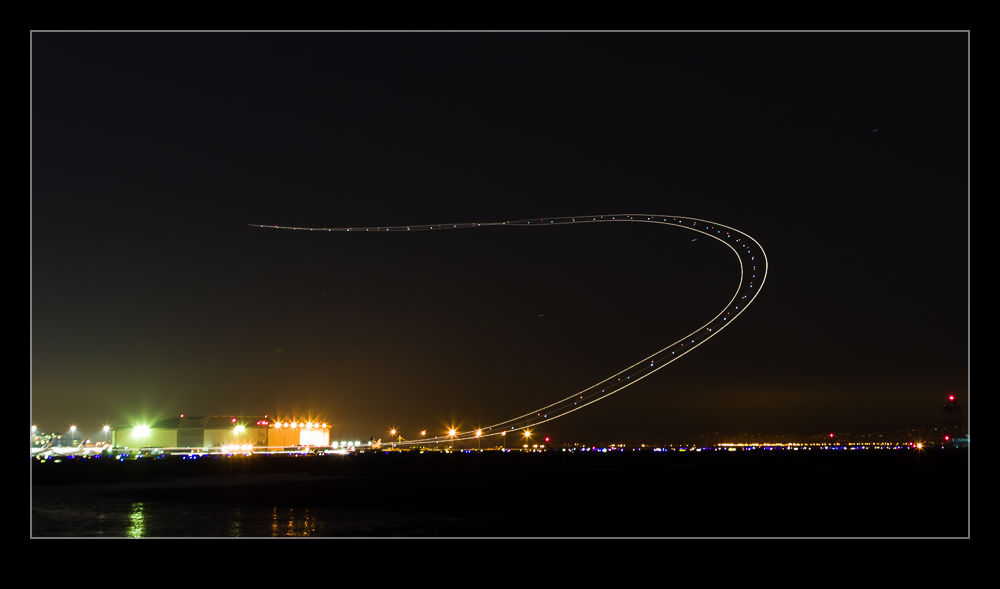
wpid8773-AU0E0813.jpgOne idea that Paul had was for us to have a go at shooting some light trails at SFO after it got dark.  This sounded like a good plan.  Unfortunately, we didn’t have any tripods or cable releases with us.  No matter.  Target was around the corner so we popped in there and bought a couple of $15 specials.  Hmm, these were quality items indeed.  Given how much a good tripod costs, can you imagine what a $15 tripod is like?

wpid8769-C59F4390-Edit.jpgHowever, we made the best of it.  Getting perfect alignment was tricky so some post processing cropping to level stuff up would be required.  The camera wobbled a lot on the tripod when touched so I chose to trigger it with the shutter button on a 2 second delay.  This allowed some wobbling to stop and, on a long exposure, any lingering wobble would be lost.

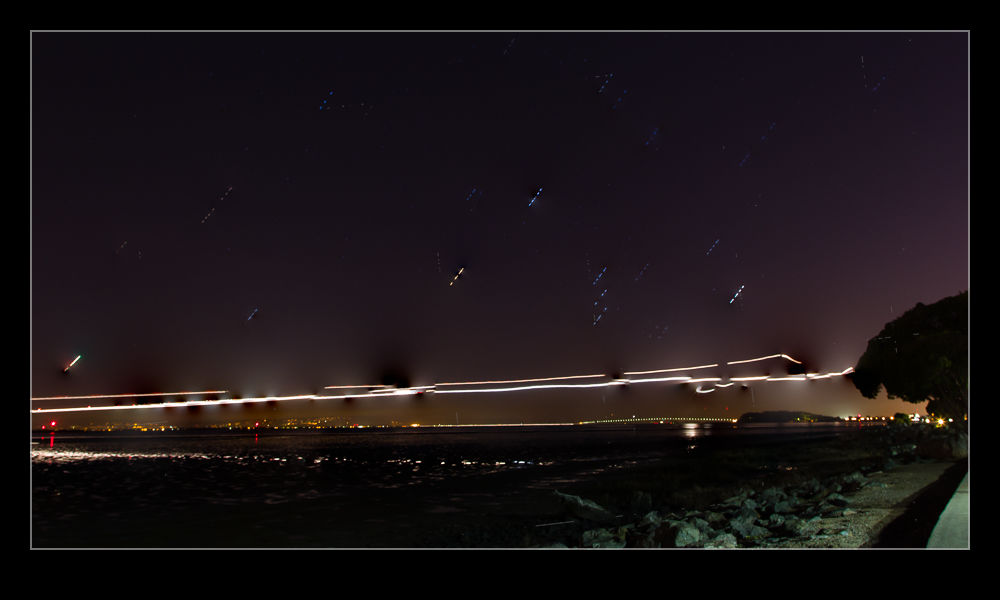
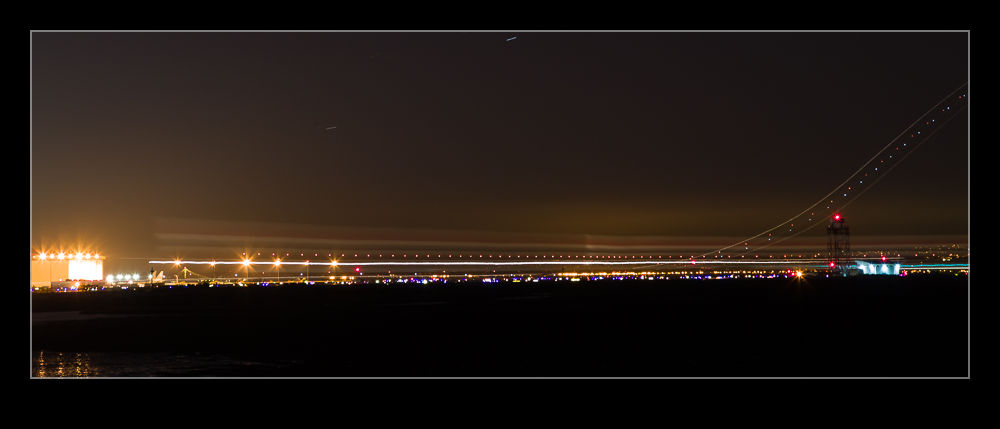
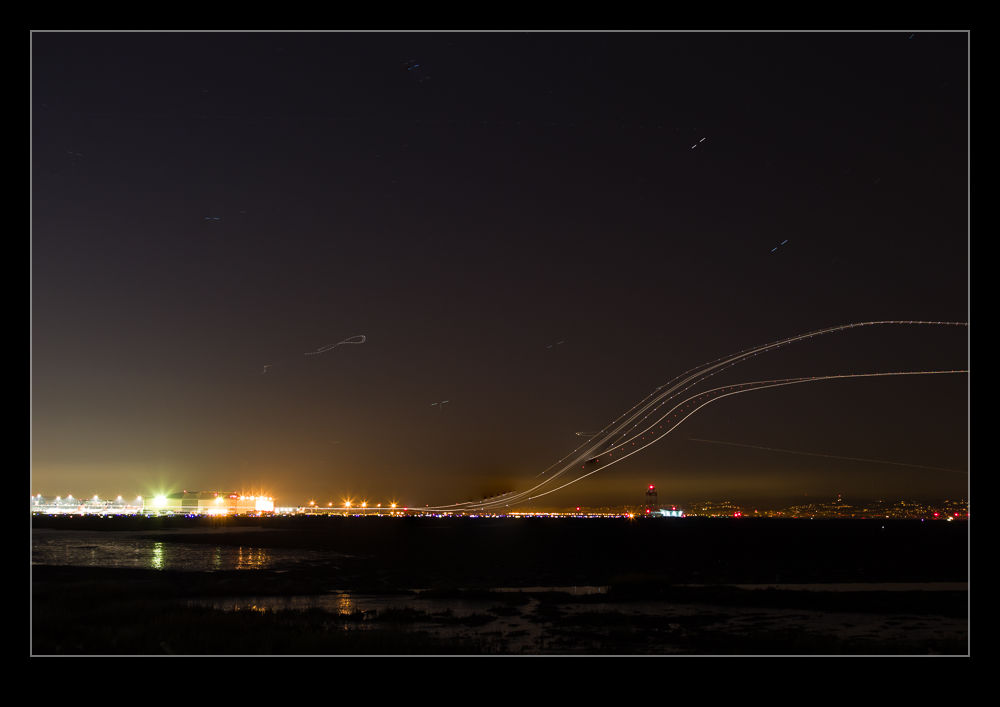
wpid8777-AU0E0811.jpgWe got some stuff but it wasn’t brilliant.  However, a short while later, I had to go to SFO to pick up some family members arriving on an evening flight so I decided to go a little earlier and try again, this time with some more appropriate kit in the form of a decent tripod and a cable release.  This time, I was able to control things a bit better and get a few shots of interest.  There wasn’t a huge amount of traffic so I didn’t get too many trails but I did get a slowly taxiing British Airways 747 which left an interesting smear across the frame.

wpid8771-AU0E0793-Edit.jpgThe alignment with the moving planes is not fantastic from where I was but it was okay.  Coyote Point looks like it might be better but I think it closes at sunset so I’m not sure whether that will be possible or not.  We shall see.

Playing with Blending Layers

I have been making some shots with multiple exposures to overlay.  This is something I have posted about before and the shots here are similar to those from before.  However, this post is less about the shots and more about the post processing I used.  Previously I opened up all of the shots as layers in a single file and then auto-aligned them.  Once done, I then used the Auto Blend functionality to show each shot o the aircraft in place.

This was a lot quicker than my previous approach and was something I picked up from posts on photographing star trails.  However, recently, I have not been as happy with the results as I should have been.  Some of the planes, particularly those near to the edges, had some odd artifacts appearing.  Also, if there were any overlaps, the blending masks could give some weird effects.  Therefore, I have taken a different approach for a while.  This is slower, I admit, but I think it gives a better result.

Once the alignment of the images is done, I hide them all except the bottom layer by Alt clicking on the eye beside the last layer.  Then I add the next layer up back in but mask it out completely.  A white brush on the mask then allows me to paint back in the new aircraft positions.  This is a bit laborious but it does allow you to decide exactly what you want in and what you don’t.  if one file is not helpful to the composition, you can easily ignore it.

If the layers are not all exactly aligned from shooting on a tripod, you will also get gaps at the edges on different layers.  You can also fill these in by brushing in the layers that provide the right coverage and get a complete image.  Once you are happy, flatten the whole thing and you are done.

Fort Point

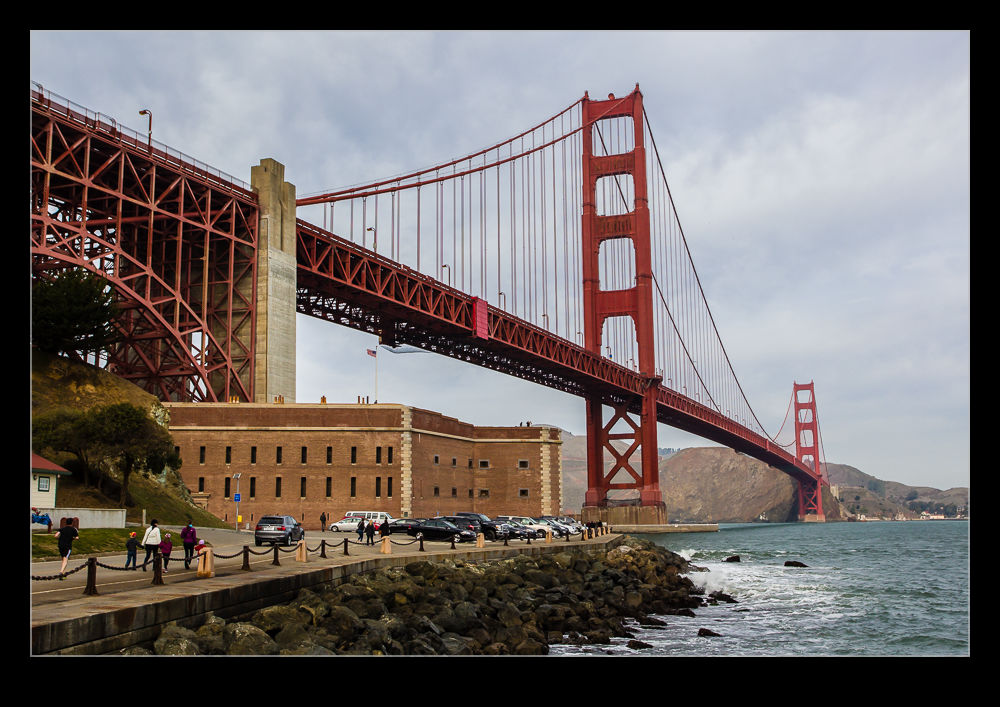
wpid8626-C59F4428.jpgA great place in San Francisco to take people but one that seemingly is ignored by many tourists is Fort Point.  Located at the mouth of Golden Gate, it is a fort designed to protect the bay entrance.  Now it is right underneath one end of the Golden Gate Bridge so it provides a very different vantage point for bridge viewing.

wpid8638-C59F4531.jpgI forget how interesting a place it can be.  We took our visitors there so that they could get the unusual view of the bridge but we ended up spending a lot more time there since the place is very interesting in itself.  Why do I not remember that?

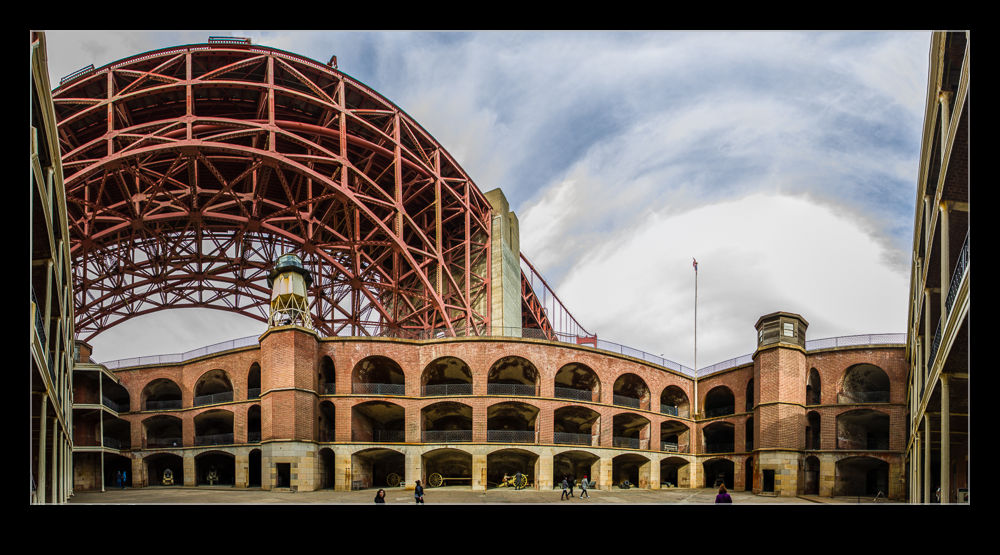
wpid8628-C59F4438.jpgThe fort structure is very cool and it has a number of exhibits including old cannons, rooms configured as they were when it was in use and displays on the building of the bridge above it.  The upper levels provide a great view of the entrance to the bay as well as the bridge and he bay itself.  Being so close to the bridge gives you a chance to play with some angles that provide a more distorted view of things which can be quite fun.

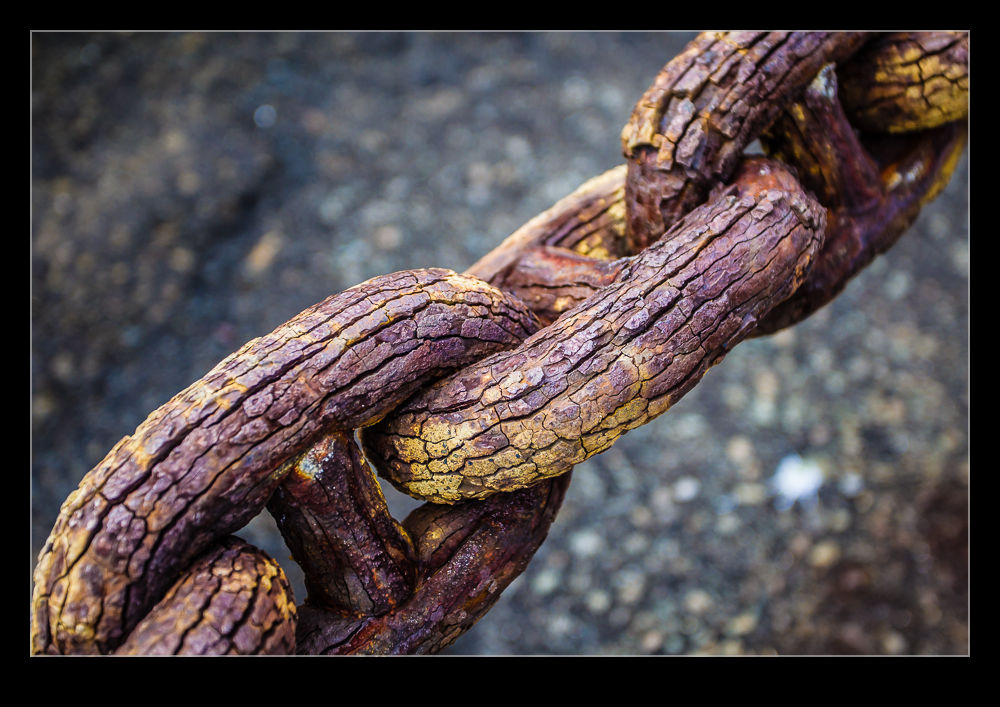
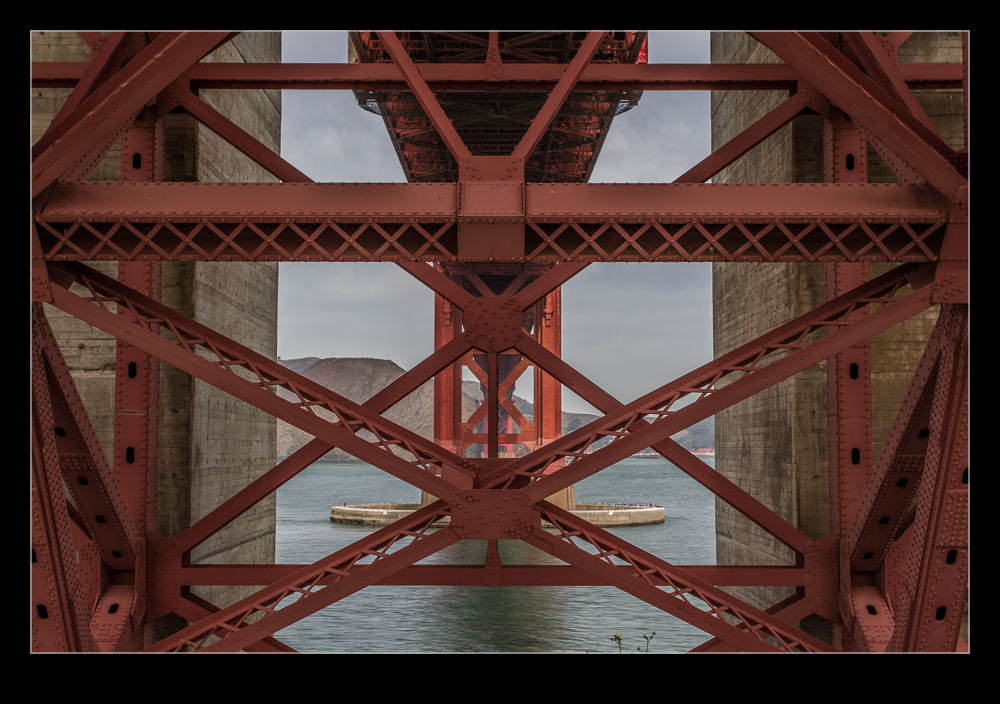
wpid8634-C59F4500-Edit.jpgAlso, you are under some of the ironwork which has great colors and textures.  A little HDR can help here to cover the well shaded structures as well as the views beyond that are in full light.  Whether you want to see the context or go a little abstract, you can find something to play with.  Meanwhile, some panorama options are there to be played with given the shape of the fort and the bridge beyond.

Changing My Approach to Panoramas

Ever since Adobe got their act together with the Photomerge function in Photoshop, it has been my default for creating panoramas.  Previous versions were a little unreliable but they cracked it a few versions back and I have not changed my approach since.  However, a recent bit of YouTube exploring has changed that again.  Russell Brown had a series of videos on making panoramas from aerial shots and, while I was watching them because they were aerials, the stuff he came up with on stitching panos was actually more useful to me.

Instead of using Photomerge, he uses the same functionality of Photoshop but in individual steps.  The technique involves opening all of the shots as layers in a single file (something you can do straight from Lightroom which maintains the re-import linkage that I like about Photomerge).  Then you select all layers and use Edit>Auto Align Layers.  This gives you the same options as Photomerge.  Apparently, according to Russell, if you have a series of shots where you have rotated position but are looking horizontally, Spherical works best.  If you are looking up or down, use Circular.

The result can be quite distorted if you use Circular but it will all get better soon.  If you aren’t happy, you can undo the step which is a lot easier than starting from scratch which is what you would have to do in Photomerge.  Once the alignment is done, Edit>Auto Blend Layers while take care of the rest of the stitching and blend everything together nicely.  It defaults to a Panorama blending option.

With the blend done, flatten the layers and open Filters>Adaptive Wide Angle.  This will default to a panorama setting and, if you have the distorted output from the Circular settings, now you will suddenly see everything come back to what it should be.  You can tweak this filter to get verticals and horizontals aligned as you wish and then you end up with a good pano output.  Some cropping and filling of blank areas with Content-Aware fill and the job is done.  I shall be taking this approach for all my panos from now on.  If you don’t use this approach already, you might want to give it a try.

Also, you can go to the original source on this and check out Russell’s videos on YouTube.