Category Archives: technique

Gear Down and Locked

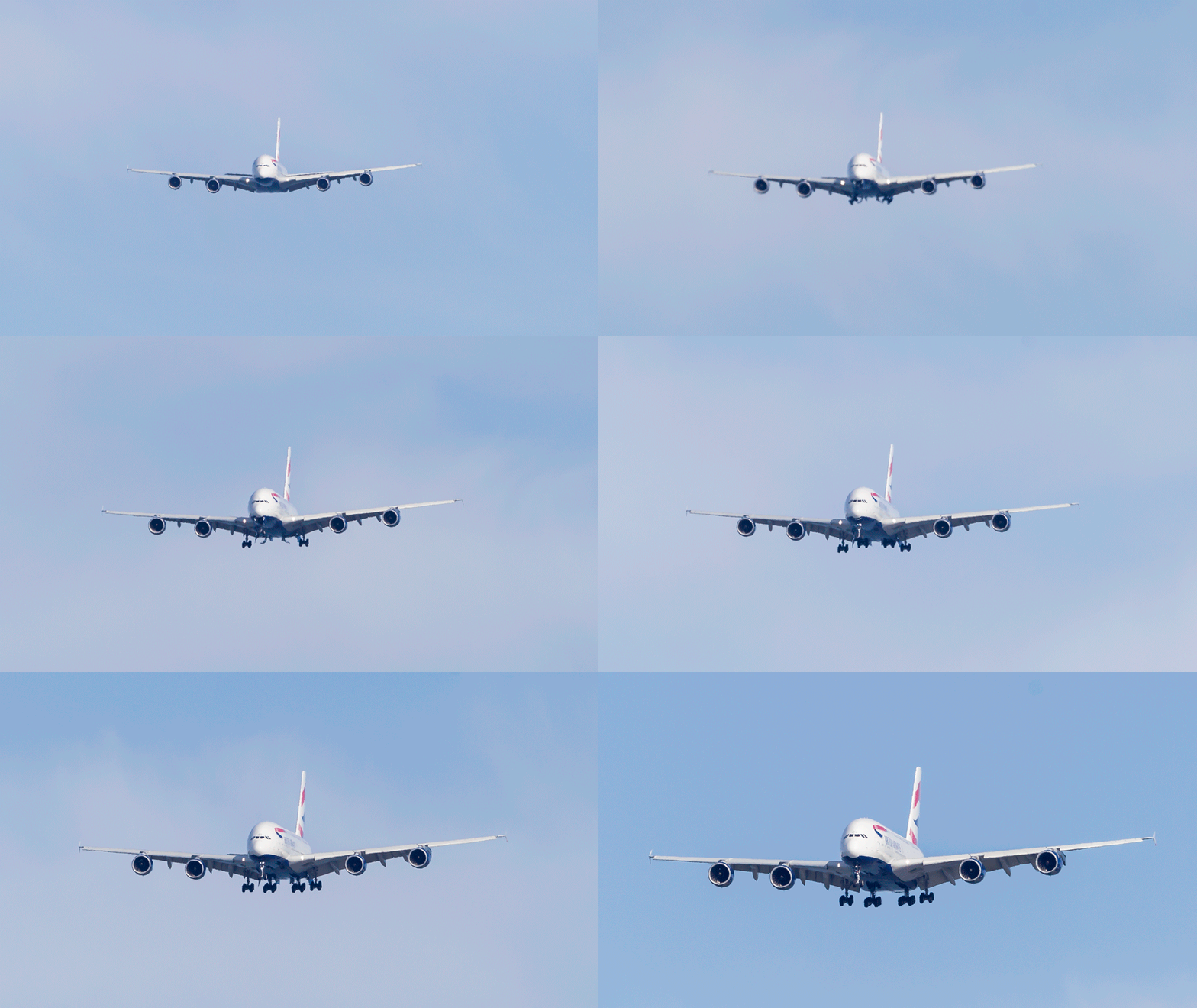
AU0E5747There are some shots that it is just hard to get. They are possible but it depends on what you have available. One idea that I have been trying to come up with a solution for is getting good shots of airliners as they lower their gear. The sequence for lowering the gear is pretty cool and the outline of the plane when it has flaps deployed but no gear is of interest to me too. However, to get a shot like that, you need to be high up further out on the approach. Unless you are in another aircraft, that is tricky to do.

From the normal locations on the ground, the aircraft is just too far away to get a decent shot. Not only is it in the distance and, therefore, small but you also have to cope with atmospheric disturbances like heat haze and dust in the air. It doesn’t make for a compelling shot! Instead, I decided to try something different. I would shoot the sequence of shots of the approach and then animate them. This would mean that the reduced quality of an individual shot would be lost as the sequence would require a certain amount of motion blur anyway.

What I didn’t realize until I tried this on an A380 was that this jet has an unusual gear sequence. I was looking at trying a 747 or an A380 since they are large and have interesting wing configurations when approaching to land. As it turns out, the A380 lowers the outer two gear legs first before the two center body legs come down. I had not appreciated this before trying this shot. Animating the sequence really put the computer under some pressure. Creating a file with over 100 layers and then adjusting each layer to align properly took some time and really made the machine work hard. Ultimately, I got the sequence you can see above.

Time Lapse Tutorial

I have mentioned in the past some of my interest in time lapse. I recently posted a sequence on here and a friend of mine asked me to put together a guide to how I had gone about doing it so here you go.

When putting together a time lapse, the first thing is trying to establish what will be special about what you are shooting a sequence of that will make a time lapse more interesting than any other form of presentation. Usually this involves something that changes slowly in real time but becomes more dynamic in a time lapse such as a sunset or storm cloud development. Alternatively, it is something where a lot happens over a long time that isn’t terribly dramatic on its own but, when speeded up, becomes far more impressive. This could be a sequence of activities with multiple people or launching airplanes as was the case for the one I recently made.

Once you have established what it is that makes it interesting, then you have to decide how best to portray that. Choosing your location and your angle of view are the next challenges. I was shooting departing and arriving aircraft at SFO so I needed an angle that gave me a good view of them and a field of view that allowed plenty of the movement to be seen without everything being too far away to be noticeable. In this case, shooting at night works well because the lights stand out far more making the aircraft more conspicuous than would be the case during the day.

Now it is time to get into the technical issues. How long a clip do I want to make? Shooting time lapses means getting a large number of still shots which will each be a single frame of video. Video frame rates vary but I used 30fps for the sequences I make. Therefore, 30 shots will give me a second of video. If I want a minute of video, I need to shoot 1,800 shots. That’s a lot of shots. Also, figure on shooting more before and after the main action since it is nice to have some spare video at each end to play with in future editing.

You know how many shots you need but how long in real time do you want to cover? Are you starting before sunset and finishing well after sunset? Do you have a peak period of activity that you want to cover? Now you can see how many shots you need over a given amount of time so you will work out how long the interval between each shot can be? The interval between shots is critical but you must also factor in how long a shutter speed you want. This is where shooting at night is a lot nicer because you can get nice long shutter speeds. These make for smoother looking videos because there is no jerkiness. Shooting on a sunny day with a very short shutter speed and a few second interval will result in a jerkier output. The “rule” is to have the exposure time at least half the interval. Doing that during the day may require some neutral density filters. At night it is a lot easier to manage.

Now to mount and control the camera. Obviously a tripod is a necessity to make a stable platform for the shots. A cable release is a must have and preferably one with a timer built in so you can program the intervals. However, if you are shooting at night, you can get away with putting the camera on burst mode with a shutter speed to match your interval and then lock the shutter release open. It will then just keep shooting. The other camera thing to consider is image stabilization if you have long shutter speeds. IS can wander around for long exposures making everything blurred. Keep it turned off. I would also switch autofocus off once you are happy everything is sharp to avoid the focus getting changed by the camera. If the conditions are changeable, you might go with something like aperture priority to accommodate changing exposures. At night, manual might be your best bet. Always keep an eye on how the exposures are doing if in a programmed mode to ensure you aren’t exceeding your interval with your shutter speed. There are complex bulb ramping tools available to use if you want to get advanced. I haven’t tried these since they haven’t been necessary for my purposes so I can’t give good advice. I do have the functionality in a cable release device that connects to my iPhone called Triggertrap but I haven’t ever pushed it to its limits.

One thing you will discover is that fixed apertures are not fixed. Cameras will go to a slightly different aperture for each shot which can result in slight variations in exposure. This “flicker” can be managed by clever manipulation of the lens position but I prefer to use software to fix it. The software will also help if you end up tweaking the camera settings during the capture sequence.

Last piece of equipment advice is bring a chair. Once everything is at work, you don’t have much to do. You can shoot with a second body of course or you can sit back and relax. If you have a buddy along, that is not a bad thing! I shoot all of my sequences in RAW format. For night shoots this gives you a lot of latitude for tweaking the exposures. It does use up a lot of memory but storage is cheap these days. With charged batteries and big cards, you are good to go.

Once the shoot is done, you get home with a ton of images that look remarkably similar. First I import them into Lightroom. I will keyword them in the same way as anything else from a shoot including adding a time lapse keyword. Then I will make sure all of the time lapse shots are in one subfolder before jumping over the LRTimelapse. I am not going to try and write a tutorial on using LRTimelapse. The website for the software has far better guides to how to use everything. However, I will focus on the key elements I go for.

The main one is the Deflicker process. This is a routine that analyses each shot and applies little tweaks to the exposure to avoid any visible flicker. You can draw out a box in the image preview to tell it where to analyze. This means you can pick an area that is constant in the image as a reference and avoid areas where there is a lot going on. If the image exposure is gradually changing, it won’t affect that. It will just take out the individual variance. You can see a trace of how the overall exposure tracks during the sequence.

The other element I sometimes use is panning. You can define keyframes in the sequence and jump back into Lightroom to crop each one as you wish. Back to LRTimelapse and it will calculate the individual crops for each frame to make a smooth pan between your chosen keyframes. Quite nice to provide a little variety if you wish. I always crop the images to a 16×9 format since that works nicely for HD output formats.

When all of your tweaks are fixed, you save the metadata files and go back to Lightroom to reload them. (There can be a bit of back and forth like this throughout the process.) In Lightroom, there is an export dialog from LRTimelapse which then renders out the individual files from each shot. These will then be taken by LRTimelapse and rendered as a video clip.

Sounds really simple that way and, to be honest, it is pretty straightforward. A little practice helps of course. When it works out, the result can be very satisfying. Of course, a lot of times, you see something that you really wish you had done differently. That is something you will have to put down to experience and try to remember next time you are out shooting.

One last thought – if you are shooting something that involves light trails at night, consider making each image a layer in Photoshop and blending them together as a stack to see what happens. It can work pretty nicely sometimes. However, you can end up with a pretty huge Photoshop file so your computer may groan while processing it. Happy shooting!
Hyper Lapse Landing at Phoenix

Hyper lapse is not something I have tried a lot of but I have done a little experimentation.  For those who are expert at it, my description might be a bit simplistic but it is basically a time lapse when the camera doesn’t stay still and the movement through a scene is accelerated.  I had a go at this out of a window of a Southwest flight that was approaching Phoenix.  Keeping the camera still and in the same reference to the aircraft is a little tricky but the nice thing about time lapse shooting is that small movements get blurred out quite quickly.

I liked the idea of the rapid passing of the scenery, the rapidity of the maneuvers and the speedy deployment of the flaps showing up.  I decided to let it run until we were back at the gate.  As my friend Paul said, “Don’t all Southwest flights taxi at that speed?”

SFO Night Time Lapse Take 2

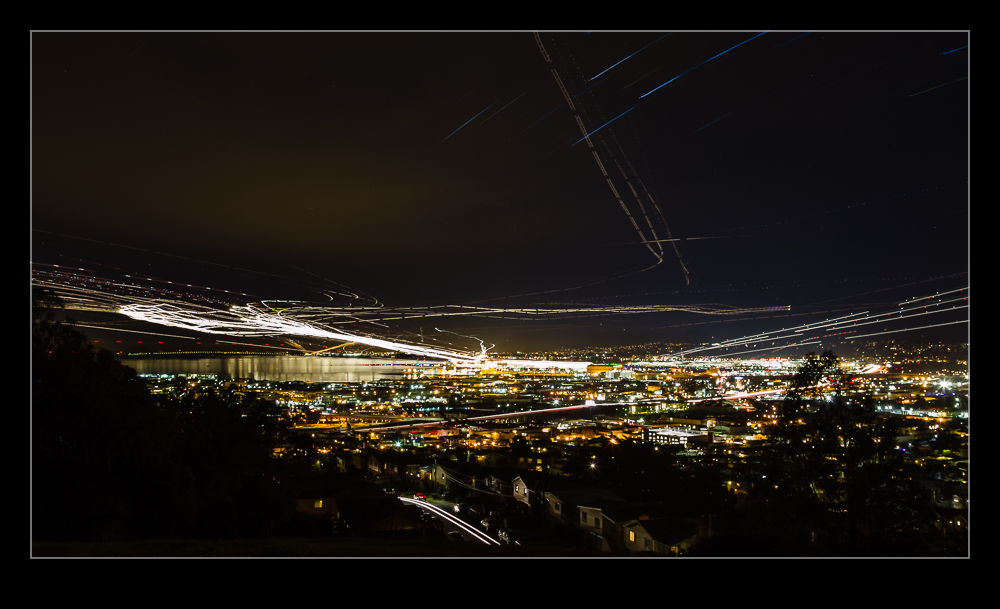
wpid13560-C59F6490.jpgLast summer my friend Paul had been across and we had hatched a plan to shot some time lapse and night streak shots of SFO from a hill that overlooks the airport. The plan seemed like a good one but it was thwarted by two things. First, there was some cloud in the area which obscured some fo the view. Second, it doesn’t get dark until late in the summer and Paul was on UK time so was pretty worn out by the time we could do anything.

Instead, we concluded that a second attempt would be made when he was over during the winter. So it was that we found ourselves back up on the hill. We had come well prepared this time with sturdy tripods and good cable releases. The only thing I had forgotten was the chairs since you have a lot of time to hang around on a dark hillside taking shots like this. I took a long sequence of shots that would be edited into the time lapse. When I got home, some quick work in LRTimelapse and the video was together as you can see below. I also decided to see how well the sequence would blend together to get a streak image. I have never tried to work with quite so many layers in Photoshop before. It certainly struggled with it but it did work. Unfortunately, there must have been some very slight movement on the tripod because the ground lights did not exactly align which made for a blurry foreground when using the Lighten blend mode. To counter this, I duplicated one of the base layers and masked that back in to give the ground a clearer image. The blended version is the one at the top of the post.

Night Launches

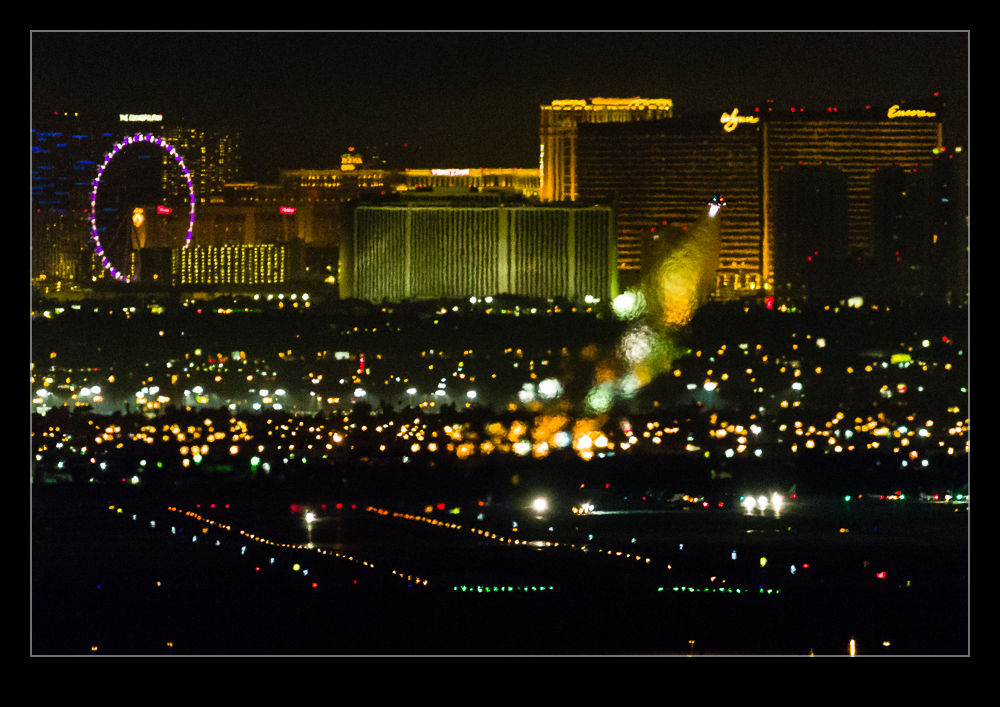
wpid13242-C59F8185.jpgWhen the daylight flying activities are over, there is still the night and Red Flag has a night mission that is flown on most days. Therefore, after dinner, you can head up to a spot north of the speedway where there is a great view over the base with Las Vegas in the background. It is dark up there so there are not many good chances for shooting the jets but you can sometimes get some shots of stuff flying over if it lights itself up.

wpid13240-C59F7969.jpgHowever, you can get some shots of the base with the launching jets showing up either from their afterburners or from the heat distortion they leave behind.

wpid13238-C59F7906.jpgThe other thing is to run a time lapse and see the jets moving around on the base and then streaking off into the sky. I ran a couple of them over two nights. Below is the result of one of them. Two things to note. First, the launch was very spread out. The main jet launch was actually quite late and I was tired and cold so cut short the sequence while they were still heading out. The second is that a weird optical effect shows up in the video. It is a movement of the image a bit like heat haze. However, since the shots are taken over such a long period of time, you would think that would not be an issue. Something is going on though so if anyone has any suggestions, feel free to comment with your thoughts.

The Spot Healing Brush

I recently put together a post on an old event that I had shot in my film days. It was the demonstration of the BAe 146 at London City Airport and the post is here. When I got the negatives out and scanned them, they were not in good condition. Despite washing the negatives, they still had a lot of scratches and blemishes on them. In order to prepare them for the post, I spent a great deal of time cleaning up the shots.

The tool I used was the Spot Healing Brush in Photoshop. I had used it occasionally in the past but never had I spent so much time using it in one session. It turns out I was not well aware of its functionality and I learned a little about it as I went. I had clicked on the tool and gone to work on it. The brush works by healing whatever you click on. You can click on a spot or draw across a section and it will then heal. However, it defaulted to certain settings which I wish I had known to change. It started out with Proximity as the setting. This makes it sensitive to picking up colors and patterns from things nearby.

At some point, I thought to change it to Content Aware at which point it became so much more helpful. In proximity mode, I found that I could heal many blemishes but I ended up with patterns in uniform color areas that looked very conspicuous. With content aware it came up with a far smoother solution which made for a cleaner result. Skies were the real issue for this and the change worked well.

Also, when working across edges, I found the tool was fine if I went perpendicularly across the boundary. Trying to work along an edge was tricky but if I went straight across the line, the algorithms were clever enough to know to leave the edge intact and just take out the blemish. It is a very cool tool and one I now have a better idea of how to use when required.

Another go at the 777-300ER wheels

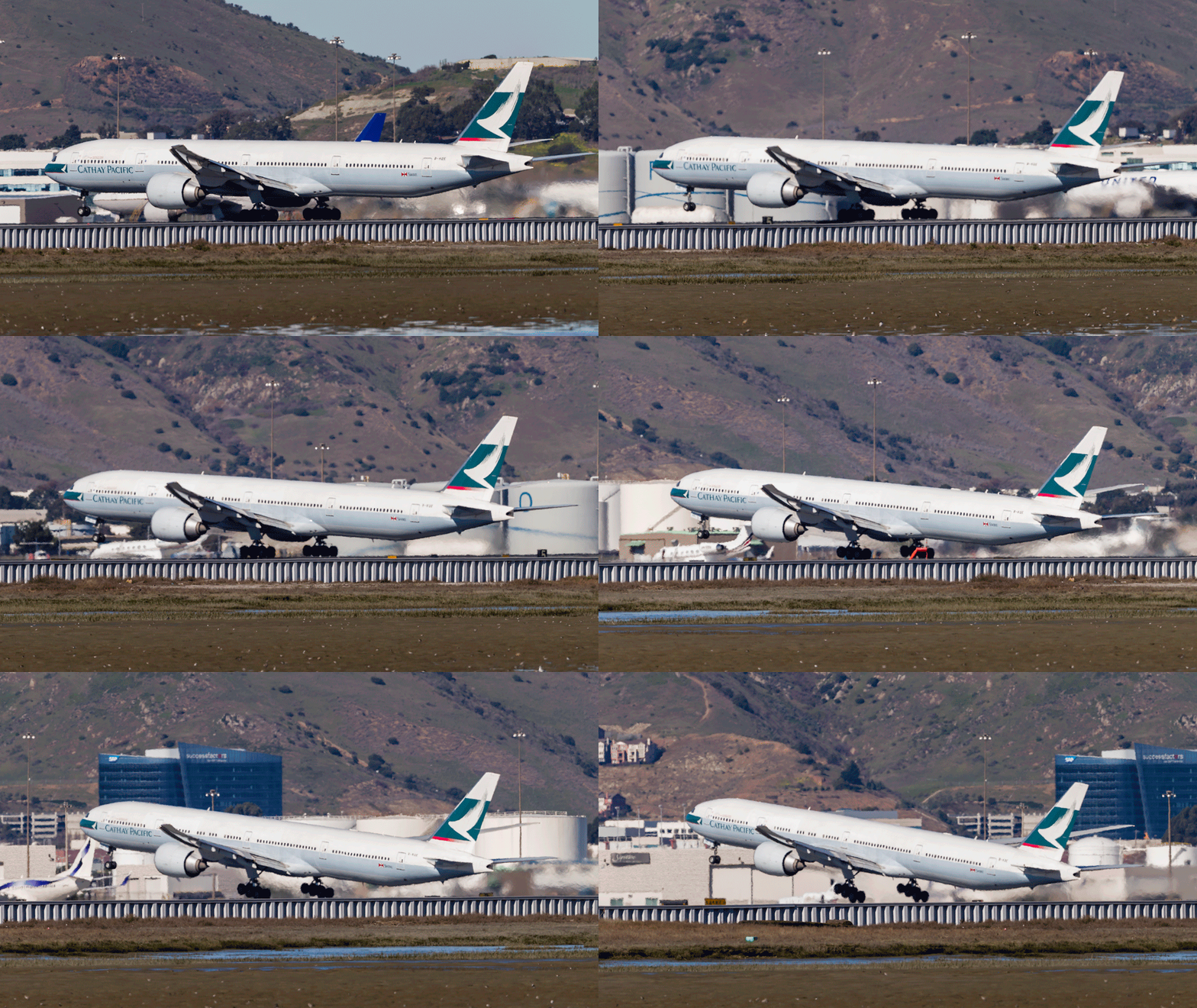
I have been trying to get evidence of a feature of the Boeing 777-300ER for many years. I previously posted on my efforts to get shots that showed the effect where the main gear bogie is locked to allow the aircraft to get a higher rotation angle at take-off. I have since had another go at this. Taking pictures during the winter has helped since the heat haze is a lot less obvious. Even so, the aircraft are usually quite a distance away. This time I managed to get a sequence that seems to show the effect quite well.

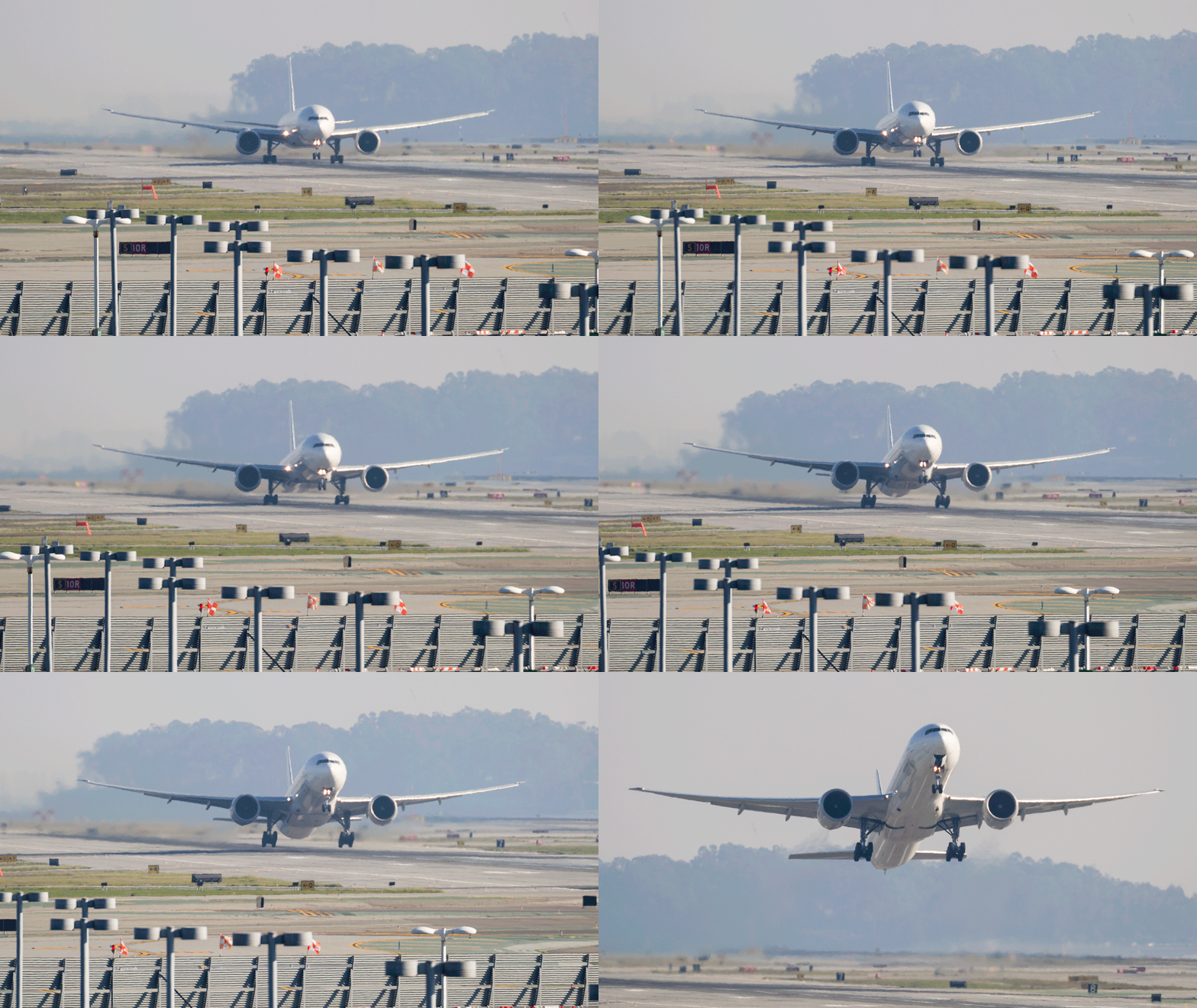
AU0E9767-EditI also had a go at doing the same thing from head on.  Not quite as clear cut but you can see some of what is happening.

AU0E5006-Edit

HDR 32 Bit and Lightroom

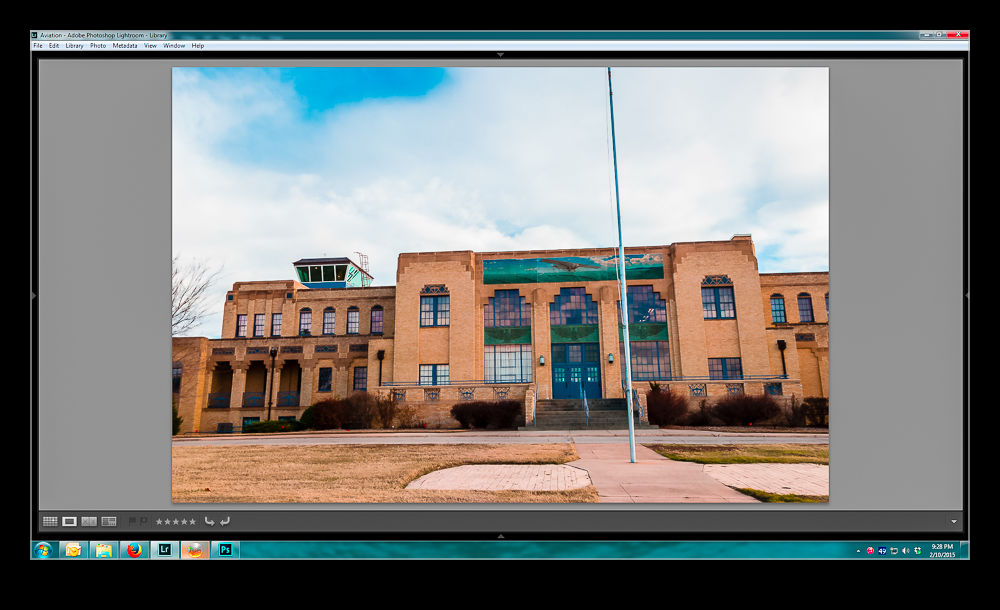
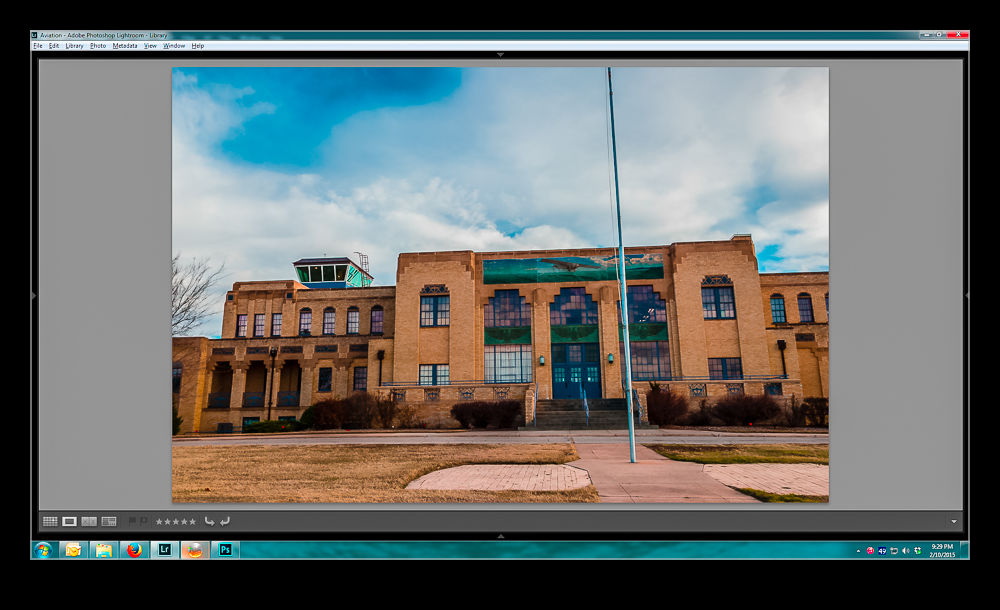
This post is a plea for help. Anyone who is a regular user of Lightroom and Photoshop may be in a position to educate me a little. I use Photoshop to process my HDR shots. I start out in Lightroom, select the shots and use the Edit Photo>HDR Pro method to open them up in Photoshop. I then use the 32 bit version of the HDR Pro processor to create the file. I then take the Edit Using Adobe Camera Raw option for opening the file to undertake the final mapping. This works pretty well and I can usually get something I am happy with.

I then close the file and save it which automatically reimports the finished file back into Lightroom. This is when things go wrong. The view of the file in Lightroom doesn’t appear to make use of any of the edits I had done in ACR. The highlights are too bright and the shadows too dark. I can then use the Lightroom Develop settings to get something close to what I want but surely that should not be necessary. I might make further tweaks but shouldn’t it look the same when I close out of Photoshop.

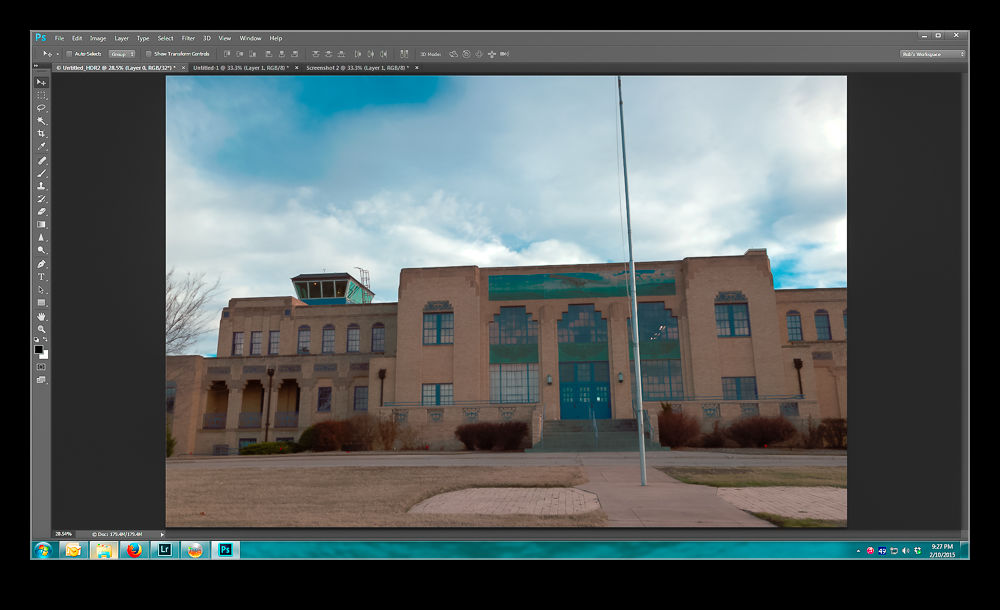
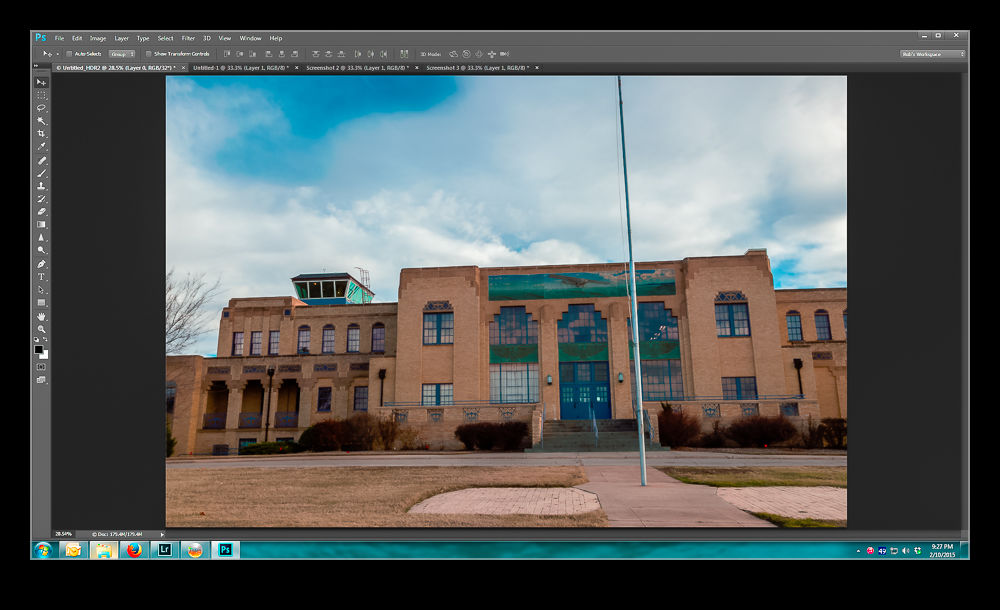
Below is a sequence of screen captures to show you the unprocessed shot in ACR, the finished version, what it looks like in Lightroom and then what I can tweak it to. Any suggestions are gratefully received.  (Note, I didn’t make this exactly match the two edited versions.  It is aimed to illustrate the disconnect and the recovery process.)

Original HDR merge pre tone mapping

wpid12810-Screenshot-3.jpg

HDR with ACR tone mapping appliedwpid12808-Screenshot-4.jpg

How the saved image appears when imported to Lightroomwpid12806-Screenshot-5.jpg

Using Lightroom to get back to something like I had in Photoshopwpid12804-Screenshot-6.jpg

Stead Field National Guard

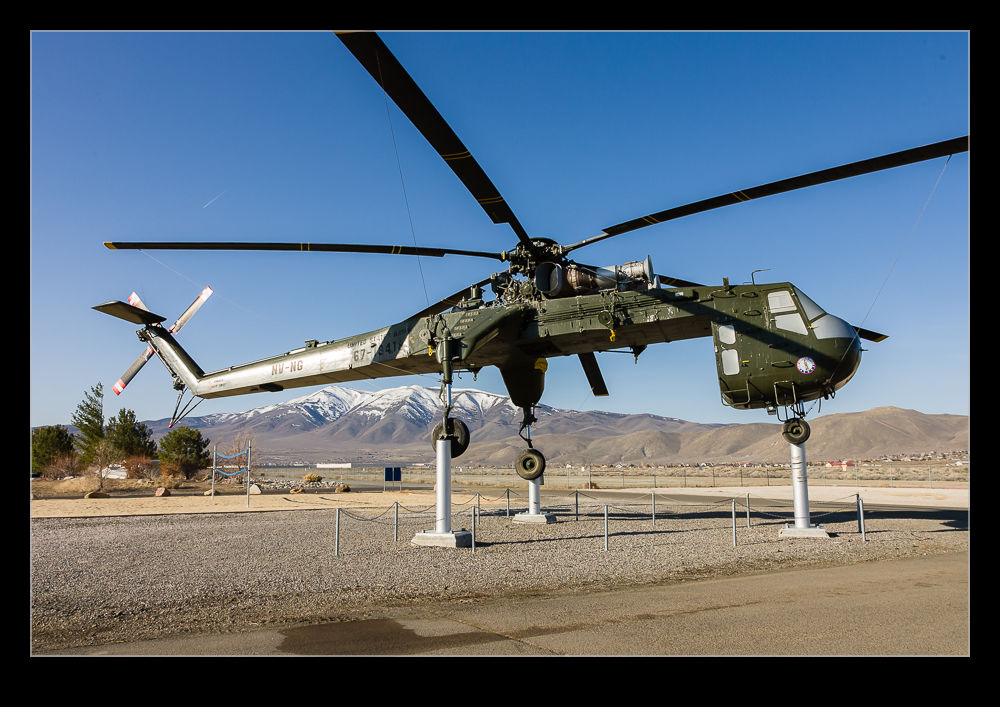
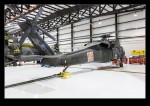
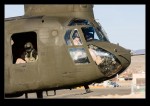
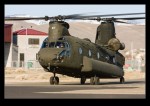
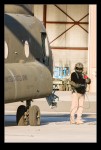
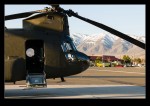
wpid12623-QB5Y7489.jpgQuite a few years ago, I was on a visit to NAS Fallon with my friend Richard. (You can check out his work at http://www.aviationimaging.com/ and I recommend you do.) Another buddy, Paul, was also along and the day after we were at Fallon, Paul had arranged a visit to the National Guard facility at Stead Field, north of Reno. (Paul’s work can be found at http://skippyscage.com/) This base operated a variety of helicopters including Chinooks, Black Hawks and Kiowas. It was also once the home of CH-54 Tarhes. It was in looking for pictures of the CH-54 that is preserved there that I came across the rest of the shots from that day.

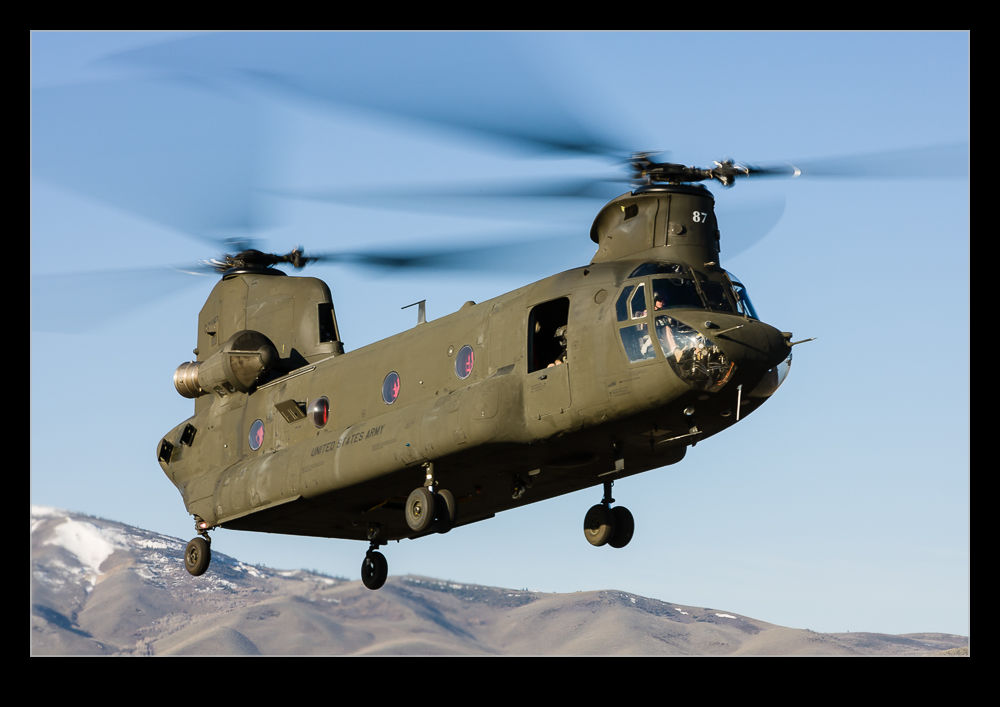
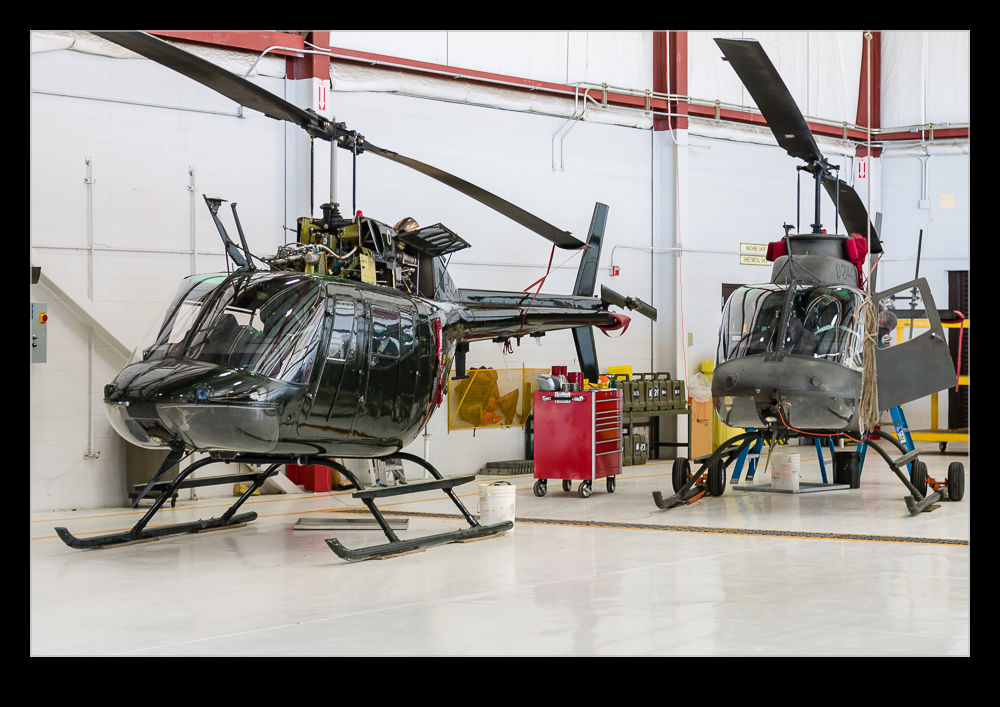
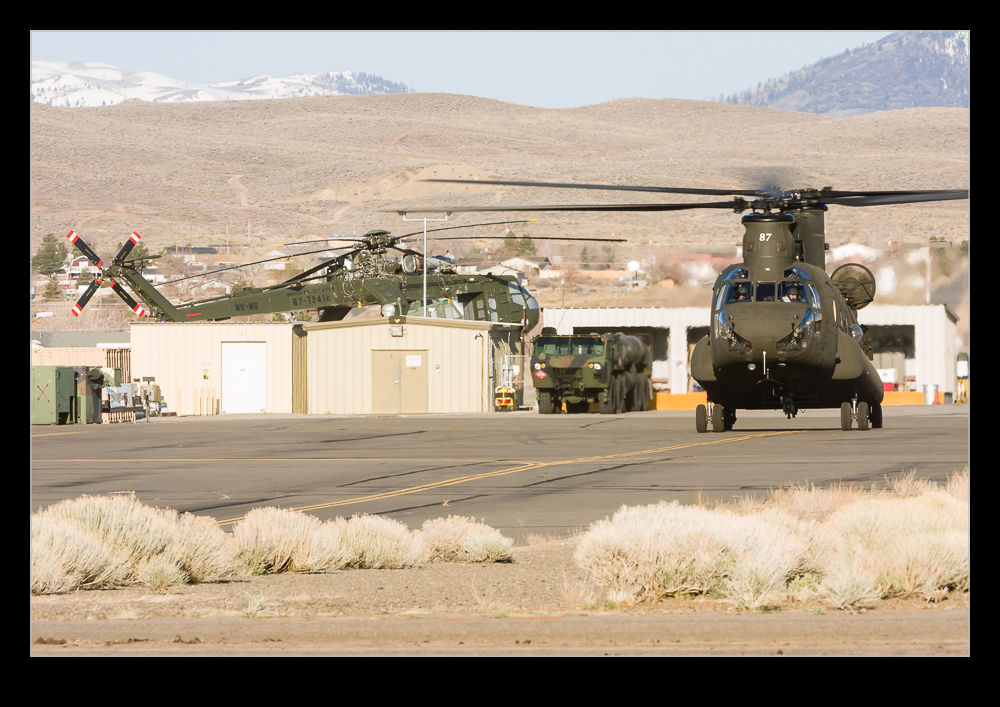
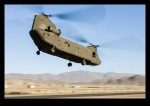
wpid12635-QB5Y7598.jpgI took one Chinook shot that morning that I have used a number of times but the rest of them had kind of been forgotten. We had a great time wandering through the hangars seeing what was ready for use or undergoing maintenance. The high point of the day was that a Chinook was launching and we were allowed out onto the ramp outside the fence to be in place when the Chinook taxied out and took off.

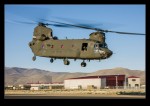
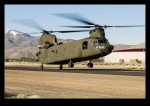
wpid12637-QB5Y7610.jpgAs it happened, the Chinook pulled up into the hover and stayed there for quite some time. Since I had time, I progressively lowered my shutter speed to try and get more rotor blur on the famously slow turning Chinook rotor. I had just got as low as I could go when he suddenly transitioned to forward flight. I was at totally the wrong shutter speed and ended up with some parallax issues as he flew by but it was all good.

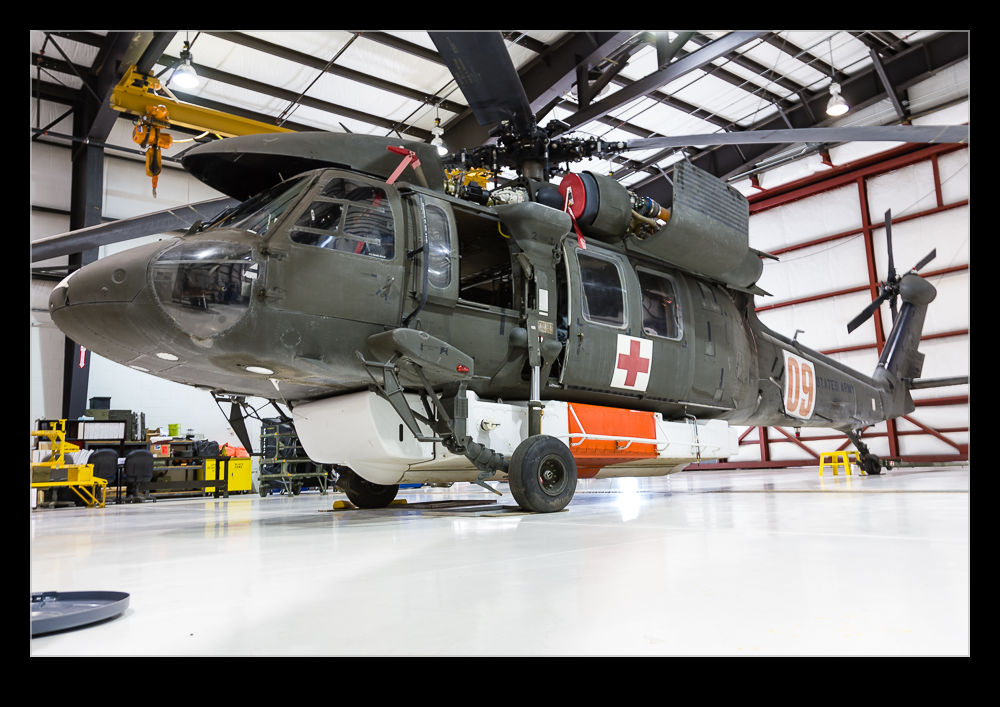
wpid12629-QB5Y7543.jpgThe Chinook obviously features here a bit but I wanted to share some of the other helicopters that were there that day. It was fun to see some shots that I had forgotten about long ago.

wpid12615-IMG_1548.jpg

HDR Pro Comparison

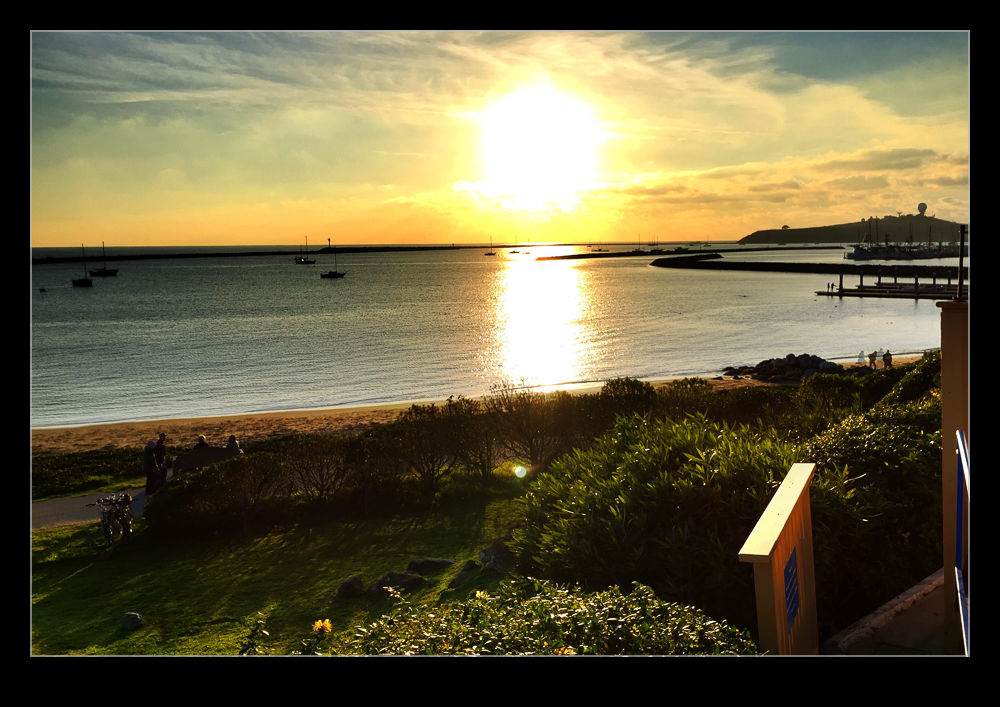
wpid12423-IMG_2448.jpgThe iPhone has an HDR function available in the camera’s software. However, it hasn’t impressed me in the past. My friend Hayman introduced me to an app called HDR Pro and I have used that as my default iPhone HDR app since. Recently, they introduced an updated version of the app called HDR Pro X. I decided to give it a go. I wanted to see what the images it produced were like, how the new controls worked and also to make a comparison with the output from HDR Pro.

wpid12425-IMG_2449.jpgThe top shot is from the new app.  The second one is the previous version.  The added control certainly seems to be beneficial and the blowing out of the higlihgts is far better controlled.  I am generally happy with the new version.  The controls could be more user friendly.  When you use Lightroom/Camera Raw all the time, anything less seems clunky!  See what you think of the results.