Tag Archives: technique

Negative Lab Pro

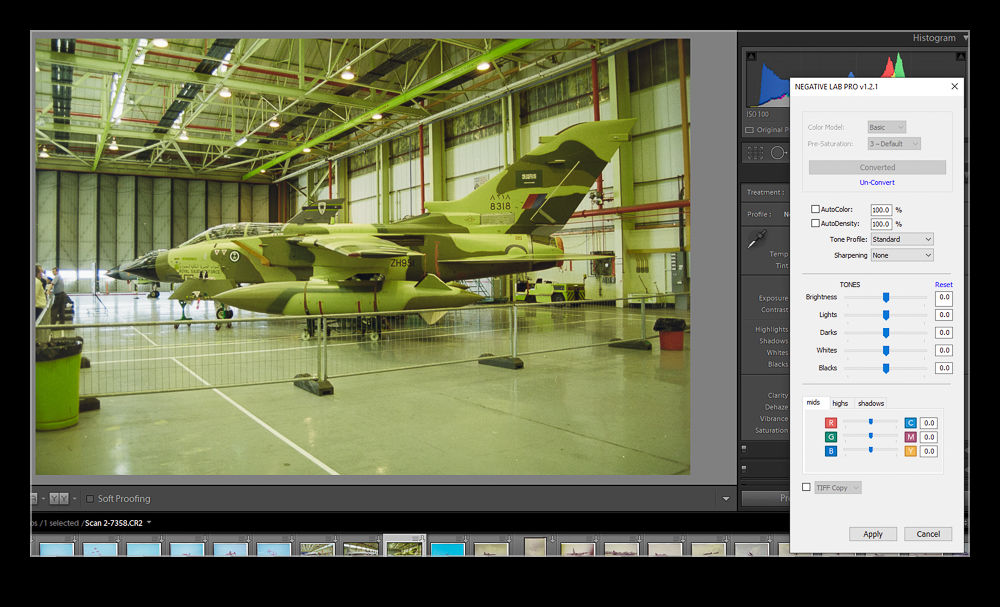
In previous posts I have described my efforts at scanning old negatives using a digital camera, macro lens and a light table.  I have had mixed success with the process for converting the negatives into positives with some films responding better than others.  I was okay with the output but thought things could be better.  A YouTube video showed up on my page that was about scanning negatives with a digital camera and I decided to watch to see if they did anything different to me.  The technique for shooting the negatives was similar enough but they introduced me to a Lightroom plugin called Negative Lab Pro.

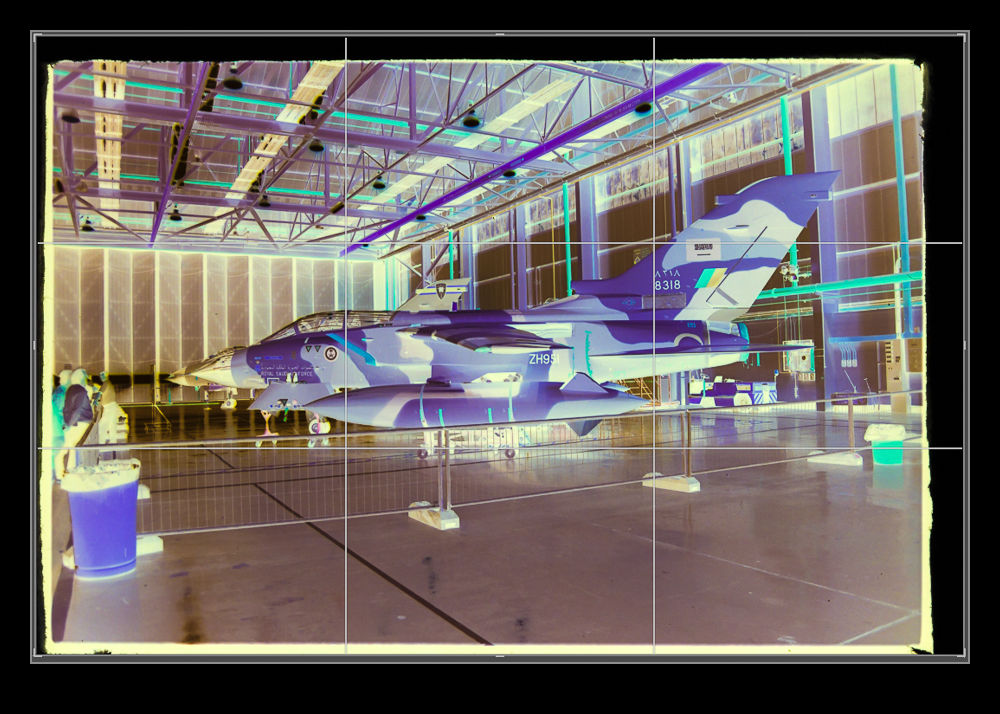
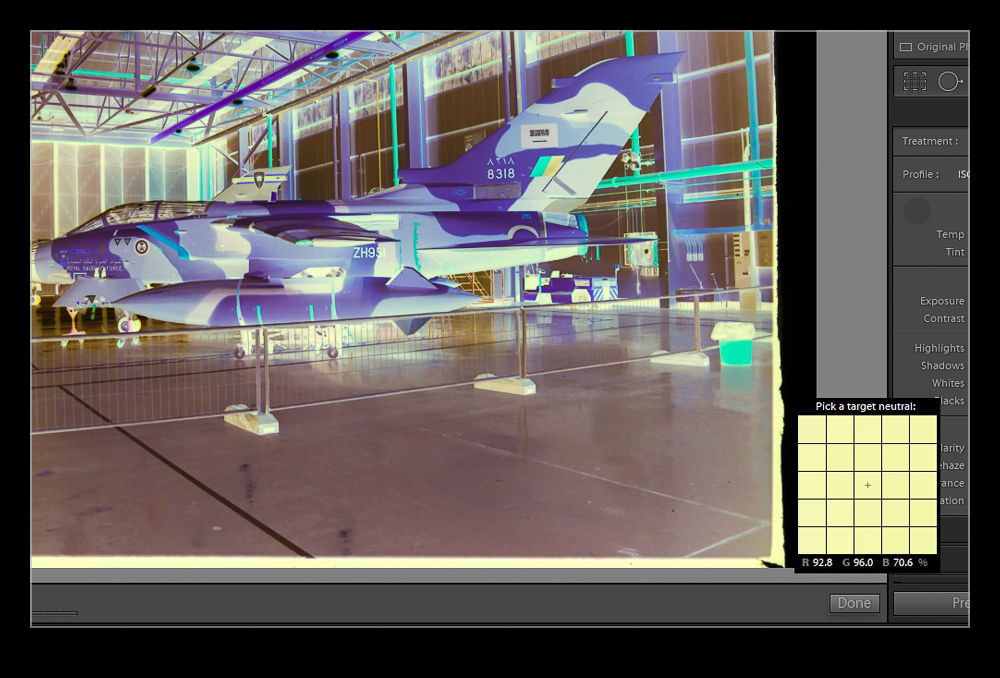
I downloaded a trial of the software and gave it a go.  I was sufficiently impressed with the output that I stumped up the cash for the full version.  It isn’t cheap but, given that I can now use it on several thousand images, I figured it was worth the investment.  The plugin requires a small amount of effort.  I revert the images back to a normal San without any of my previous edits and conversions.  The first thing to do after that is to take a white balance reading from some of the visible edge of the film to neutralize any color shift.  Then you crop in on the image.  Apparently, it is important to avoid getting any unexposed edges in shot as this messes with the algorithm.

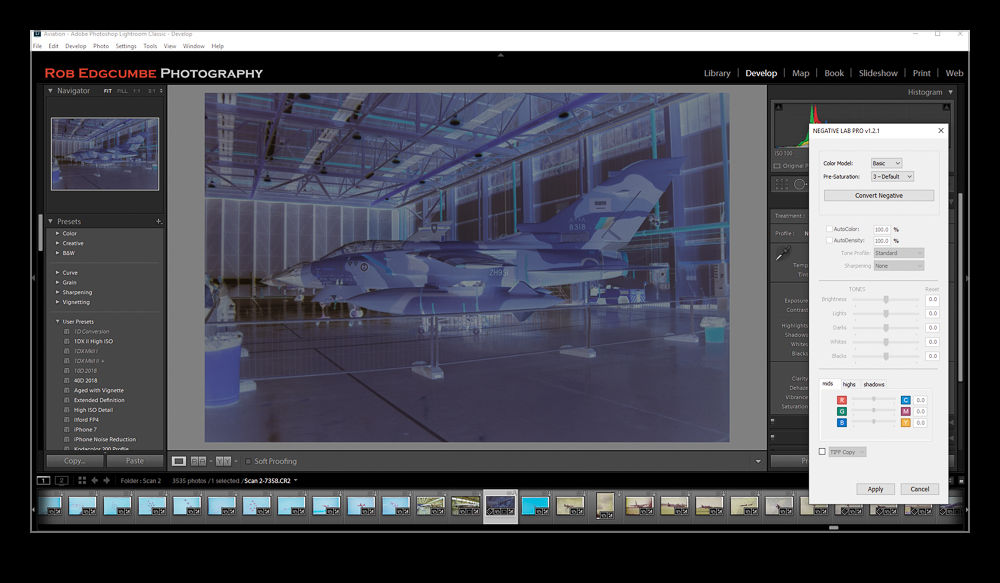
Then you open up the dialog box.  It analyses the image and does a conversion.  You then get some basic sliders to tweak the settings such as exposure and color balance.  There are some auto setting check boxes but I haven’t found them to be too helpful so far.  Then you click okay and the image is ready to do further editing in Lightroom.  You can also do batch conversions of images if you want although I think it is probably better to focus on individual processing.  I have been playing with this on a range of images so far and I like the results.  My old negatives are not that great and this is not going to suddenly make them amazing but I am impressed how much more I can get out of some of the scans using this software.

Lightroom 8.2 Detail Enhancer

Updates to Lightroom come along relatively regularly and they tend to include new features along with fixes and performance tweaks.  The latest update, Lightroom 8.2, includes a new addition called Detail Enhancer.  This is a feature that is designed to provide some better small-scale detail as part of the raw conversion process.  It creates a new DNG file based on a more complex calculation of the demosaicing of the sensor data.

I saw some videos about it and figured it wasn’t going to be of much use for the type of thing I am working on.  However, it did trigger one possible area of interest.  The algorithms are supposed to be designed to make better calculations around the different color pixels that sensors have.  Sensors are set up in a Bayer Pattern where different color sensitive sensors occupy different pixel spaces.  They each record in one color and then software interpolates between them to create colors for each pixel irrespective of which color was originally recorded at that location.

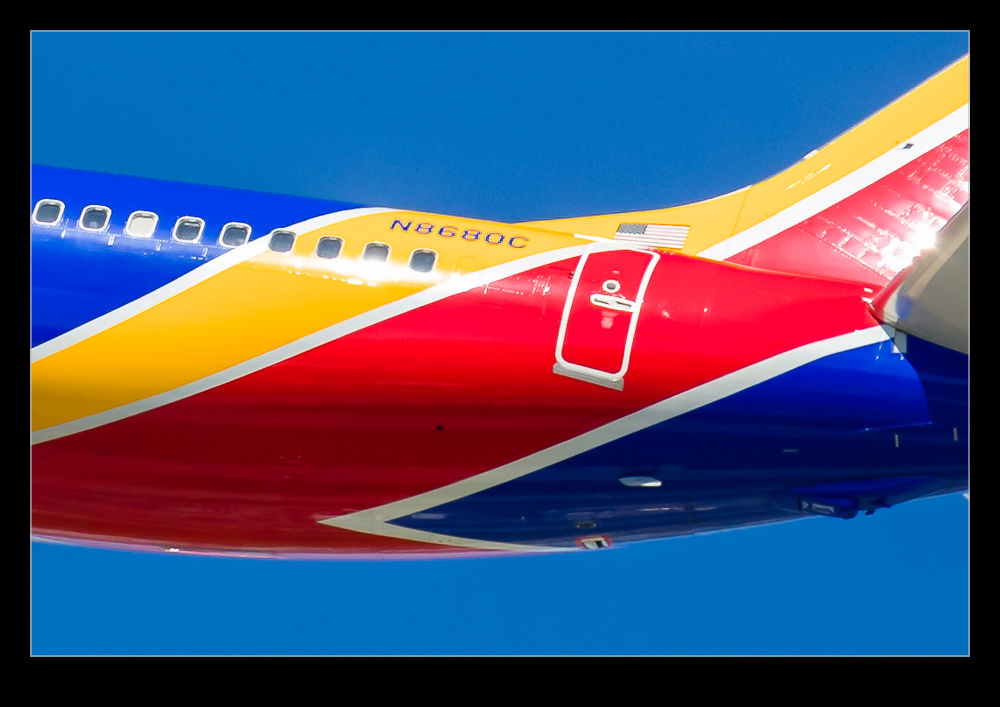
In a post from a while back, I mused on the way in which the colors of the Southwest Livery and the registration clashed and seemed to provide a distorted image even when everything around them was sharp.  I was pondering whether this was artifacting caused by the different colors and the way the sensor was recording the data.  If this was the case, maybe this new functionality would change the way things were rendered.  I dug out a few of the shots that had previously demonstrated this effect and ran the process on them.  These shots show the wide shot, the original rendering of the close up and the revised rendering using Detail Enhancer.

As you can see from the comparisons, Detail Enhancer does not suddenly render a perfect registration for the aircraft.  However, to my eye at least, it does appear as if the results are noticeably better then they were with the original rendering.  For completeness, the original rendering is done with the latest process version of Adobe’s raw converter to make things as fair as possible.  It does appear to make a difference.  This makes me think my theory about whiny things looked wrong might have some merit, even if this update has not fully resolved things.

Focus Stack Animation

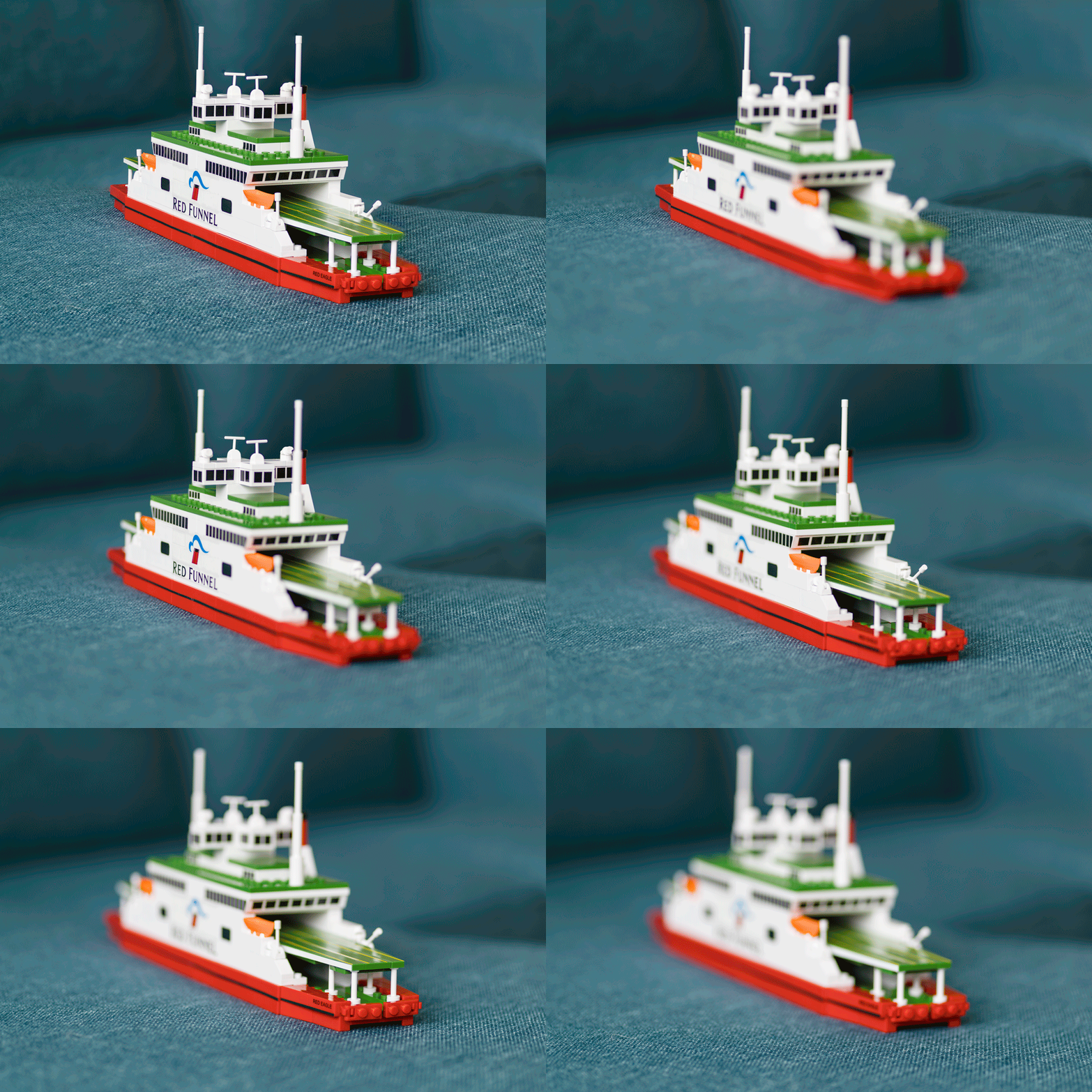
In some previous posts I showed the results of experimenting with focus stacking.  In those posts, I would combine one of the individual shots with the finished effort to show how shallow the depth of field could be on individual shots and how deep the focus was on the final image.  I was pondering whether this was an effective way of communicating the concept to someone when it occurred to me that animation might be a better way.  I created a new stack of images for a different subject but this time I used Photoshop to animate the movement of the point of focus through the shot and then show the final image.  This can then be an animated GIF.  I wonder, does this provide a better demonstration?

Learning a Better Way to Blend in Photoshop

I occasionally use the Statistics function in Photoshop to blend multiple images in order to get rid of the distractions that I don’t want like people or vehicles.  Up until now, this has been a real pain to do.  I would identify the images in Lightroom but would have to open Photoshop, go into the Statistics function, use the browse function in there to select the images and then it would run everything in one go.  This was not a convenient way to go and the output image then needed to be manually added to Lightroom which is not handy.

It turns out that there is a better way.  This may have been in Photoshop all along and I never knew or it could have been a recent addition.  Either way, it is there and I shall now use it for future projects.  I have even created a Photoshop action to cover the process and assigned a function key so it will now do the heavy lifting without my intervention.  It all starts out in Lightroom.  Select all the images that will be used for the blend.  Then use Edit>Open As Layers and a new document will open in Photoshop with all shots as layers.

If everything has been shot on a tripod, things will be properly aligned by default but I often do these things on the spur of the moment so they are hand held.  Consequently, while my efforts to keep pointing in the same direction are not bad, the first task is to select all layers and Auto Align layers to tidy things up.  Next, go into the Layer tab and, under Smart Object, convert to a Smart Object.  This may take a little while.

Next step is to go back into Layers>Smart Objects>Stack Mode.  This brings up the same options as you get through the Statistics function.  Select Mean and send it on its way and you end up with a shot that, depending on the number of shots taken and the clear space in enough of them, results in a clear shot.  Usually I find that I haven’t got enough shots of the right type to get everything to disappear so some ghostly elements may remain but they are certainly less distracting than the figures in the original shots.  I have no idea what the other modes will achieve and the descriptions Adobe provides in their help files are so obscure as to be virtually useless. Instead I shall have to experiment with them to see what happens.  Thankfully, now I have this new method, I can undo the last step easily to try each option which would not have been possible using the Statistics dialog.  Another win!
A Further Trial in Focus Stacking

In a previous post I wrote about a focus stacking effort I made with images of a model aircraft at a show.  I had been meaning to have another go at this and do so in a more controlled environment.  I then ended up buying myself a macro lens for use in my negative scanning efforts and immediately started playing with it to shoot things close up – it’s a macro lens for goodness sake!

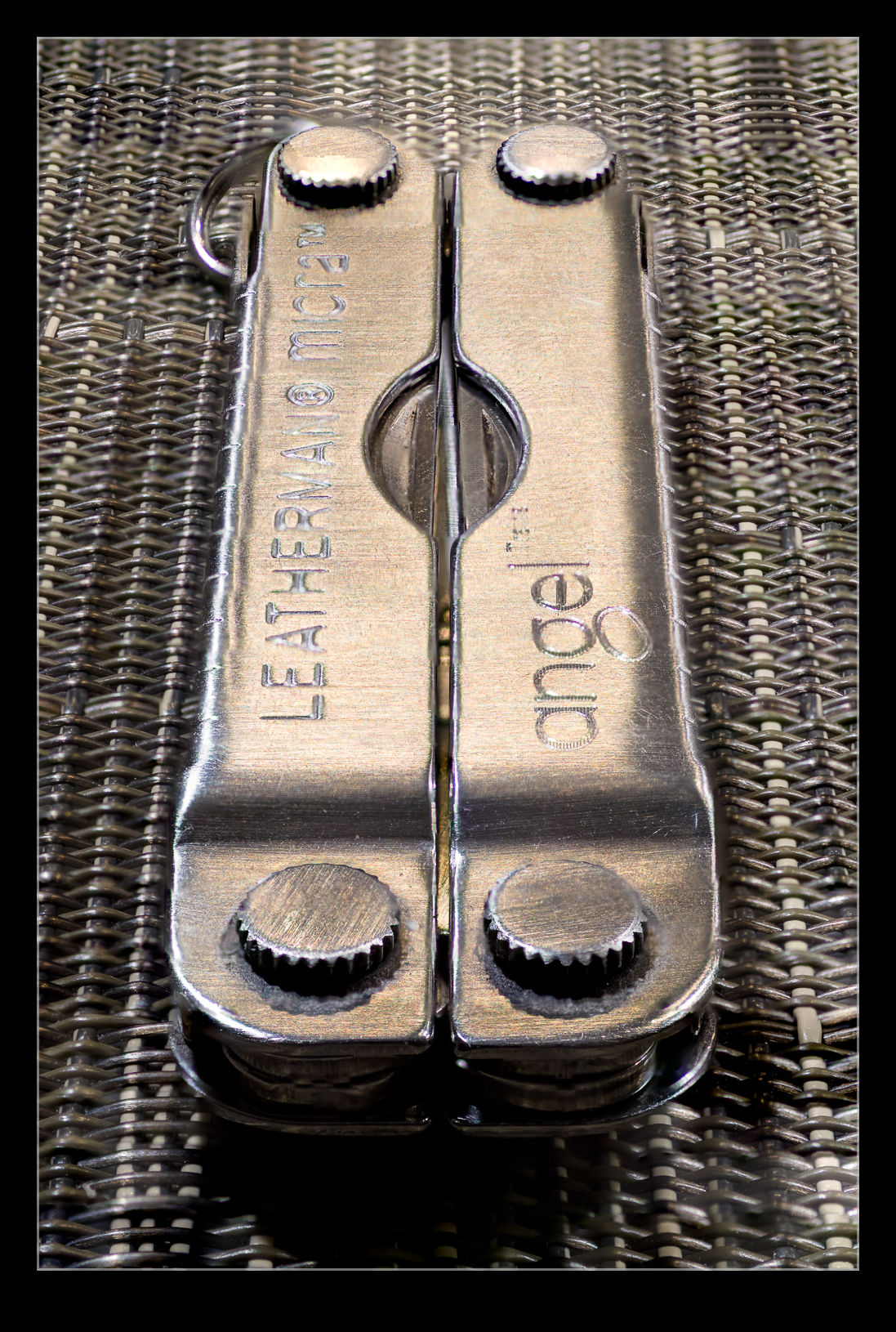
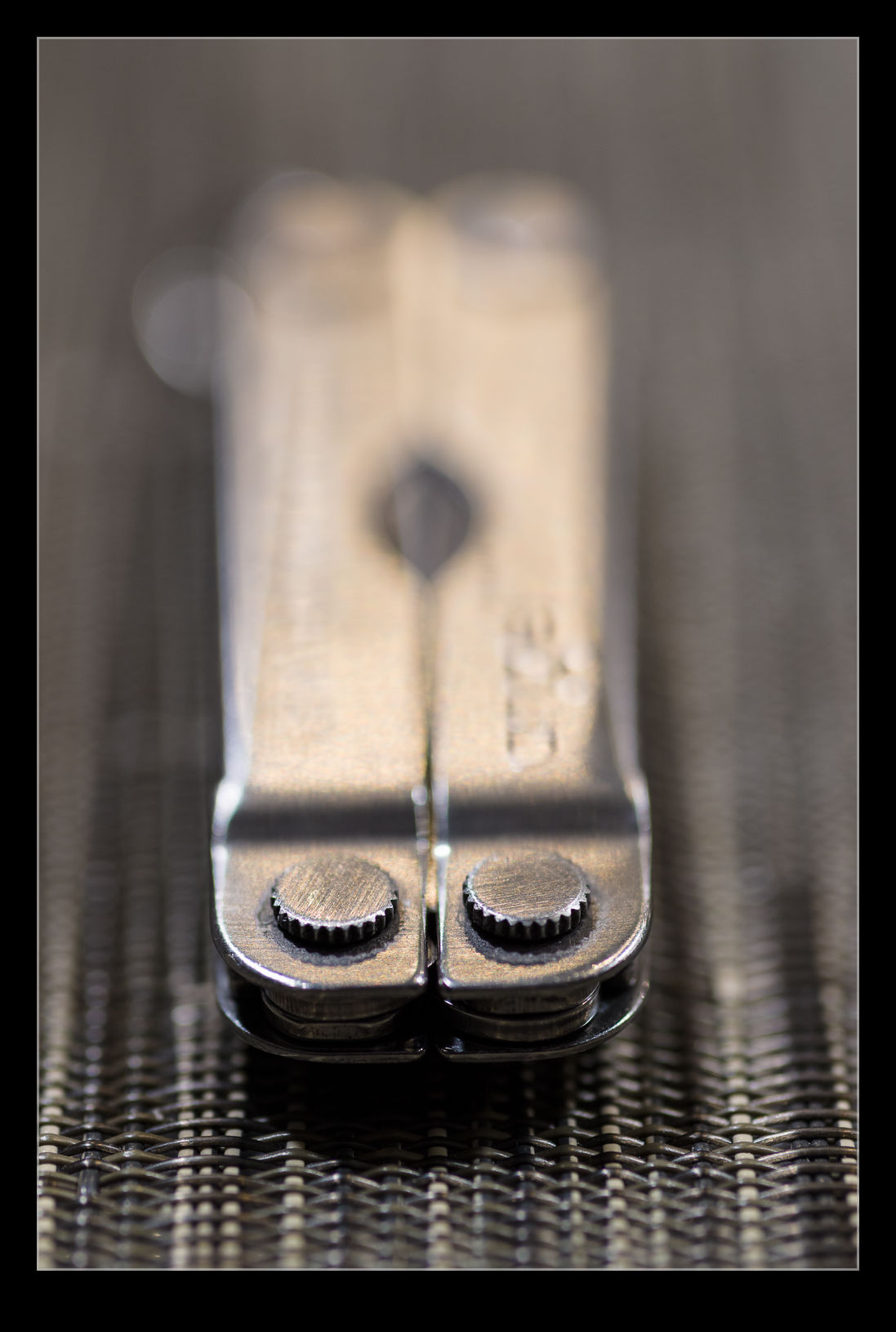
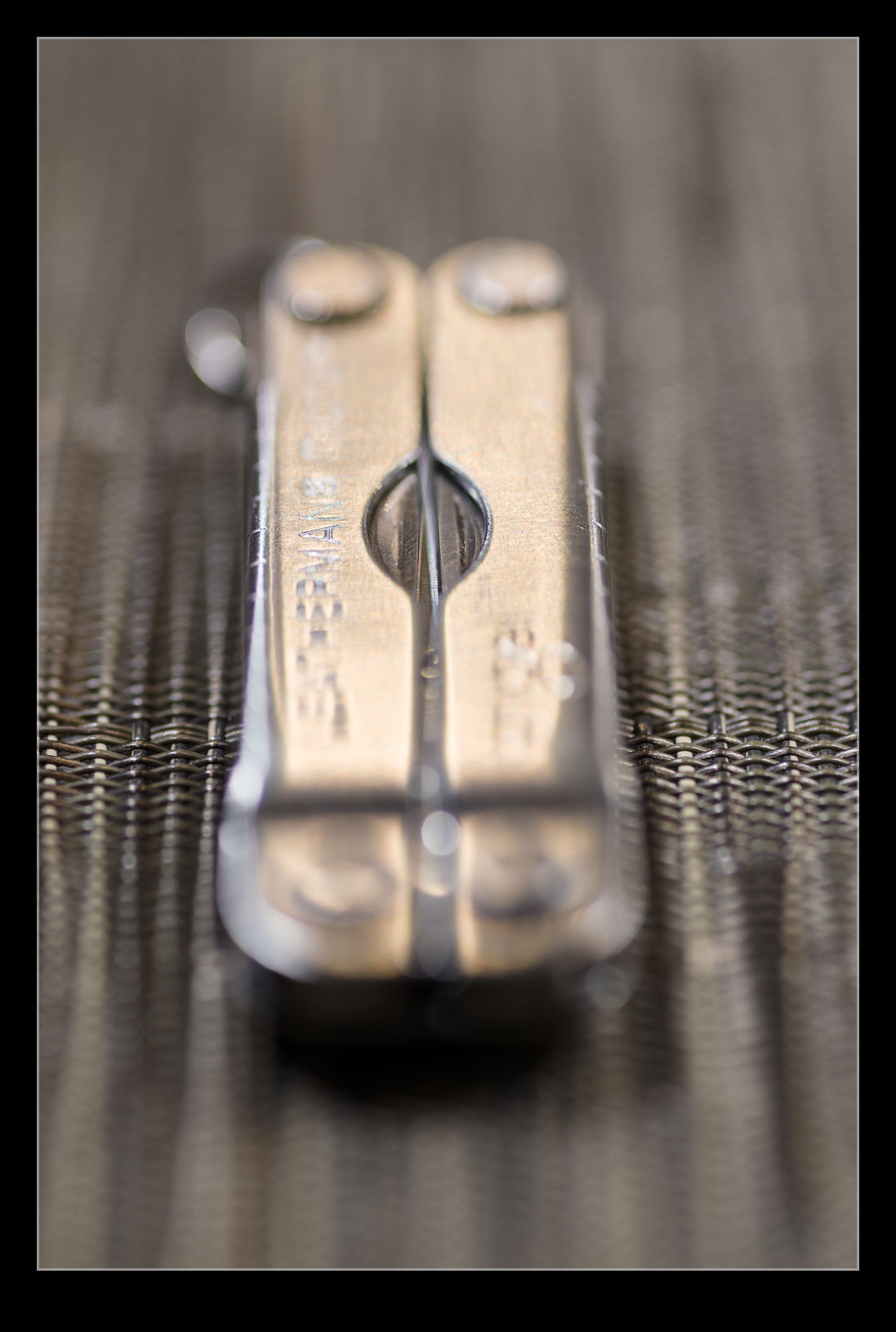
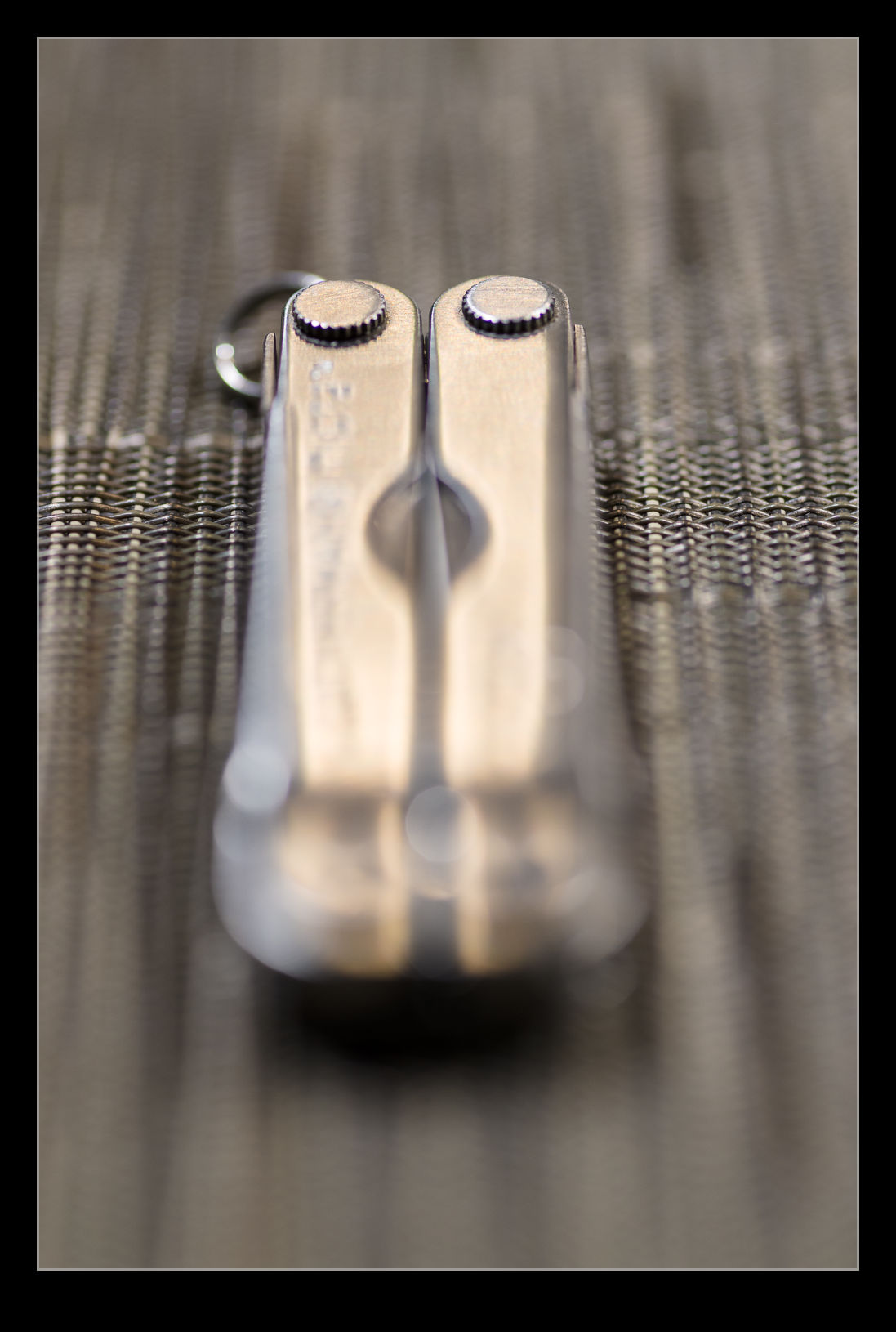
As an f/2.8 lens, when shooting macro shots, the depth of field is really shallow.  This got me thinking about trying another focus stack.  A small Leatherman seemed as good a target as anything.  I set up with manual focus, put the camera on a tripod, went to manual exposure and then shot a sequence with small changes to the position of focus for each shot.  Then it was off to Photoshop.

Photoshop did a pretty good job really.  The distortion of the areas out of focus means that the area that the subject covers can vary quite dramatically as the focus shifts backwards and forwards.  The algorithm did well getting things masked and blended.  The only bit it struggled with was at the very top where the knurled edge seemed to confuse it a bit.  The top shot is the finished effort while two others are included to show how much things are out of focus in the individual shots.

Practice Panning to Make it Different at BFI

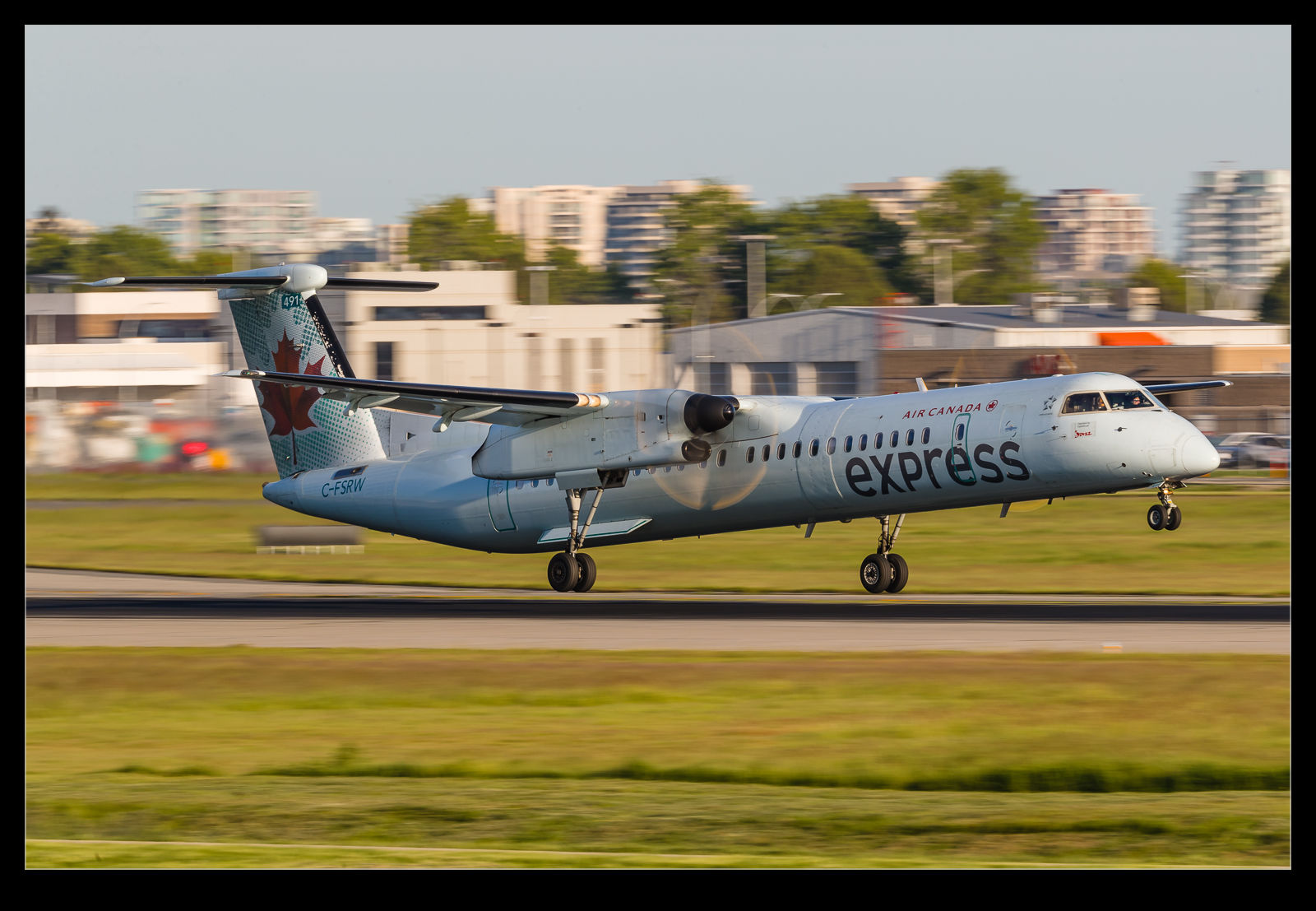
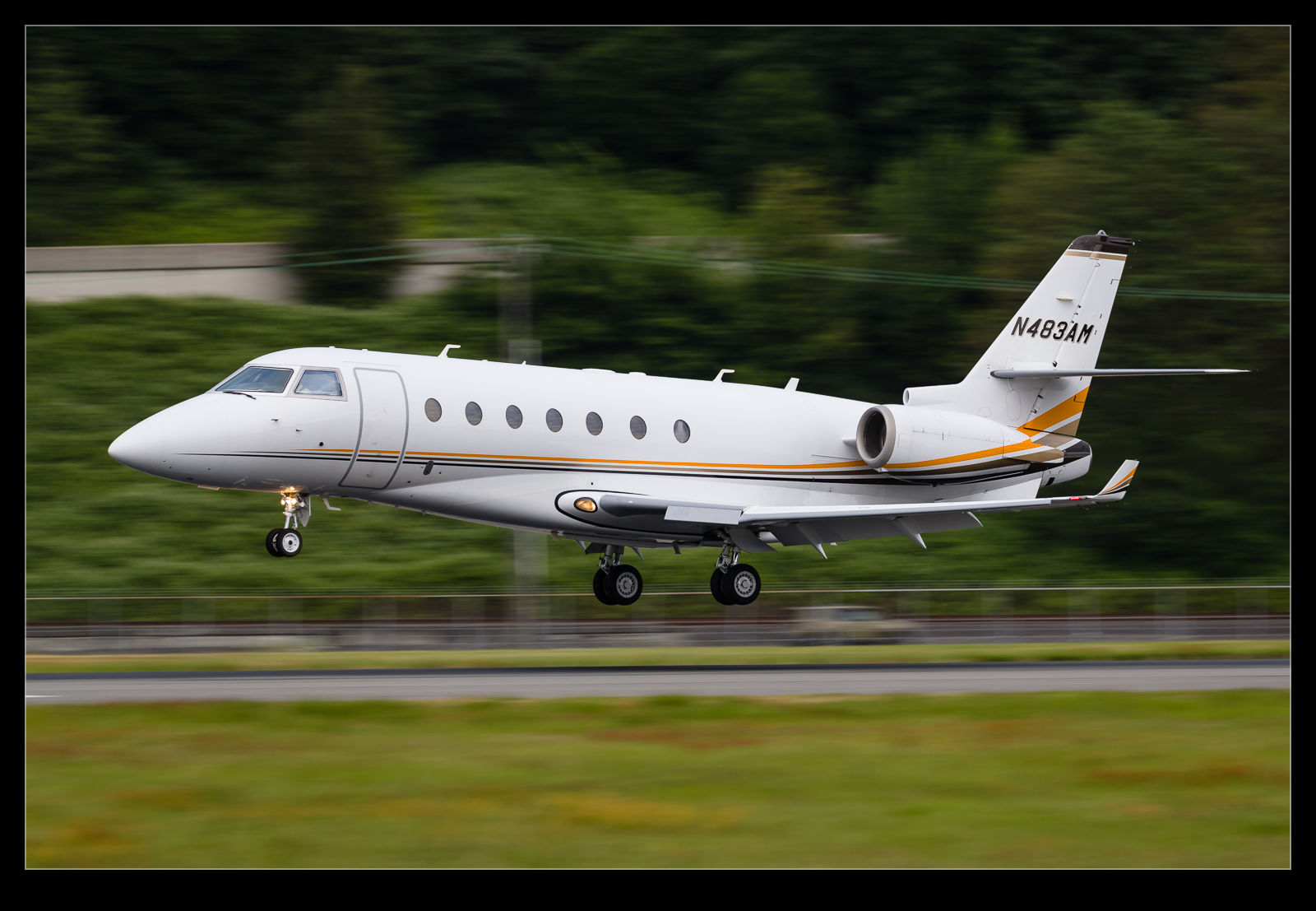
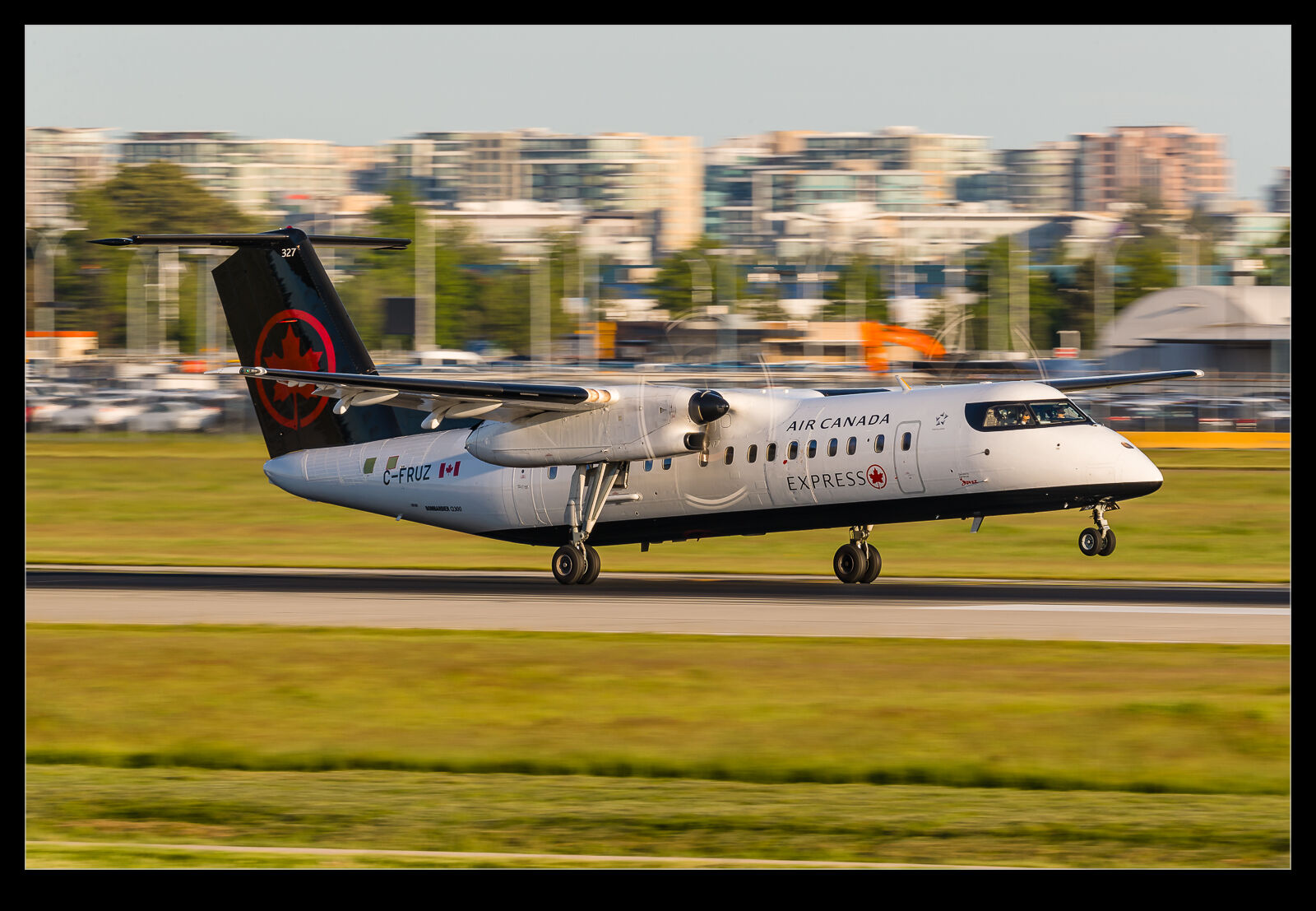
I was killing some time at Boeing Field and the light was dropping fast.  There was a variety of traffic inbound but nothing that counted as terribly unusual and not, therefore, something I desperately cared about getting a good shot with.  As a result, I decided to play around with low shutter speeds to see how it changed the look of the shots at a familiar location, to see how the sharpness varied across the airframe and to see just how badly may panning skills have degraded.  Needless to say, the results were pretty mixed.  The worst of the lot will clearly never see the light of day but here you can see some of the shots that I was okay with.  The conclusion from the output is that I should go a bit lower in shutter speed to increase the sense of speed.


Training a Tree

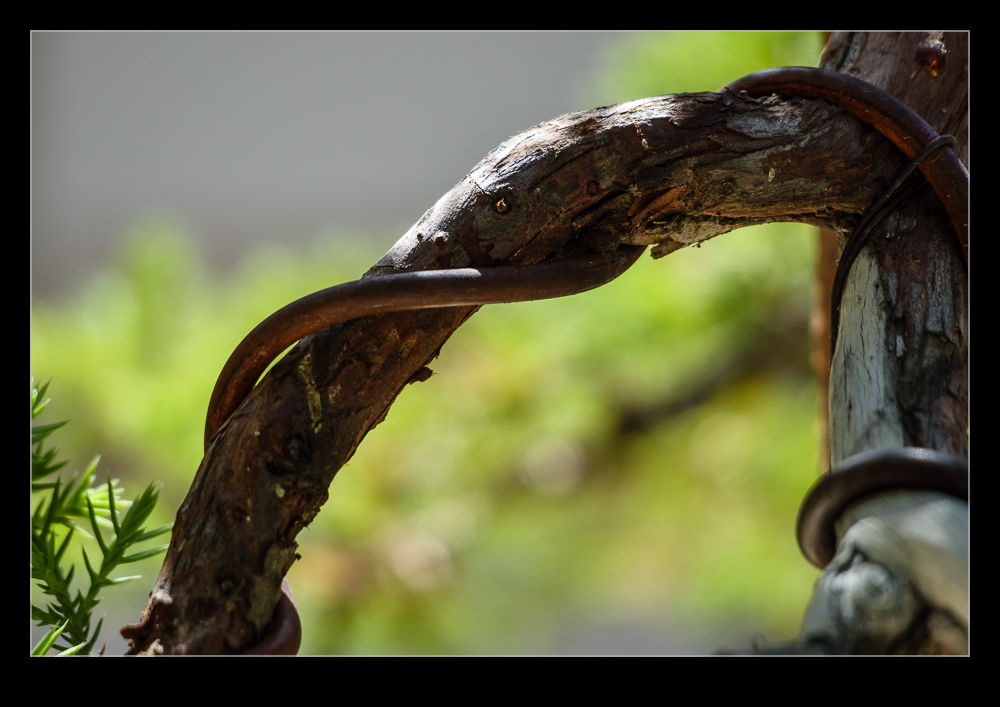
I have seen full sized trees being trained or supported with structures put in place to keep their growth where intended.  I had never thought about it being applied to bonsai though.  However, while trimming is a key part of shaping a bonsai, there are more direct approaches like wiring along branches to keep them going as intended.  A close look at some of the exhibits at the Pacific Bonsai Museum showed how this was done.  The clever bit was that these additions were not so conspicuous and didn’t ruin the appearance of the tree.

Blending to Remove Traffic

During a previous visit to Vancouver, I experimented to blending images of the same scene to remove objects I didn’t want included.  When photographing the bridge at Deception Pass, I decided to have another go at this.  The bridge was very interesting but I found the traffic on the bridge to be a distraction.  Looking at some of the shots afterwards, it wasn’t as bad as I thought at the time but, even so, I decided to try processing the shots.

This was the same approach as before.  Load all of the images into Photoshop using the Statistics function and use Median to average things out and hopefully remove the items that I didn’t want to appear.  It seemed to work pretty well.  The top shot has the output while the one below is one of the input shots cropped in along with the final result to show what was removed.

My First Attempt at Focus Stacking

I first read about focus stacking a long time ago and I have been meaning to try it for ages.  The premise is to take a series of shots with the focus set in different positions throughout the scene and then to use software to blend the images together to create on image with focus all the way through the shot.  This seemed like a simple thing to have a try with but I never got around to having a go.  Then I came across a situation that looked like it might be a good example to try.

I was visiting a model show at the Museum of Flight.  I was taking a few photos of some of the more expertly crafted models on display.  I was shooting with a longer lens and using a relatively small aperture to try and minimize the shallow depth of field that you get when shooting small objects close up.  I decided to shoot a model of a Fairey Gannet and the shallow depth of field triggered something in the deep recesses of my brain about focus stacking.  Of course, I had not planned for this so no tripod and just an effort to get focus on different parts of the model without moving the camera too much.

I took the shots and got on with my visit.  When I got home, I almost forgot about the stacking experiment but, fortunately, I did remember.  I exported the images to Photoshop as layers of the same shot.  Then, since they were hand held, I did an Auto-Align action to get them in place.  After that, Auto-Blend was selected.  It seemed to realize that they were a blend stack rather than a panorama – quite clever – and the software quickly did its thing.  Despite not taking too many shots and do it all hand held, the result came out pretty well.  The top shot is the finished product while the lower two show the extremes of the focus range for the original shots.  If I had managed a shot focused right on the back of the fin, the result may have been a bit better still.

Bridge at Hecata Head

Highway 101 passes Hecata Head and crosses a river before entering a tunnel through the cliffs.  The bridge is a pretty elegant structure.  Unfortunately, winter is not a good time to try and photograph it.  It is tucked in amongst the hills and the sun will only be on it when in the west and probably only in the middle of summer when it gets a lot further north.  I had to work with what we had in the shade.  Playing around with exposures and working with some HDR processing did allow me to bring a bit more punch to the shots which I felt represented more of what I actually saw while I was there.