Tag Archives: technique

Night flight

A recent flight home meant an arrival into Midway a while after the sun had set.  I had been taking some pictures out of the window as we headed back across the country and decided to try my luck after dark.  I had thought about trying out some auto ISO shots as I described in a previous post.  However, since I was shooting night scenes, the camera does its best to try and make things look properly exposed and this is not what you need.  Instead, I had to manually set the ISO to a higher number and then drop the exposure compensation to between -2 and -3.

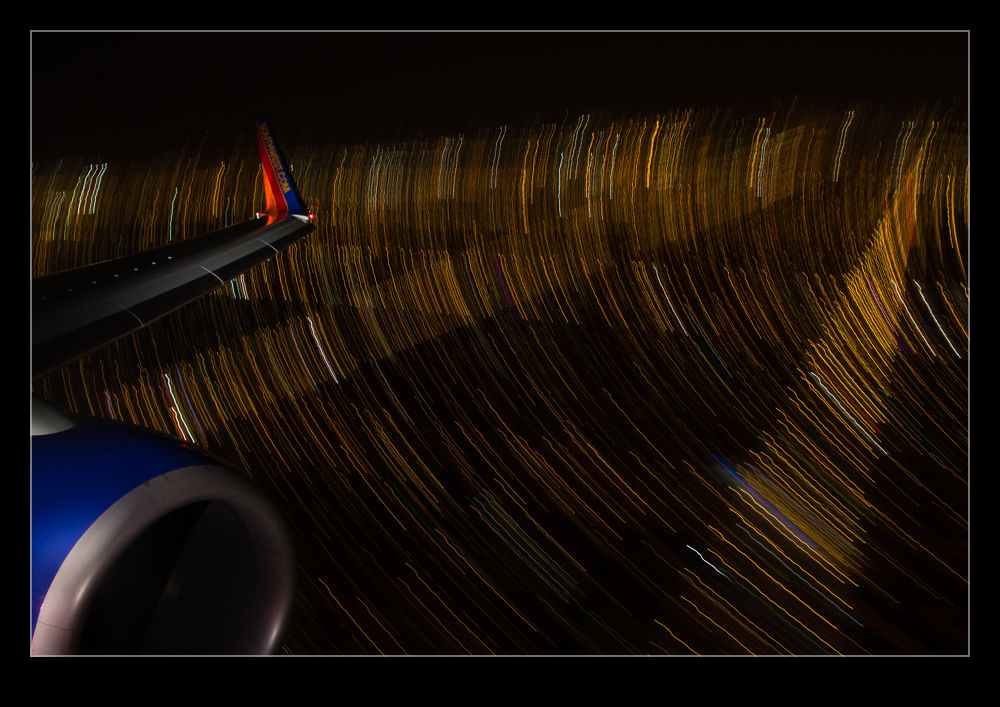
The shots came out okay but they weren’t terribly interesting.  However, as we got lower, I decided to go for something a bit more interesting and slowed the shutter speed down dramatically.  I braced the camera against the window frame and decided to see what sort of light trails I could get.  The exposures were a couple of seconds or more so this is rather tricky.  While the background is blurred deliberately, I had the top of the engine and the winglet in for reference.  Avoiding blurring them was more hit and miss.

I tried a bunch of shots and was pleased with the number that came out well.  However, the effect only seems to work in a couple of situations.  One is a turn.  This puts more ground lights in the frame and turns everything into a nice curve.  The other is when you are very low at which point everything is moving past you close and fast.  I might try this again before too long but will have to ponder what might improve things.  One technique issue I was pleased with was remembering to turn off image stabilization.  With long exposures, it causes the image to wander so, when bracing, it actually makes things worse.  Unlike me to remember that first time out but sometimes I do get lucky!

Playing with Noise Reduction

One of the biggest developments that there has been in digital imaging in recent years has been the improvement of performance in low light.  A few years ago, it was hard to get a decent image at above ISO400 and much post processing work was required to try and make the images workable.  Plug-ins for noise reduction were very popular.  However, the camera manufacturers have been very aggressive in developing chips and processors that allow shooting at ISO levels that would have been unthinkable a while back.  You hear of cameras being perfectly acceptable at ISO6400 and above.

My cameras are not the newest on the market but there are certainly not slouches in low light.  However, I have never been terribly happy with the performance at high ISO settings with the image breaking up a bit when viewed up close.  This is where I have to admit that I can be a complete idiot sometimes.

I shoot RAW all of the time and then process the images in Lightroom.  I have created some presets of development settings that I apply each time I import an image and which then acts as the starting point for any additional editing.  This is where my problem lies and why it has taken me so long to realize it I can’t imagine.  Anyway, enough of the self-flagellation and on with the topic.

The problem lies in the Detail section of the Develop module.  This is where sharpening and noise reduction are applied.  I have some basic settings I start with here and, when I was importing shots taken at high ISO settings, I was not changing them.  I would play with the noise reduction but things still didn’t look right.  The problem was, of course, the sharpening.  The basic setting I had entered was sharpening far too much for the ISO setting and was causing some odd breakup of the image.  I finally realized this one morning while lying in bed – I have no idea why I was thinking of this but it suddenly came to me.

I got up and opened some high ISO images and went to the detail area.  I zeroed out the sharpening and the noise reduction.  Everything looked awful.  Then I brought back the noise reduction and things suddenly started looking a lot better.  When I was happy with the noise, it was time to bring back some sharpening.  Things were a little soft after the noise was taken out so the sharpening brought back a bit of punch to the image.  A tweak on the amount and opening up the radius a bit made things look good.  Then a more aggressive level of masking of the sharpening and suddenly the image was looking way better than before.

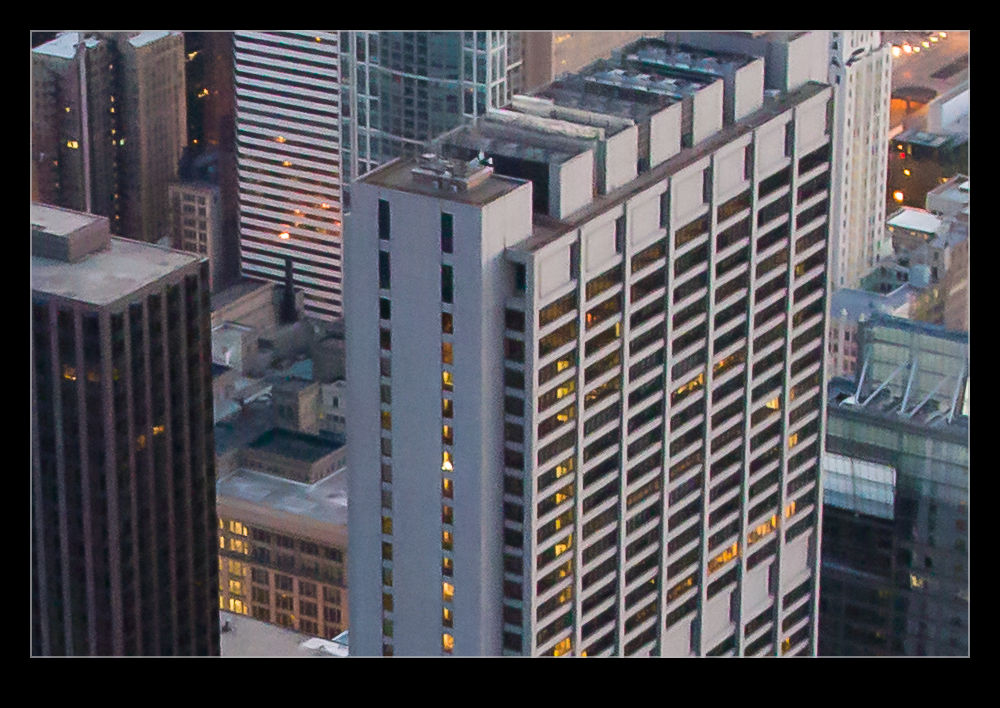
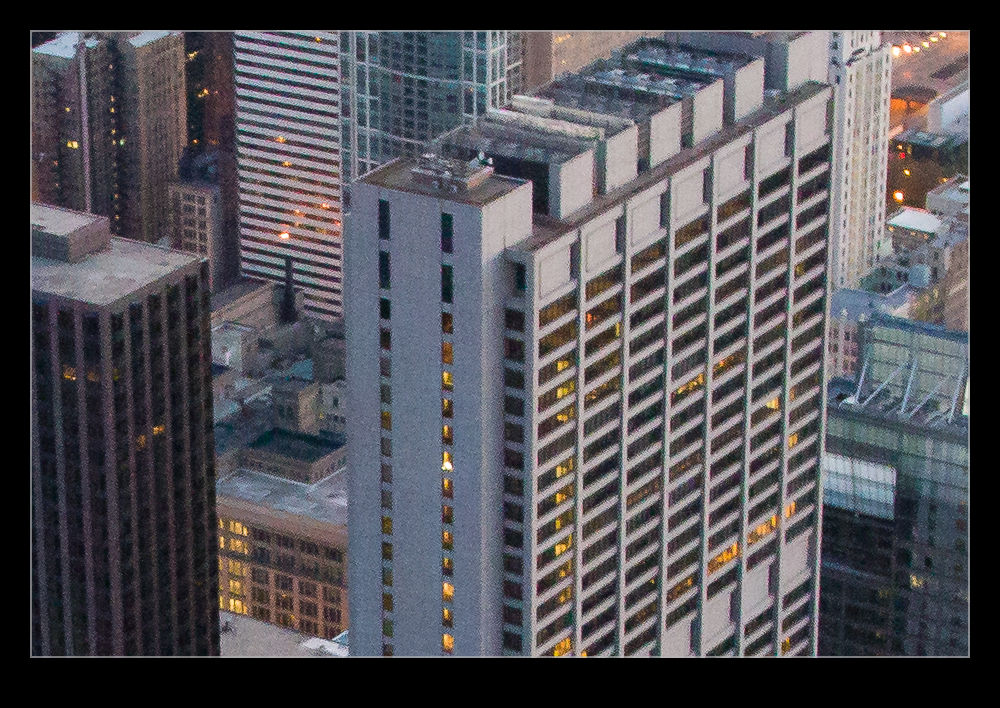
When I was happy with things, I saved a new preset that was just sharpening and noise reduction and labeled it as High ISO Detail.  Now I can apply it to any images that need it and be in a far better starting position for further processing.  Each image will require its own approach if I am going to make more effort on post processing but I will now be starting from a far cleaner place.  The samples above are comparison of approximately 100% crops with my original settings and the revised approach.  Hopefully you can see the difference.  It might be annoying to realize you have been missing something for so long but at least I finally worked it out!

Auto ISO

There is a function built in to my cameras that, until recently, I had never bothered to use.  It hadn’t been something that immediately grabbed my interest and so I had forgotten about it to some extent.  Therefore, when it could have been useful to me, I had not thought about how to make good use of it.  This is Automatic ISO.  This is an interesting idea when you start to think about it in more detail and one that might cause some to react in strange ways.

Many photographers will react poorly to the camera doing anything automatically.  They will say how they like to have control.  Then they will totally contradict themselves by telling you that they always shoot in aperture priority mode, totally ignoring the fact that the camera set the shutter speed for them in this mode “automatically”!  Therefore, for anyone reading (is anyone reading?) who jumps to the “I am against automatic anything” approach, why don’t you go and analyze exactly how your camera works and you use it.  If you are totally manual in everything you set, congratulations.  You obviously don’t need to read this anyway.

For anyone else who is a little more open-minded and who hasn’t played with this capability, let me explain why I tried it.  Plenty of times I have the camera in aperture priority in a situation where it is quite dark.  I know this is not clever of me but I often notice that the shutter speed is low because I can hear that it is!  In situations like this I might then tweak the ISO setting to try and bring things back into a range I am comfortable with.  My technique for this is rolling the dial a bit and seeing what I get.  Not clever analysis by any stretch.

Recently I was shooting a job in natural light (or lack thereof) that started long before the sun came up.  I knew I was going to be using some pretty high ISO settings to get useable shots and this is when the auto ISO function came to mind.  I went to manual mode, set the aperture and shutter speed I wanted and switched ISO to A.  Now, it worked out what was needed to get the exposure right.  As the light conditions improved, the ISO got dialed down but I didn’t have to do anything other than find what I wanted to shoot, compose and get on with it.  The only limitation I had was that I don’t know how (or even if) you can add exposure compensation in this situation.  Something for me to research – maybe even take the dreaded step of reading the manual!

The results were very satisfactory.  I got the images I wanted and didn’t have to constantly wonder about whether my ISO setting was right.  Obviously, this is not a solution for every situation but it does provide a good approach in some conditions.  Maybe you will have a time when it is worth a go to.

Lightning Up the Mood

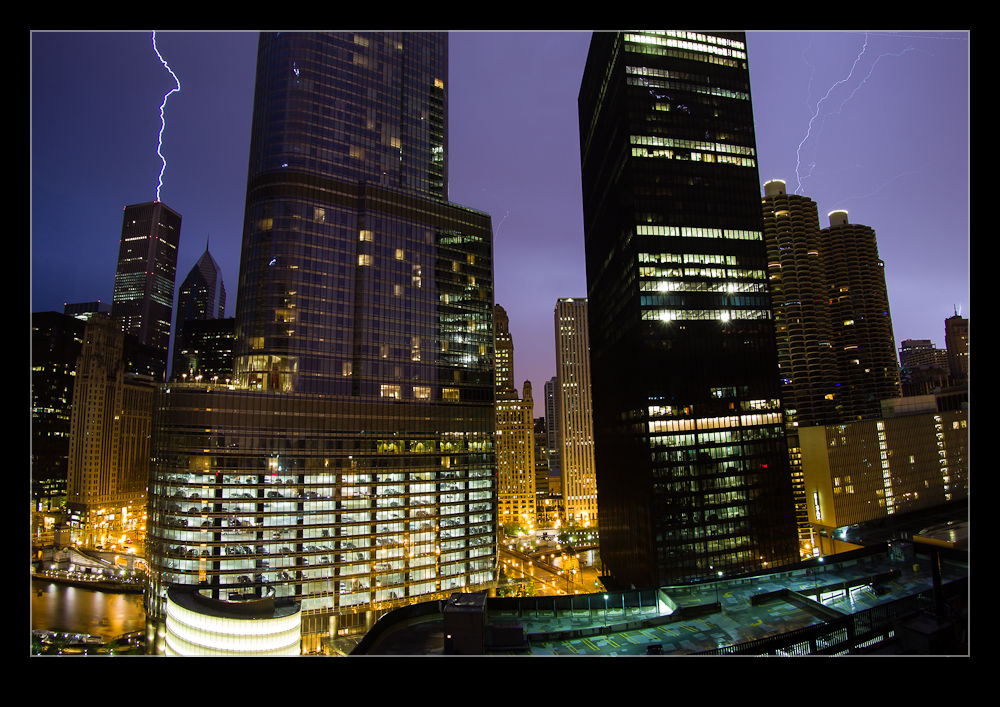
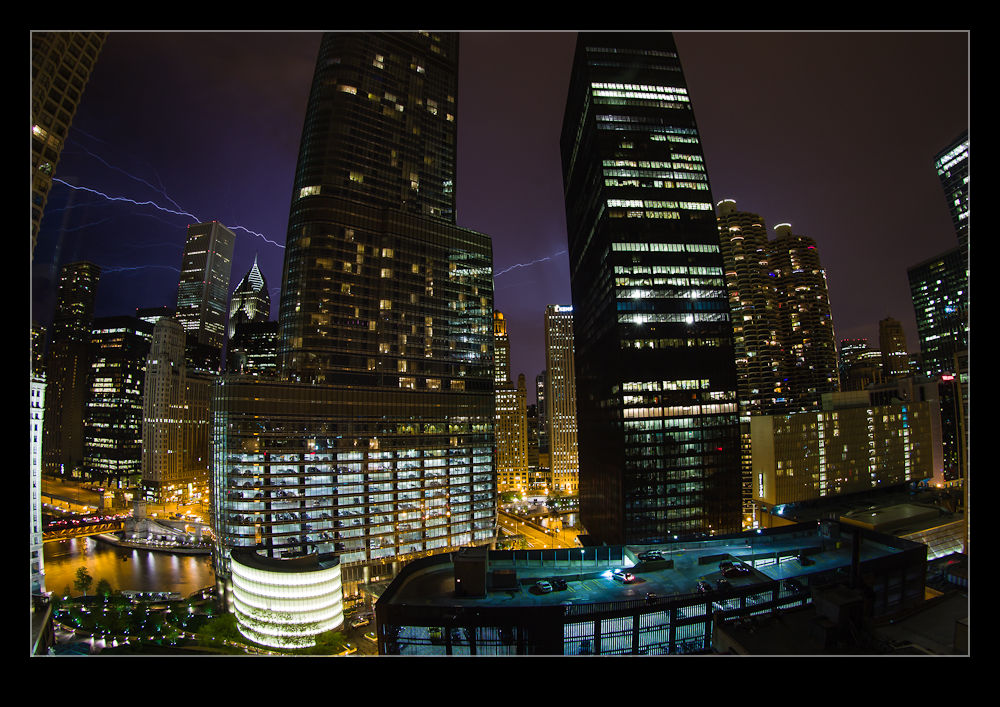
A little night shooting today and a confession about my role in what was going on. We moved to Chicago eight years ago. When we first got here, we were amazed by the storms we got. There seemed to be lots of them and they were really pretty spectacular. When looking out of the window we would see lightning all the time. Sometimes the storms went on for so long it was hard to believe that it was a storm and not someone planting an emergency vehicle outside the window – a neat trick at the height of our place!

Strangely, for the last few years, we have had very few storms. They seem to miss the city and go either north or south of us. Some people are getting a lot of them but not us. This was a bit disappointing to me because I love storms! They are so dramatic and very cool. They are, of course, rather destructive but watching them is exciting. This week we got a good storm. The sky was alive and it was a lot of fun. It was also rather late and I needed to go to bed. Consequently, I cheated.

My 17-40mm lens is not enough to cover the full view south of us so I went with the fish-eye zoom instead. I set the camera up on the tripod, added the intervalometer and basically set it on its way. The gap between the shutter closing and the trigger for the next shot was just long enough to allow the file to write out. Then I went to bed. The result is a LOT of pictures with almost all of them of no use. However, it did capture a couple of shots that I really like. I even tried using the new lens correction facility in Photoshop CS6. Our view is a little less impressive since the Trump Tower blocked a big chunk of the skyline but it still gives a nice look to the storm. Hope you like them too.

Changed Workflow

I have changed my approach to editing my pictures quite a bit recently.  This has served two purposes.  The first is to make better use of my storage requirements and the second is to focus more quickly on the better images.  Sadly, this has highlighted to me how I have actually missed out on some of my better work in days gone by.  Not a happy lesson to learn but a valuable one.

I never used to delete images since storage was not a problem.  I did occasionally find images that newer RAW processors could do something with.  However, to be honest that was a rare occasion and, even then, I wasn’t likely to have an outlet for that image.  However, by not getting rid of stuff, I really cluttered up what I had.  Moreover, I would scan through and find images I liked the look of and mark them as favorites.  When I would come back to them later, I would find they were a bit flawed – not sharp enough usually being the problem.  What was worse was that I would search based on ratings and so wouldn’t bring up the next shot which actually might have been almost identical but sharper!

Consequently, I had a workflow that hid the good shots and encouraged me to pick the wrong examples by mistake.  I have now changed all of this.  Part of this is driven by trying to keep storage requirements under control.  I have been shooting a lot of rotor-craft and getting good rotor blur requires low shutter speeds which often means shooting lots of frames to get a few sharp ones.  When you are being buffeted by the down-wash, no amount of good technique is going to be enough!  I do generally shoot more these days anyway so I have a lot to work through.

The first thing after downloading is to generate 100% previews of all images.  I can then set up Lightroom with one side as the full image and the other has the 100% view.  This way I can determine sharpness of the shot at the same time as seeing whether the overall image is okay, i.e. no poles across the shot or noses cut off!  I have copied a process I saw demonstrated online where I assign a job descriptor in Lightroom and then set up smart collections for that job of Picks, Not Rejects and Rejects.  I have also started separating out video clips to another smart collection.  By reviewing the Not Rejects folder, anything rejected gets automatically removed so it thins out as I go.

This certainly brings the numbers down but not always as dramatically as I would like.  I suppose I should be pleased that I am not shooting such a low percentage!  Once I have done this, I can now trust that the shots that are left are all considered usable.  Then I can go through again and weed out the obvious duplicates by picking the best of a given type.  This will really help to thin things out.  The other thing I will do (which I also tend to start as I get further through the first review) is culling those that are just not interesting.  I have come to the realization, far too late, that only the best shots are ever going to see a use somewhere (and most of them won’t either).  Therefore, a relatively uninteresting shot that is sharp and well composed might as well go in the trash unless it has something unique about it.  Most don’t!

This has resulted in me thinning down the shoot far more rapidly.  The review also includes marking as Picks those I particularly like.  Hopefully, this will make it a lot simpler to get to the good stuff in due course.  Now I am also gradually following the same process for the large selection of previous images.  Maybe I won’t have to upgrade my hard drives for quite a while with all of this space I am freeing up and the reduced rate at which I am filling space.

One footnote to all of this.  My NAS runs a backup of everything every night.  When images get deleted, they will be gone from the backup the following night.  However, before anything is deleted, it is all backed up to Blu Ray discs.  That way, nothing is truly gone forever.  However, it would require some serious effort to go back to those discs to find something that is deleted since they are gone from the Lightroom catalog.  However, they are easy to backup so why not?
What a Balls Ups

I have previously played around with time lapse videos made with an SLR, a timer release and some software linked to Lightroom to create the finished video.  I decided to go a little longer with one and make a video throughout the night, starting before sunset and finishing off once the sun had come back up again.  This did not prove to be as simple as I had hoped!

It should be pointed out that most of these problems are entirely of my doing.  First of all, I did a calculation of how many shots I thought would be necessary to complete the clip.  This was more than would fit on one of my compact flash cards.  No problem, the camera has a second slot.  It turns out that, unlike the MkIV which will switch to the second card when the first is full if you so desire, the MkIIN won’t do that.  Okay, not problem.  I shall tether it to Lightroom and download direct to the laptop.

This didn’t work.  I believe this was also my fault as the MkIIN has a firewire connection as well as the USB and the USB tethering showed up on the computer but didn’t actually do anything.  Okay, I can fix this.  I shall let it run for a long time and change the card shortly before going to bed and the new card should work through the rest of the night.  A fully charged battery and off we went to dinner.

Upon my return, I find that the camera is not shooting any more.  Foolishly, while I worked out that a 16Gb card would be fine, I didn’t remove the 8Gb card that was in there so the card was full.  I swapped the card with another one quickly and set it off.  A while later I come back to check on it and nothing is happening.  The new card is full.  I hadn’t formatted it first.  What a fool.  I also have a flat battery.  This is not going to be good.  Fortunately, the MkIIN came with the DC adapter as standard (unlike the MkIV – how tight are you Canon?) so I swapped that in, put in a fresh card and formatted it.  Then I went to bed.

This finally worked.  The remaining shots worked fine.  The result wasn’t too bad but, since it had some obvious jumps in it – the moon was traversing the scene when the gaps occur – it wasn’t usable.  However, it did teach me a bunch of thing that I now need to deal with for the second attempt.  let’s see if I can balls that up as well!